When the same contact sends multiple tickets about the same issue, merge them into a single ticket to keep the conversation centralized and avoid duplicate work.
Available on all plans.
Watch a Feature Walkthrough (single ticket merge)
Before you start
- You can only merge tickets from the same contact. The tickets must share the same email address, or share the same name and phone number.
- You can add up to 10 source tickets to a single merge.
How merging works
A merge has a source and a destination ticket. Source tickets (also called losing tickets) get merged into the destination ticket (also called the winning ticket). The ticket you start the merge from is selected as a source ticket by default, but you can uncheck it and make it the destination instead.
When you complete a merge:
- Attachments from the source tickets move to the destination ticket.
- Each source ticket moves to the last status marked as completed behavior in Manage > Statuses.
- If a source ticket has only one update, that update carries over to the destination ticket. Source tickets with more than one update don't carry their updates forward.
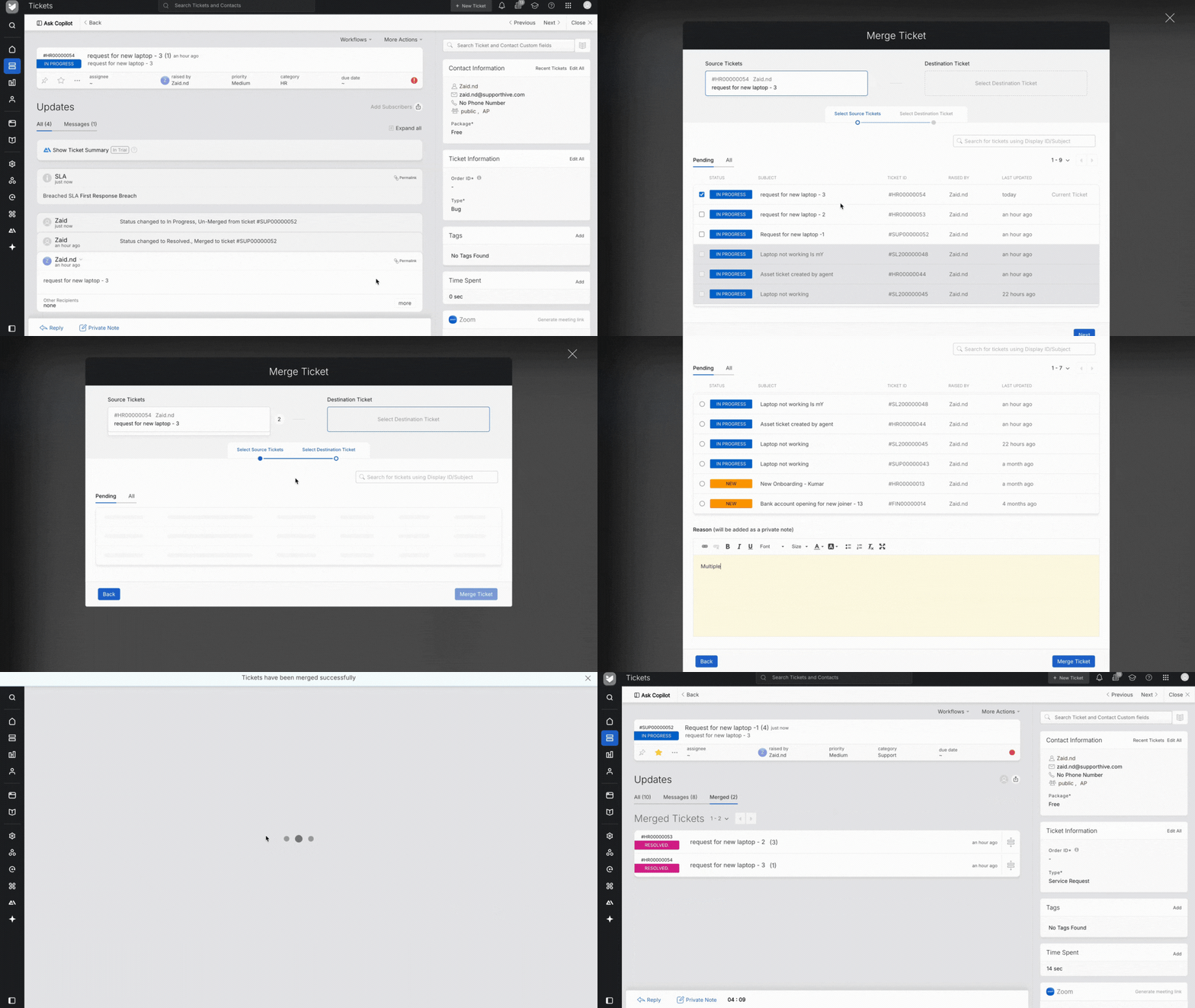
Merge tickets
- Open one of the tickets you want to merge.
- Click More Actions > Merge.
- In the Merge Ticket window, the current ticket is preselected as a source ticket. Uncheck it if you'd rather set it as the destination.
- Add up to 10 source tickets from the same contact.
- Choose a destination ticket from the eligible tickets belonging to that contact.
- Optional: add a merge note. It's added as a private note on the destination ticket, with links to each merged ticket.
- Confirm the merge.
After the merge, all merged tickets appear under the Merged tab on the destination ticket's details page.
Undo a merge
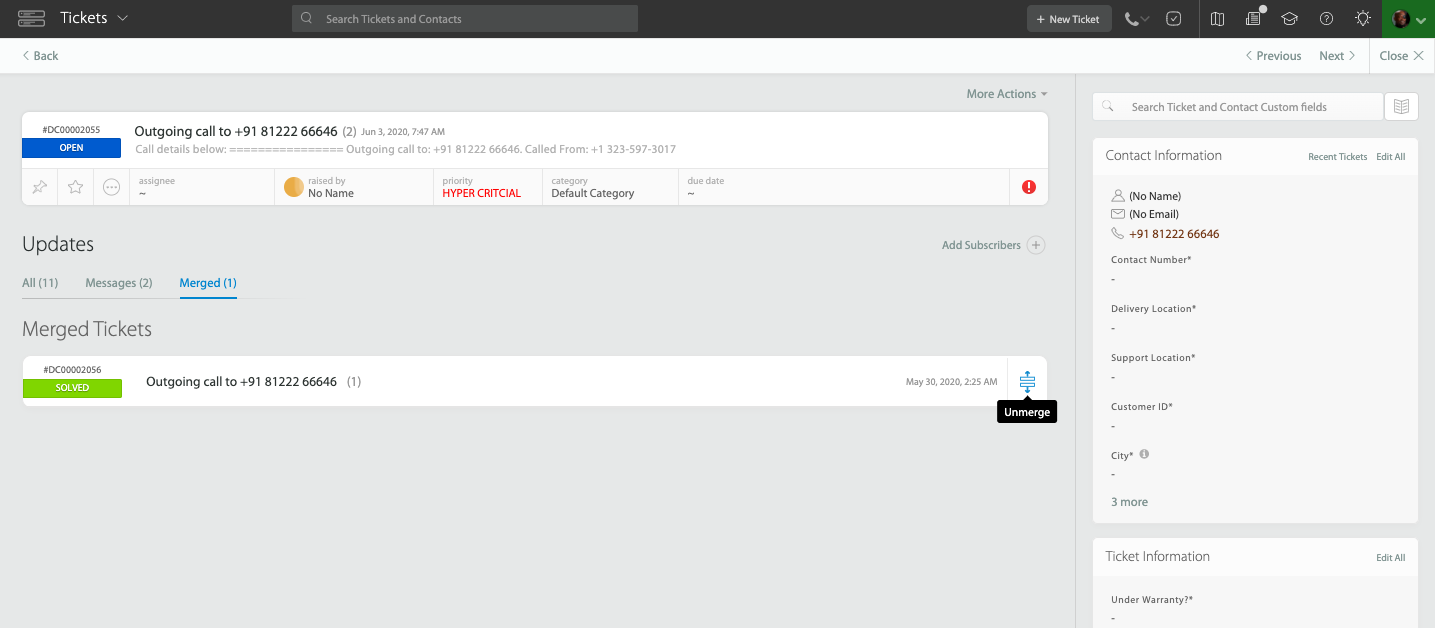
Open the Merged tab on the destination ticket and click the un-merge icon next to the ticket you want to separate back out.
Frequently asked questions
What happens to the contact on merged tickets?
If you change the contact on the destination ticket, all merged source tickets update to that contact too. You can't change a source ticket's contact on its own, and you can only change the destination ticket's contact to another email or phone number linked to that same contact. If you later un-merge a ticket, it keeps the most recently updated contact rather than reverting. See how to change ticket's contact here.
Can I merge tickets from different contacts?
No. The contacts must share the same email address, or the same name and phone number.
Continue reading