Reply from the Conversations workspace to communicate with a contact in HappyFox Messaging. Messages and attachments remain in the conversation history.
Send a reply
Your role needs Add reply via agent panel permission for an active conversation you can access.
- Open the conversation and read the contact's latest message and relevant history.
- Check the owner and real-time agent activity before preparing a response.
- Enter your reply in the composer, review it, and select the send button.
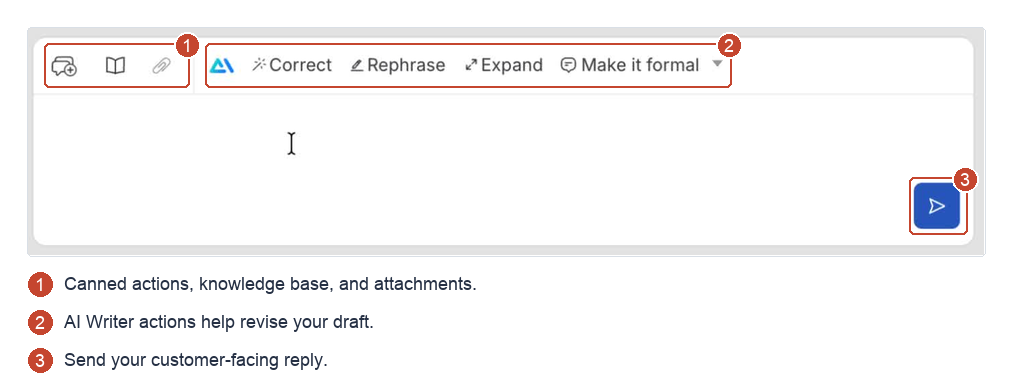
Use canned actions, knowledge base articles, and AI Writer from the reply toolbar. AI Writer actions include Correct, Rephrase, Expand, and Make it formal; review the result before sending.
Exchange attachments
Select the attachment button (paperclip icon) in the reply toolbar, choose the file, and check it before sending. Contacts can also send attachments from the widget.
Check delivery
A single tick means Sent; a double tick means Delivered to the contact's widget. Delivery does not confirm that the message was read.
A message can remain Sent while the contact is inactive. If they return while it remains available for delivery, the indicator updates after delivery. Avoid sending the same response again solely because it is still marked Sent.
If you cannot continue
For an ended conversation, use Convert to Ticket for email follow-up. For an active exchange that cannot send or deliver messages, see Why can’t I reply or why is my message still marked Sent?.
If an attachment is rejected, contact HappyFox Support with the file's type, size, and error message.