Open the Conversations tab in Help Desk to handle HappyFox Messaging requests. The list is on the left, the selected exchange is in the middle, and contact and support details are on the right.
Find a conversation
- Choose a queue: You for conversations assigned to you, Unassigned for requests without an owner, or All for conversations within your access.
- Use Search conversations to narrow the list.
- Select a conversation to open its messages and details.
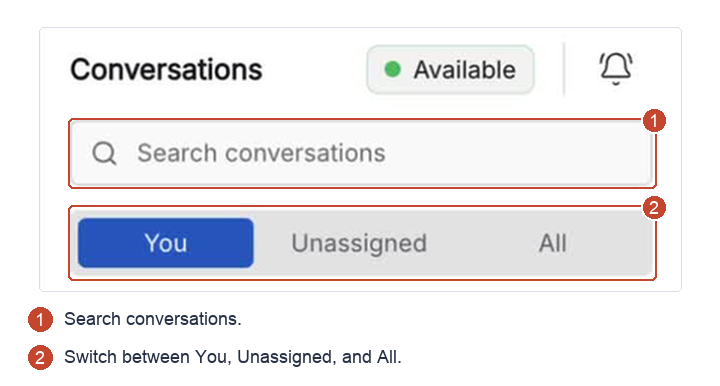
All follows your category access. To find these conversations on the Help Desk Tickets page, use Ticket Source → is → Web Messaging.
Scroll up for earlier messages. New messages appear in real time. If the contact began with ChatBot, its transcript is included at handoff.
See who is working on a conversation
Agents can see in real time who is viewing the conversation and who is preparing a reply. Check this activity before drafting another response to avoid duplicate work.
Assignment identifies the owner; activity shows who is working on the exchange now. Accepting an incoming request assigns the conversation to that agent.
Keep track across tabs and sign-ins
Messages and read state synchronize across open Help Desk tabs. Reading a conversation in one tab updates its read state in the others. Unread conversations remain unread across sign-ins and can appear in the pinned conversation bar when you return.
Agents still start Unavailable after signing in. Use Set yourself Available or Unavailable for Messaging when ready to receive requests.
Understand empty states
No conversations means the selected queue and search have no matching items. No conversation selected means you have not opened an item from the list.
Clear the search, try another queue, or follow Why is my Conversations list empty? if expected conversations remain missing.