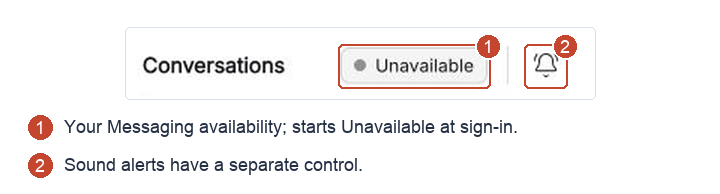
Set your HappyFox Messaging status to Available when ready to receive requests and Unavailable when stepping away. Sound alerts have a separate control.
Set your availability
Agents start Unavailable after signing in.
- Open the Conversations tab in Help Desk.
- Select your Unavailable status above the list.
- Choose Become available.
With the required category membership and permissions, you can now receive incoming requests. Use the same status control to become Unavailable when needed.
Going Unavailable stops incoming-request and new-message alerts, including sounds. It does not reassign conversations you already own, so arrange coverage for active requests before stepping away.
Understand the alerts
An Incoming Chat alert has Accept and Ignore actions. Accepting opens the conversation and assigns it to you. Ignoring dismisses that alert for you only.
For ongoing conversations, a new contact message can produce a toast and sound when you are not working in that conversation. Selecting the toast opens it; the browser tab title also indicates new activity. These notifications apply to your assigned conversations and eligible unassigned conversations.
Control sound
Use Mute notification sound alerts beside your availability status to turn off notification audio. Use the same control to enable it again.
Muting sound keeps you Available. Use Unavailable to stop receiving Messaging alerts, or Ignore to dismiss just one incoming request.
Messaging availability is separate from Help Desk auto-assignment availability. See Why am I not receiving conversation alerts or hearing notification sounds? if expected alerts or sound are missing.