Overview
Monday.com is a versatile project management tool designed to help teams collaborate, track, and manage their work. With the HappyFox - Monday.com integration, you can create a new Monday.com item or link a help desk ticket to an existing item directly from the HappyFox help desk interface. This seamless, one-to-one integration ensures that your project and support teams stay in sync, making it easier to manage customer-related tasks effectively.
HappyFox integration with Monday.com allows your agents to:
-
Create a new item in Monday.com directly from a ticket and link it.
-
Link an existing item to a ticket.
-
Sync updates from linked Monday.com items to HappyFox Help Desk tickets.
-
Sync ticket updates from HappyFox Help Desk to linked Monday.com items.
Applicable Plans: ✔ Pro ✔ Enterprise Pro ✔ All Unlimited agents plan
Configuring HappyFox to connect to Monday.com:
-
Log in to HappyFox and navigate to the “Apps” module.
-
Either search for “Monday.com” or navigate to the “Project Management” category to find the Monday.com app.
-
Click on the Monday.com tile and select “Install.”

-
To integrate your Monday.com account with HappyFox Help Desk, enter your API Key from Monday.com (click on your profile icon → Administration → API → API tab).

Enable Two Way Sync:
To enable two way sync between HappyFox help desk and Monday.com,
- Create an automation in Monday.com(Integrate→ Webhooks)
- Select the template "When a new update posted, send a webhook"
- Enter the webhook URL from HappyFox Help desk ( Apps > Monday.com> Manage)
- Click Connect.

Configuring Sync Settings for Monday.com inside HappyFox Help desk:
Once Monday.com is installed, the various synchronization settings can be configured.
- Navigate to the Monday.com app inside HappyFox and click on “Manage”.
- Sync HappyFox ticket updates and Monday.com item updates across both platforms. These synchronizations will apply to the Monday.com items linked to a HappyFox ticket.
- Sync updates from HappyFox to monday.com: Enabling this toggle will push HappyFox ticket replies and Private notes as "Item Updates inside Monday.com.
- Sync updates from monday.com to HappyFox: Enabling this toggle will push "Item Updates" as Monday.com Item Update inside HappyFox.
- You can also set the default values for these synchronization options using the "When a new item is created or linked" section. These toggles will merely act as default values for the sync options as you create/link tasks.

Create monday.com Item:
After setting up the Monday.com integration, a new component will appear in the right pane of the incident detail page in HappyFox Helpdesk. This section will display relevant information, as shown in the screenshot below, when no Monday.com item is linked to the incident.

-
To create a new item in Monday.com from the HappyFox Helpdesk, click on the "Create" link.
- Select the workspace, board, and group where you want to create the Monday.com item
-
You can control whether updates between HappyFox Helpdesk and Monday.com should sync by enabling or disabling the Sync Options toggle
-
Click Create Item.

-
Once the item is created or linked, the value from the custom field in the Monday.com item will be visible in the right pane of the HappyFox ticket. Any new custom field added to the Monday.com item, or any update to an existing custom field, will be automatically synced.
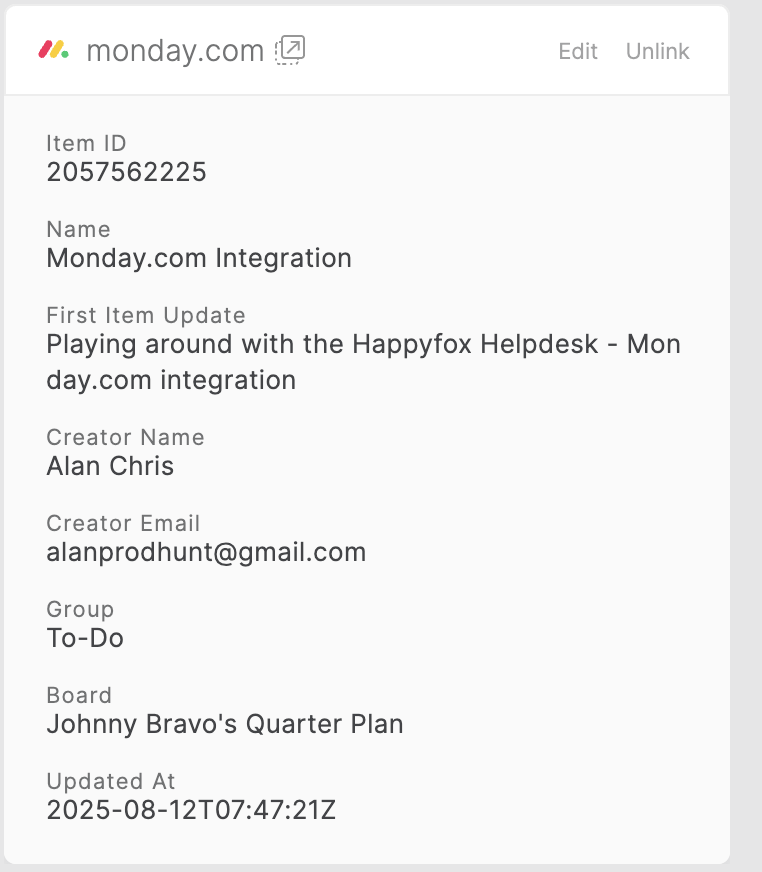
Link an existing item from monday.com:
To link an existing Monday.com item to a HappyFox help desk ticket:
-
Click the “Link” text button.
-
Paste the Monday.com item URL.
-
Click the "Link Item" button.

Unlink an existing item from monday.com:
To unlink the Monday.com item from a HappyFox help desk ticket:
-
Click the “Unlink” text button.
-
Confirm by clicking the "Unlink Item" button.

Ticket updates synced as item updates in Monday.com
When two-way sync is enabled between HappyFox Helpdesk and Monday.com, private notes, agent replies, and contact replies from the Helpdesk ticket will be synced as item updates in the linked Monday.com task.

Updates in Monday.com synced as Monday.com Item Update inside HappyFox:
When the two way sync is enabled between HappyFox Help Desk and Monday.com, task updates from the linked Monday.com item will appear as Monday.com Item Update inside HappyFox.

Frequently Asked Question
-
What happens if I unlink a Monday.com item from a HappyFox ticket?
Unlinking a Monday.com item from a HappyFox ticket will stop any further synchronization between the two. Any updates made on either platform will no longer be reflected in the other. However, the previous updates will remain in both systems.
- Can I enable two-way sync for some tickets while keeping it disabled for others?
Yes, you can control two-way synchronization at the ticket level. Within the Monday.com section of a HappyFox ticket, you can enable or disable the Sync Options toggle to decide whether updates should sync between the two platforms for that specific ticket.
- What types of updates are synced between HappyFox Helpdesk and Monday.com?
When two-way sync is enabled:
From HappyFox to Monday.com: Agent replies, contact replies, and private notes are synced as Item Updates in Monday.com.
From Monday.com to HappyFox: Task updates from the linked Monday.com item appear as Monday.com Item Updates in HappyFox.
- How do I disable two-way sync for my entire HappyFox account?
To disable two-way synchronization for all tickets, navigate to Apps > Monday.com > Manage inside HappyFox and turn off the Sync Updates toggles. This will prevent any updates from syncing between HappyFox and Monday.com globally.