Available on all plans
The Home page is the first thing a contact sees when they open your Support Center. It's a settings form, not a visual page builder, so there's no drag-and-drop layout or live preview. You set the heading, choose what navigation links show up, and upload a hero image, then check the live portal to see the result.
Permission needed: "Manage Support Center settings" (to access the module) and "Customize look and feel of Support Center pages" (to use this page), both grantable to any role. Account admins have both by default.
Steps:
- Log in to your HappyFox Agent Portal.
- Go to Main Menu > Support Center > Pages > Home.
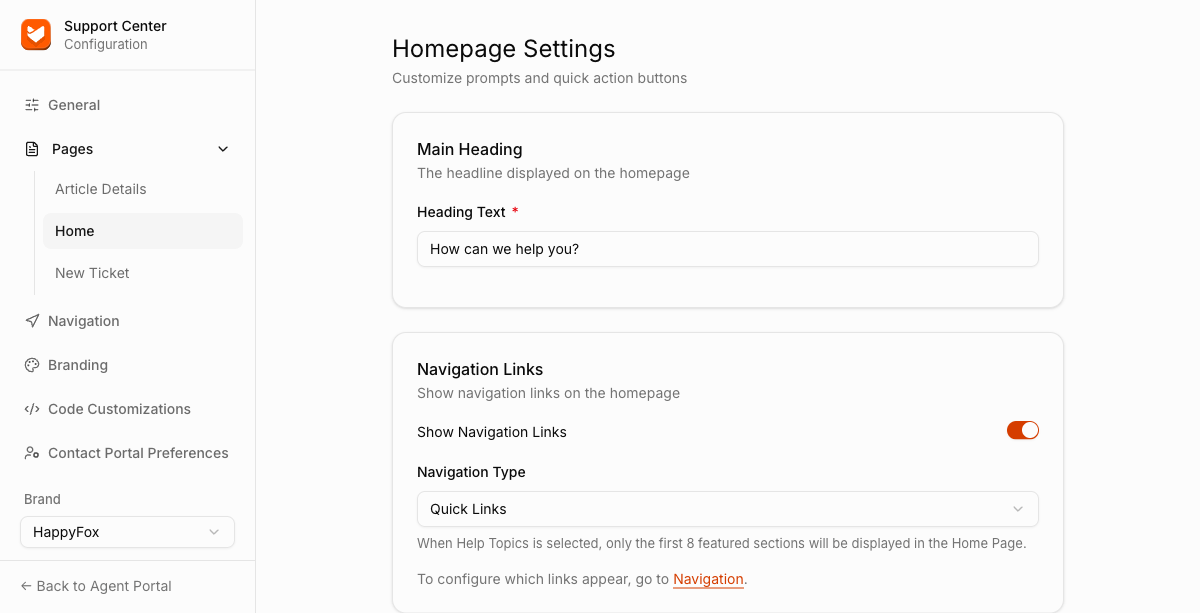
Main Heading
The headline shown on the home page, centered above the search bar
Navigation Links
| Setting | Description |
|---|---|
| Show Navigation Links | Toggles whether any nav links appear on the home page at all. |
| Navigation Type | Choose Quick Links (a fixed row of action buttons) or Help Topics (featured knowledge base sections instead, only the first 8 will display). Both are configured under Navigation. |
Hero Image
The image shown in the home page's hero area. Supported formats: PNG, JPG, JPEG.
If you want to feature specific KB sections on the home page, use Navigation's Help Topics Menu, which shows them as clickable links.