Navigation settings control the clickable links shown on your Support Center home page: a fixed set of Quick Links, and an optional Help Topics Menu that features specific knowledge base sections. Which one shows depends on the Navigation Type chosen on the Home page settings.
Permission needed: "Manage Support Center settings" (to access the module) and "Customize look and feel of Support Center pages" (to use this page), both grantable to any role. Account admins have both by default.
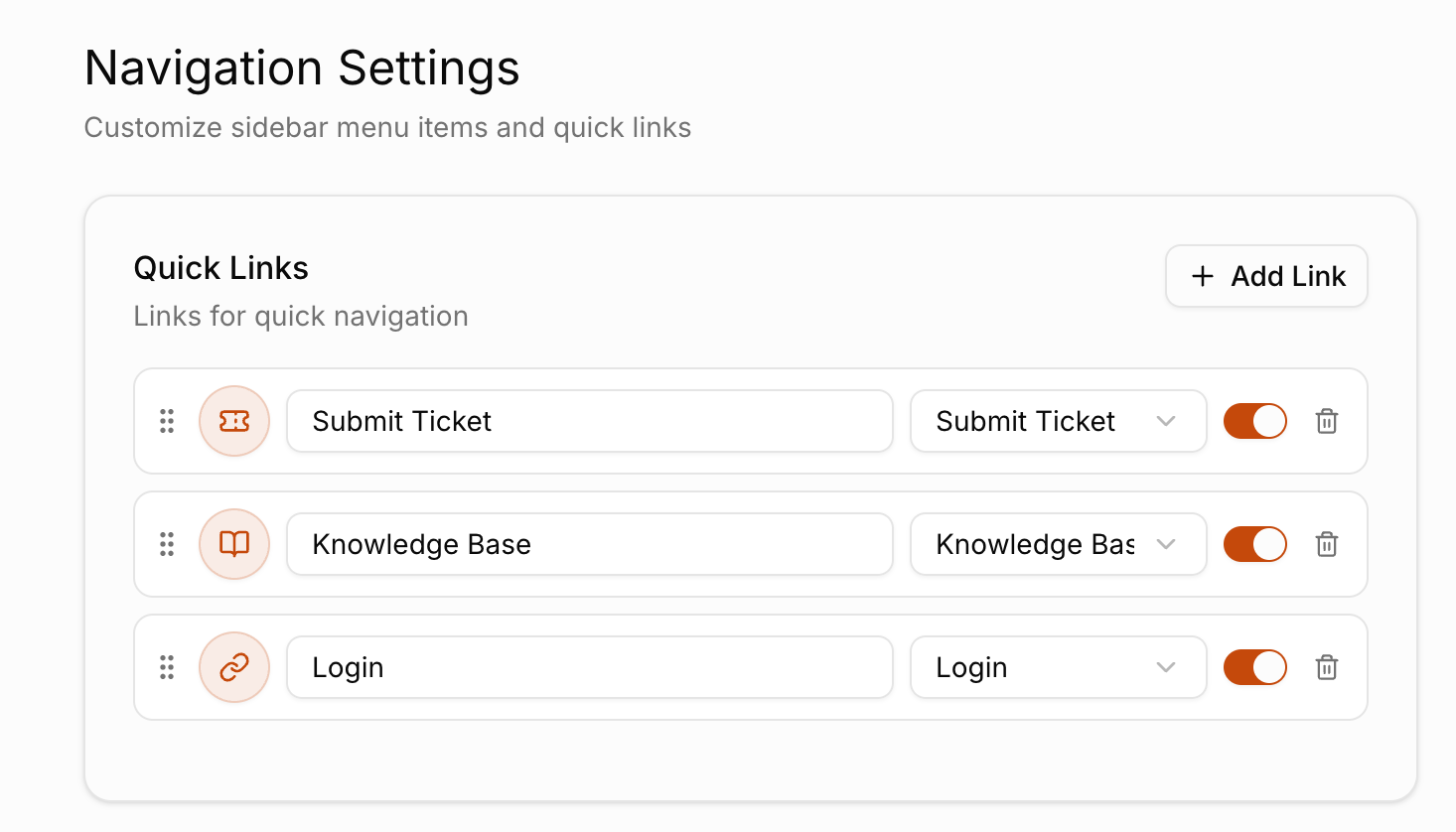
Steps:
- Log in to your HappyFox Agent Portal.
- Go to Main Menu > Support Center > Navigation.
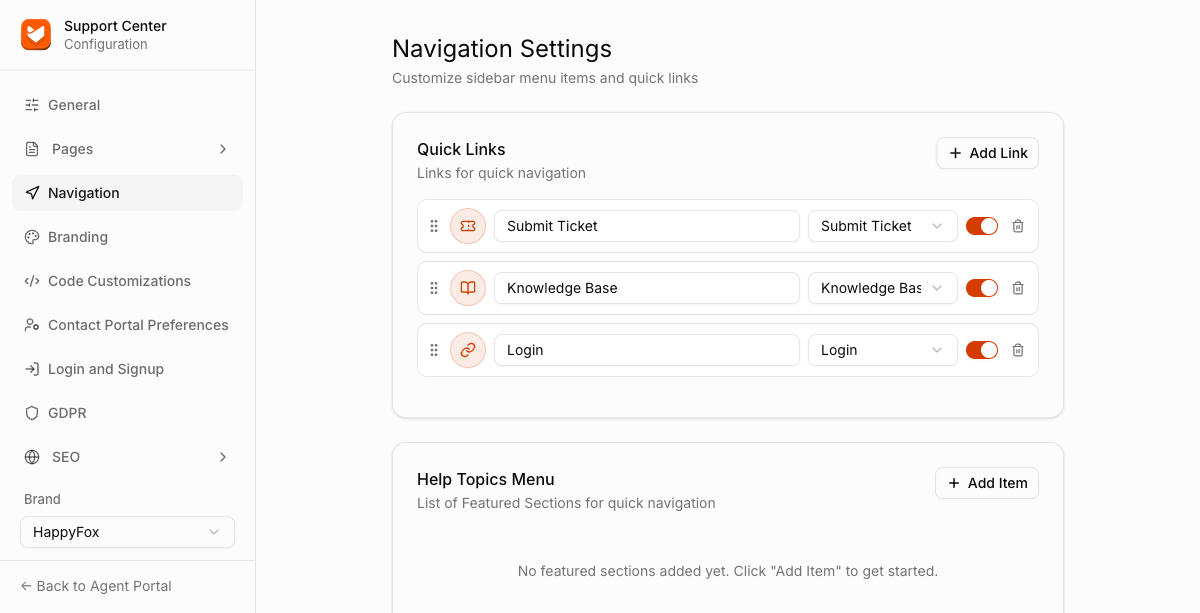
Quick Links
A fixed row of action buttons. By default there are three: Submit Ticket, Knowledge Base, and Login.
- Each link has its own label (editable text) and a type: Knowledge Base, Submit Ticket, Login, or Custom Link.
- Each link has an on/off toggle, so you can turn one off without deleting it.
- Click "Add Link" to add more, and drag the handle on the left of each row to reorder them.
- Save Changes
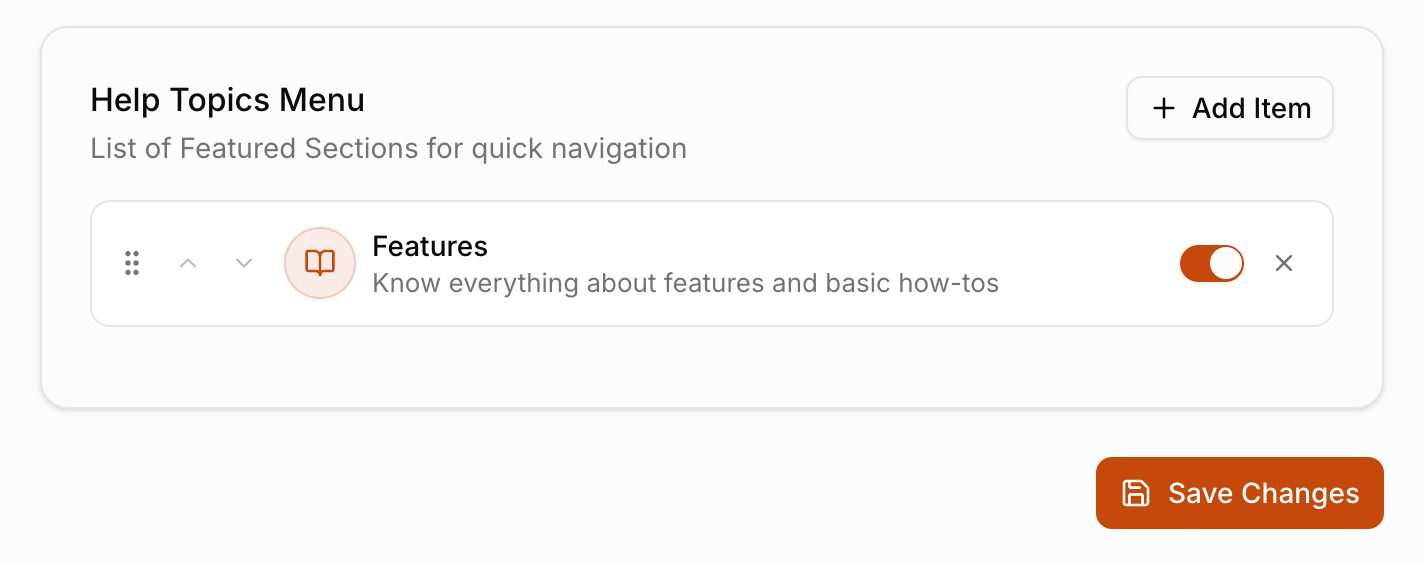
Help Topics Menu
A list of featured knowledge base sections shown as clickable shortcuts. It only appears on the home page if Navigation Type is set to "Help Topics" under Home page settings, and only the first 8 items will display.
- Click "Add Item" to add a KB section to the menu and Save Changes.
FAQ
Q: Can the Help Topics Menu show article previews or thumbnails?
A: No. Items render as plain nav-style links only, there's no preview, thumbnail, or description shown alongside them.