Change your HappyFox Help Desk password from My Settings when you are signed in and know your current password. These steps apply to agents, managers, administrators, and the Account Administrator.
Available on all plans.
SSO note: This process changes only your HappyFox password. It does not change a password managed by your organization's identity provider.
If you cannot sign in or do not know your current password, see Reset your password when you cannot sign in.
Change your password
- Select your name or avatar in the upper-right corner of the staff app.
- Select My Settings.
- On Basic Info, select Change Password.
- Enter your existing password in Current Password.
- Enter the password you want to use in New Password.
- Enter it again in Confirm new Password.
- Complete the reCAPTCHA.
- Select Change Password.
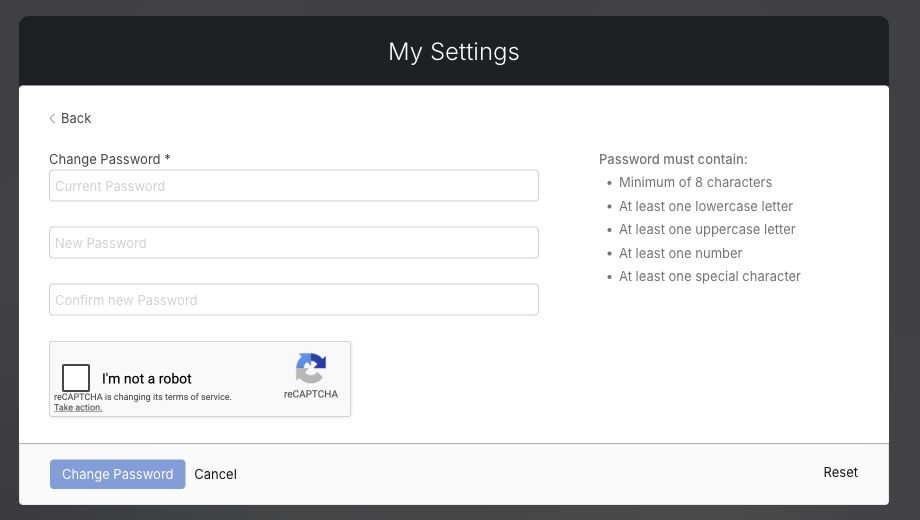
Use the new password the next time you sign in.
Password requirements
The form displays the rules your new password must meet. The default requirements include:
- A minimum of eight characters
- At least one lowercase letter
- At least one uppercase letter
- At least one number
- At least one special character
Your organization may enforce additional or different requirements through its password policy. Follow every requirement shown on the form.
Troubleshooting
I can't submit my password change
- Complete Current Password, New Password, and Confirm new Password.
- Make sure the new-password entries match exactly.
- Complete the reCAPTCHA.
My new password isn't accepted
- Review every requirement displayed under Password must contain.
- Make sure New Password and Confirm new Password match exactly.
- If your organization uses a custom password policy, follow any additional rules shown on the form.
I don't know my current password
Sign out, then reset your password from the staff login page. You cannot use My Settings without your current password.