This guide explains how to set up a Zoom Phone integration with HappyFox so that tickets are automatically created for incoming calls, including missed and answered calls. It covers:
-
Creating a Zoom Phone app in Zoom Marketplace
-
Authenticating the app in HappyFox
-
Enabling phone event web-hooks
User Setup Flow
Part 1: Create a Zoom Phone App in Zoom Marketplace
How Users Get Credentials:
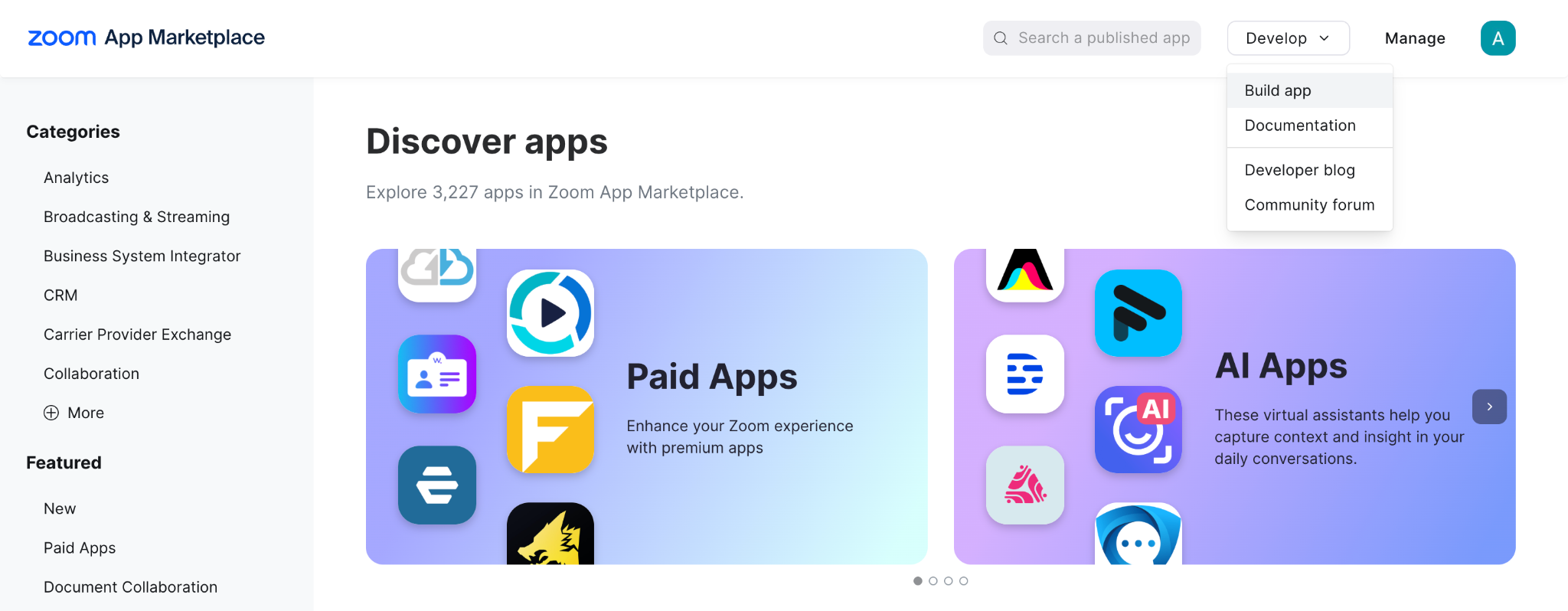
- Go to Zoom App Marketplace
- Click Develop → Build App
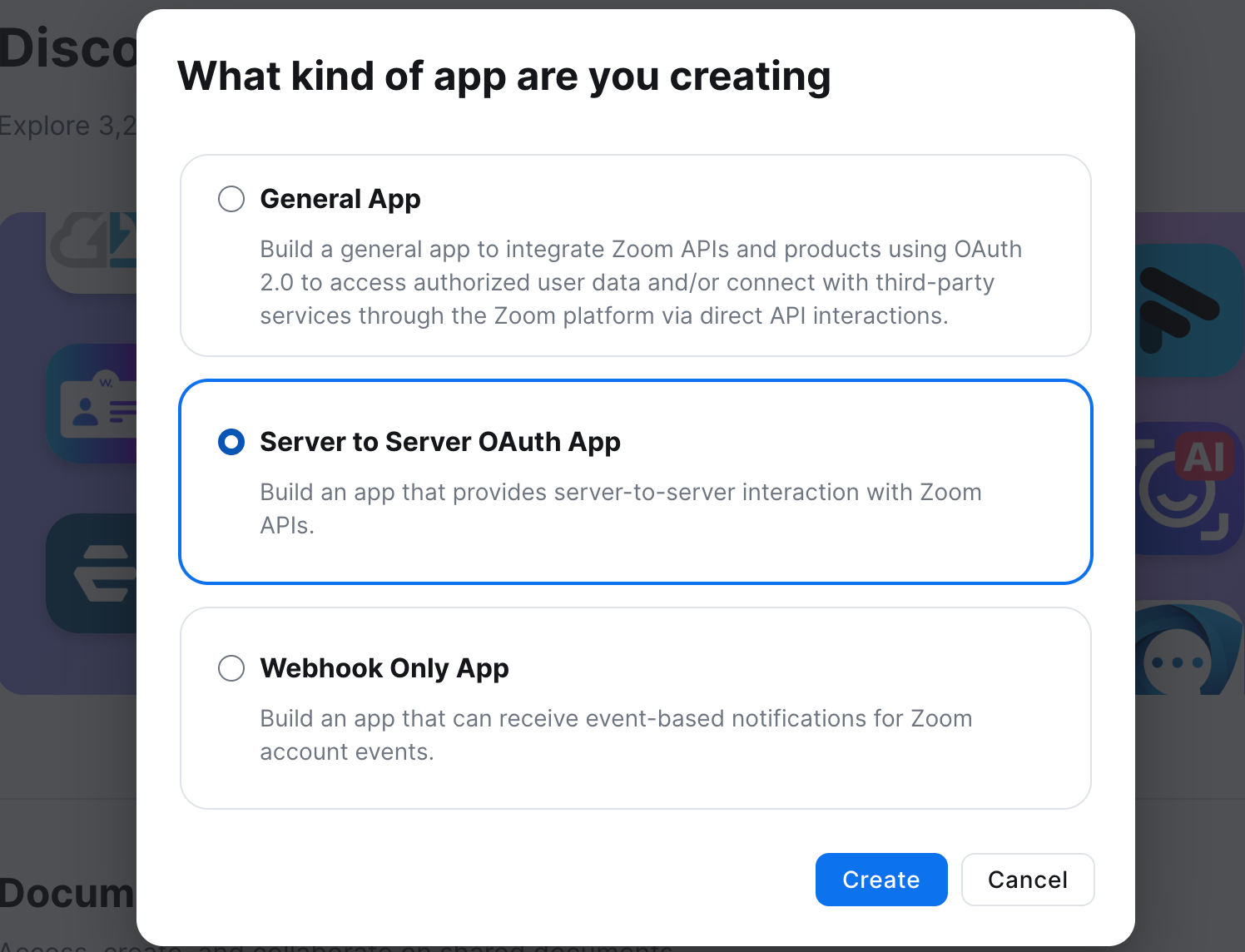
- Select Server-to-Server OAuth
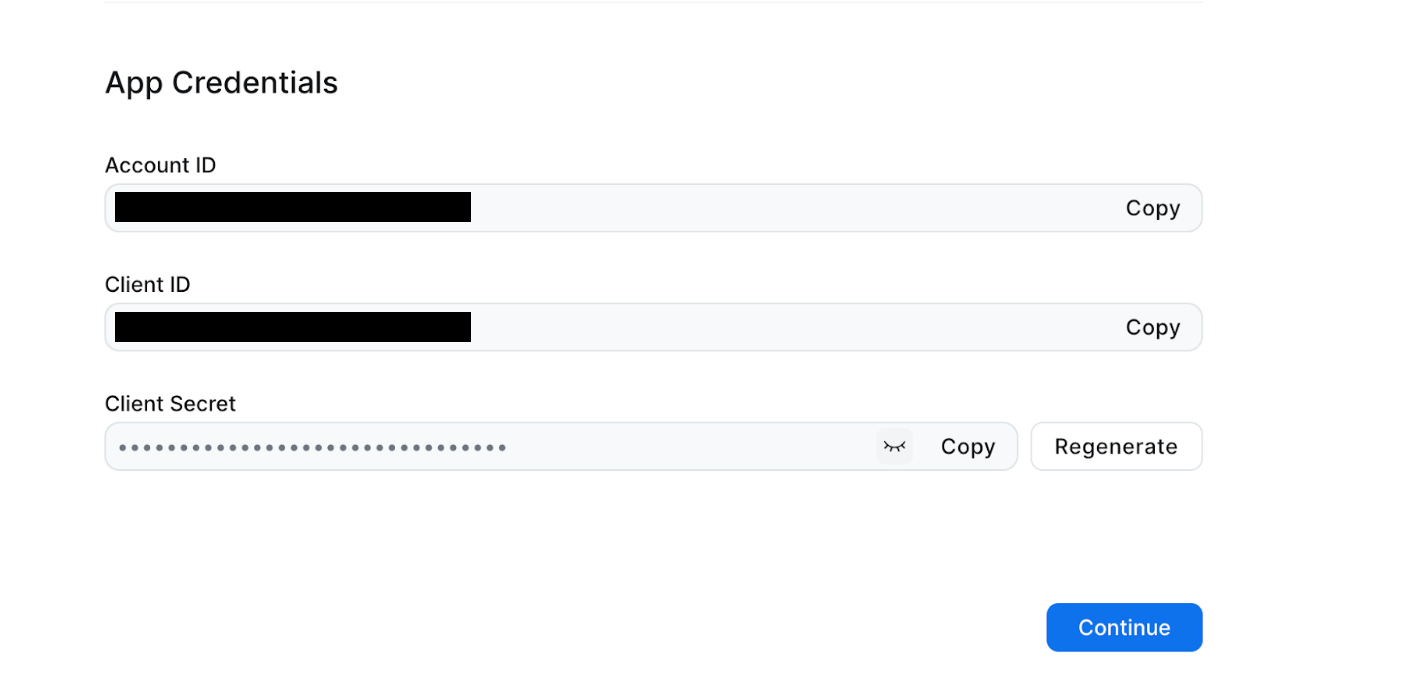
- You will find your Account ID, Client ID, Client Secret under “App Credentials” - you will need these while authenticating the zoom phone integration in HappyFox (Part 2)
- Navigate to Scopes
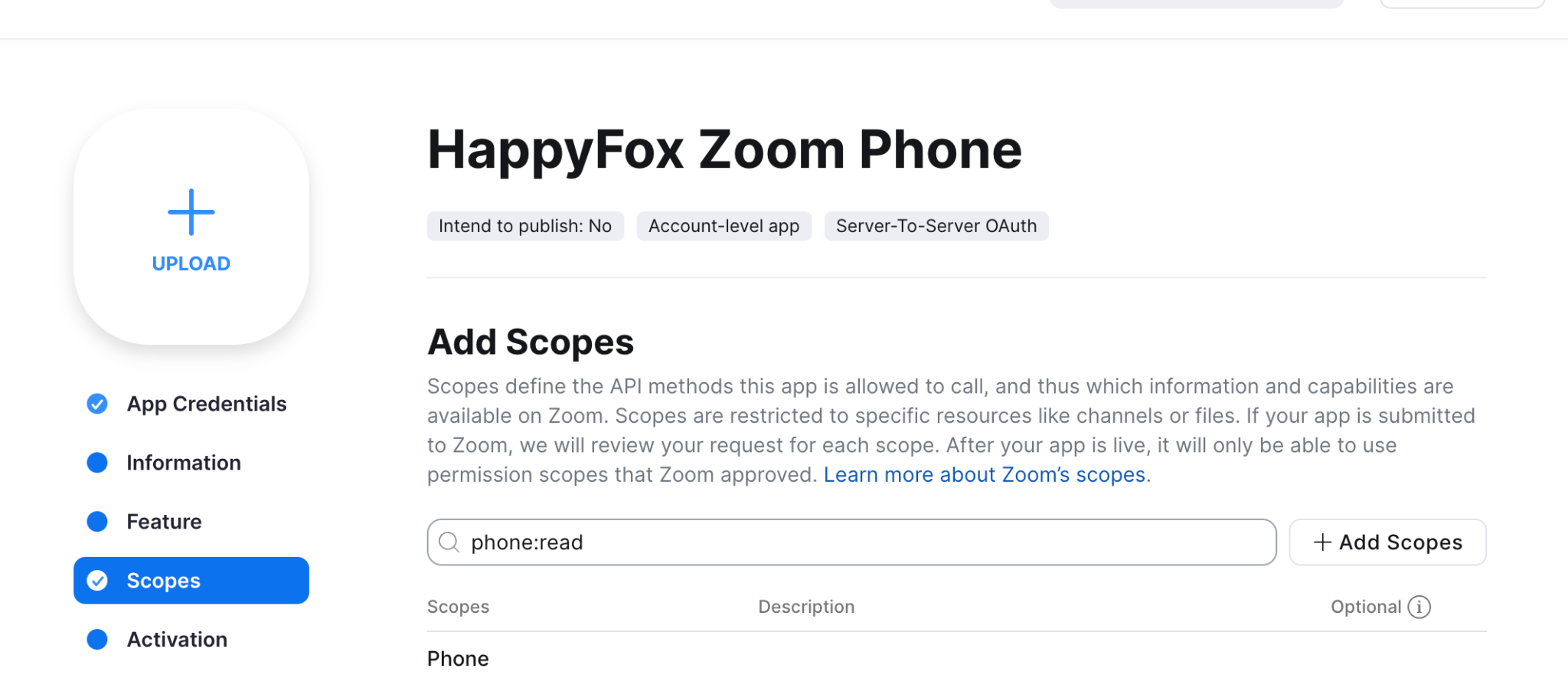
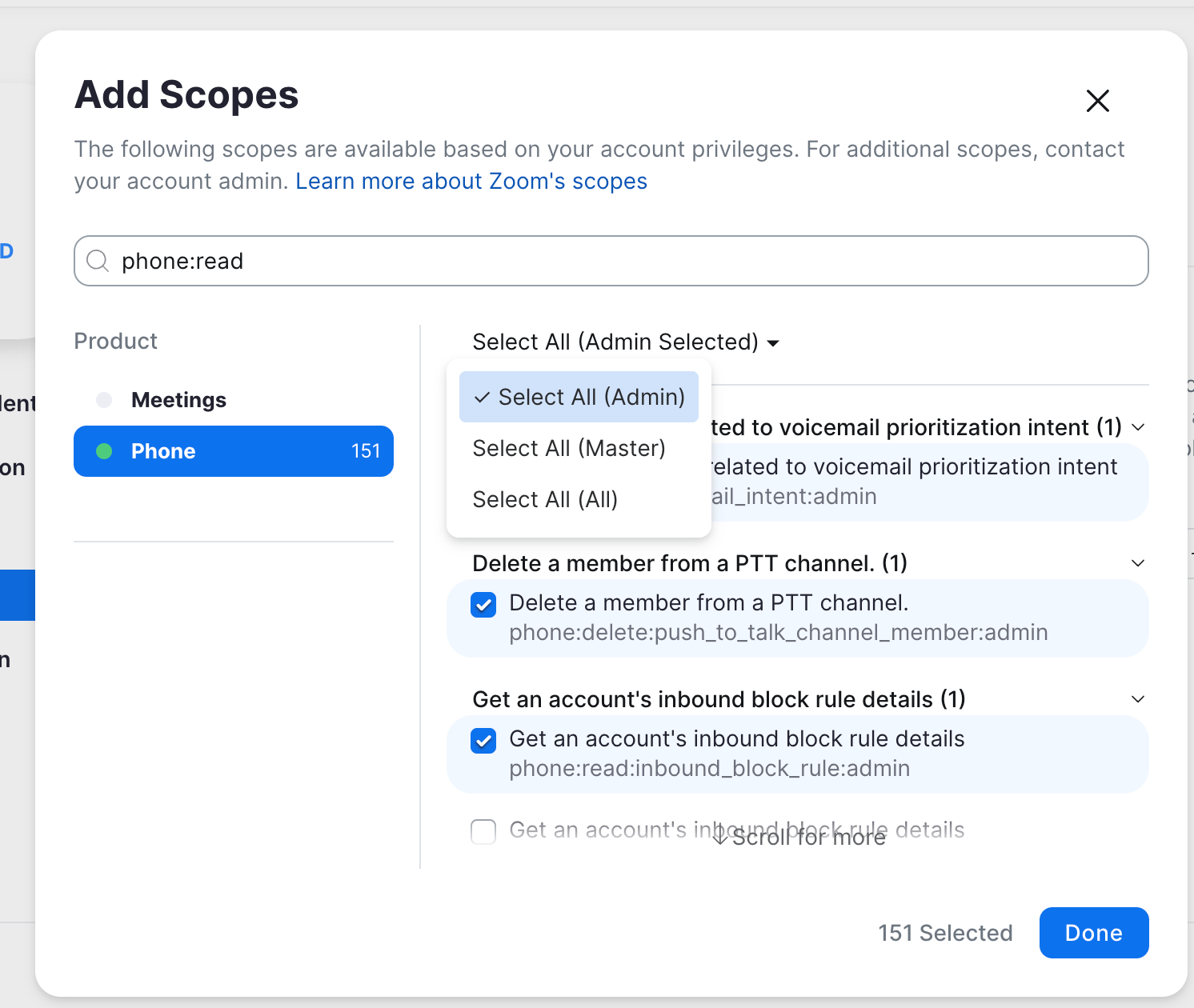
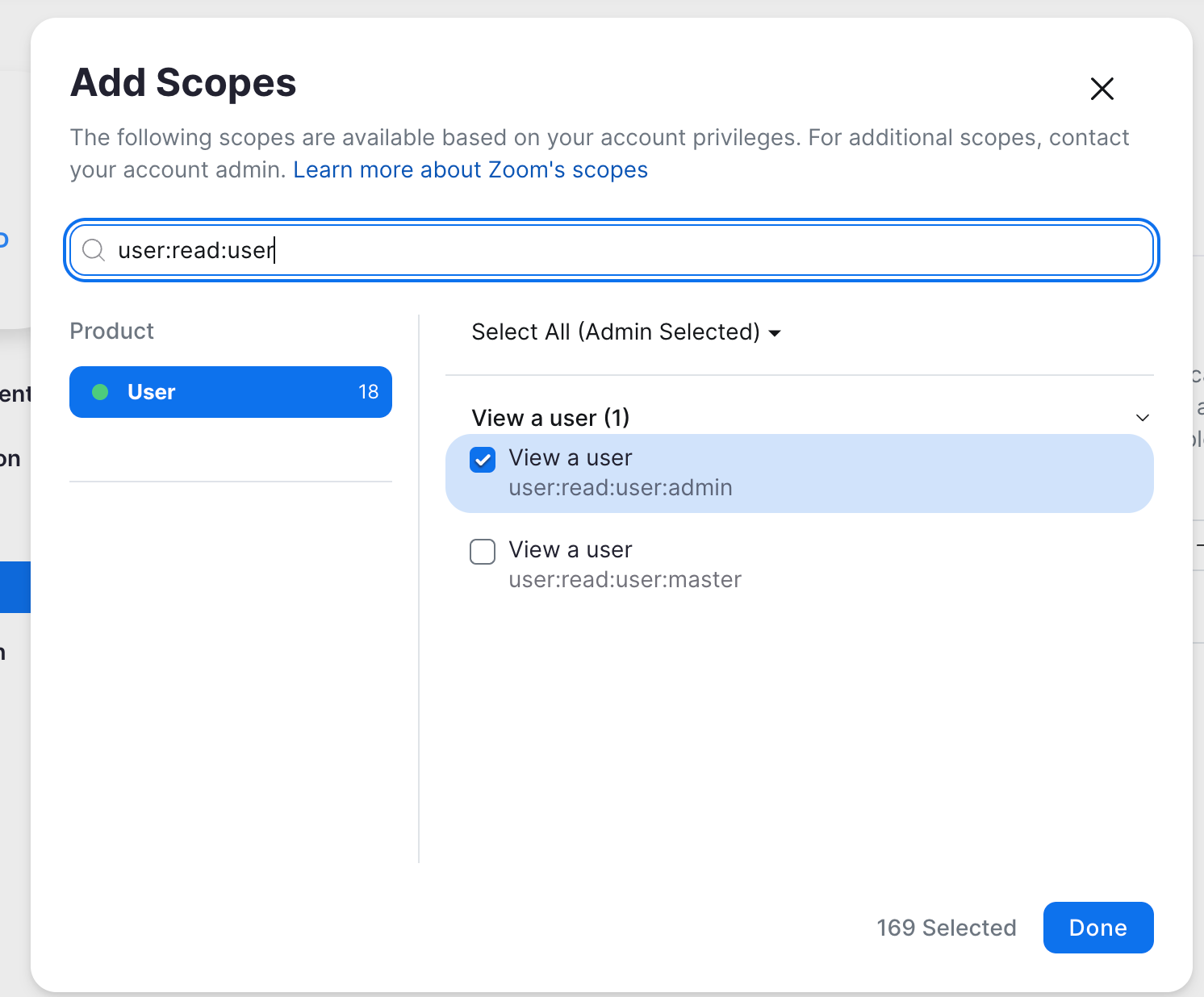
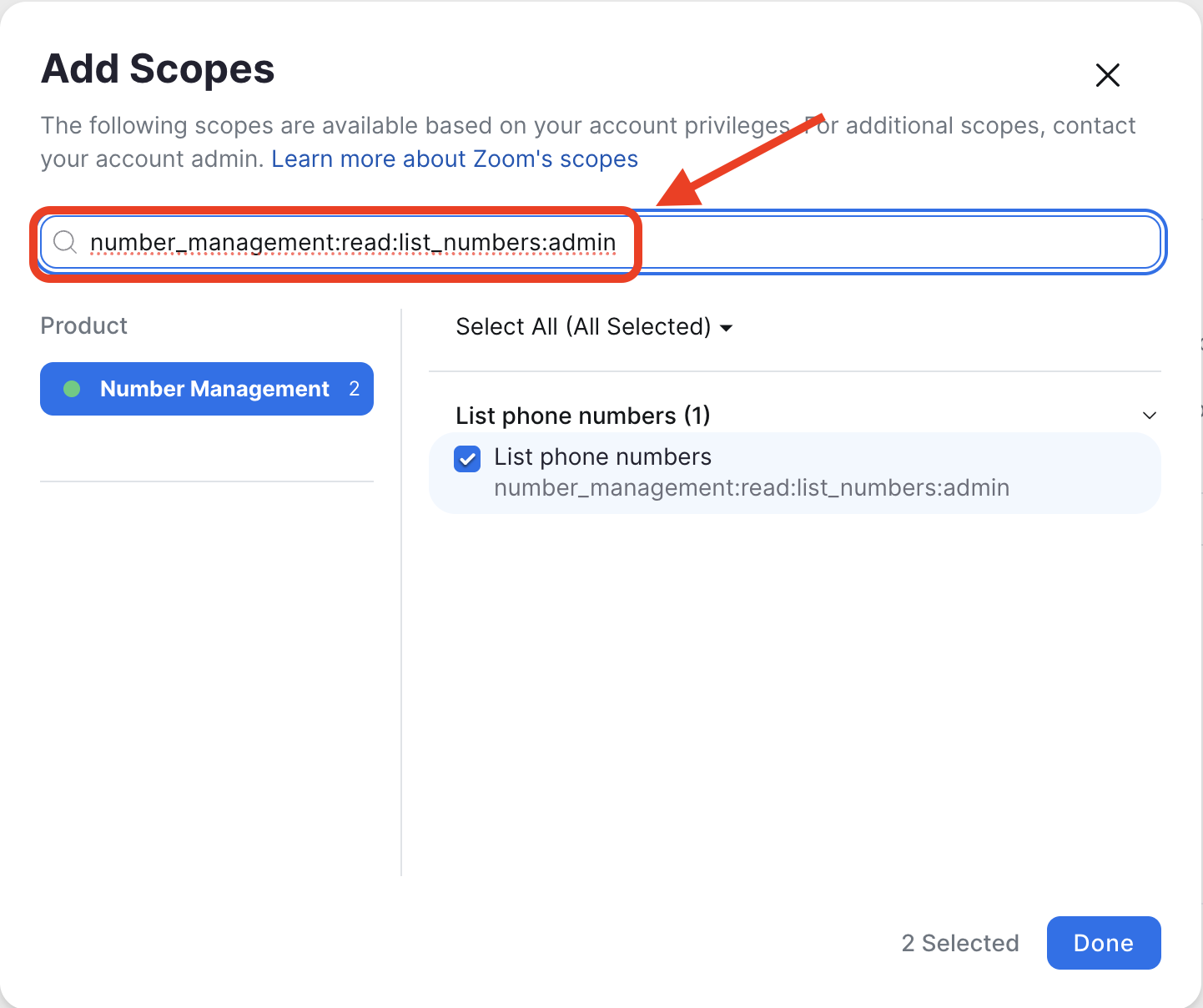
Add the following Scopes required:
i. Type phone:read and Select All (Admin) from the dropdown
Type user:read:user and Select All (Admin) from the dropdown
Type number_management:read:list_numbers:admin, select it and click 'Done'.
- Click continue and complete app details in the “Information” tab.
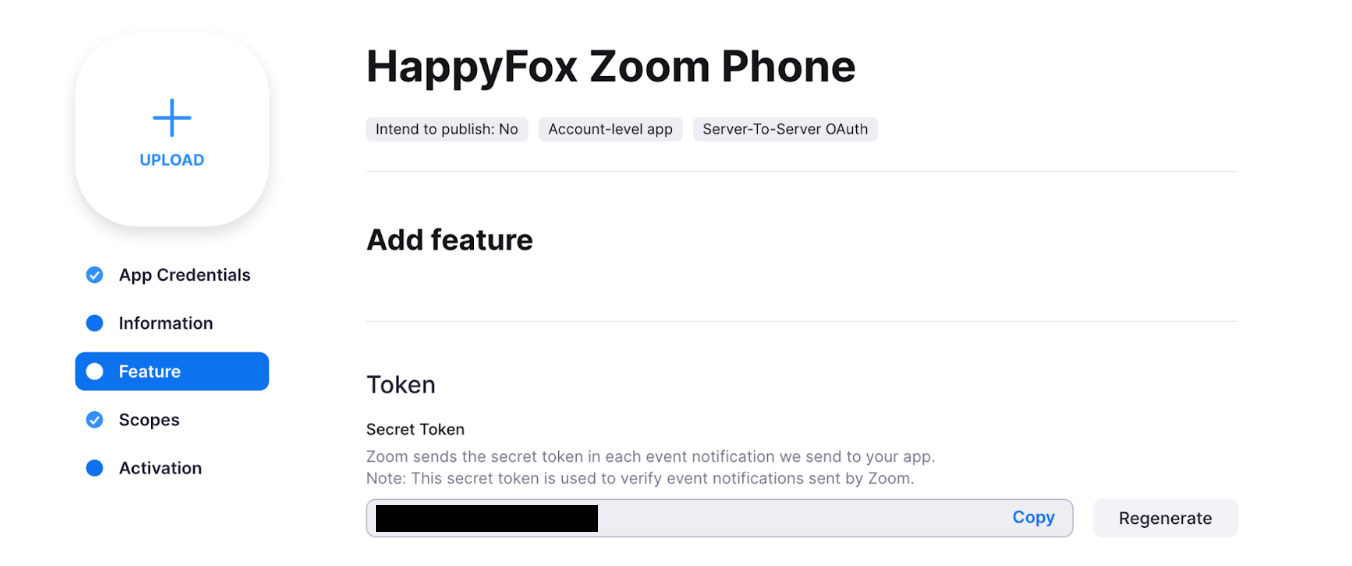
- You will be redirected to the Feature tab, copy the Secret Token displayed - this will serve as your webhook secret token in HappyFox
- Activate the app
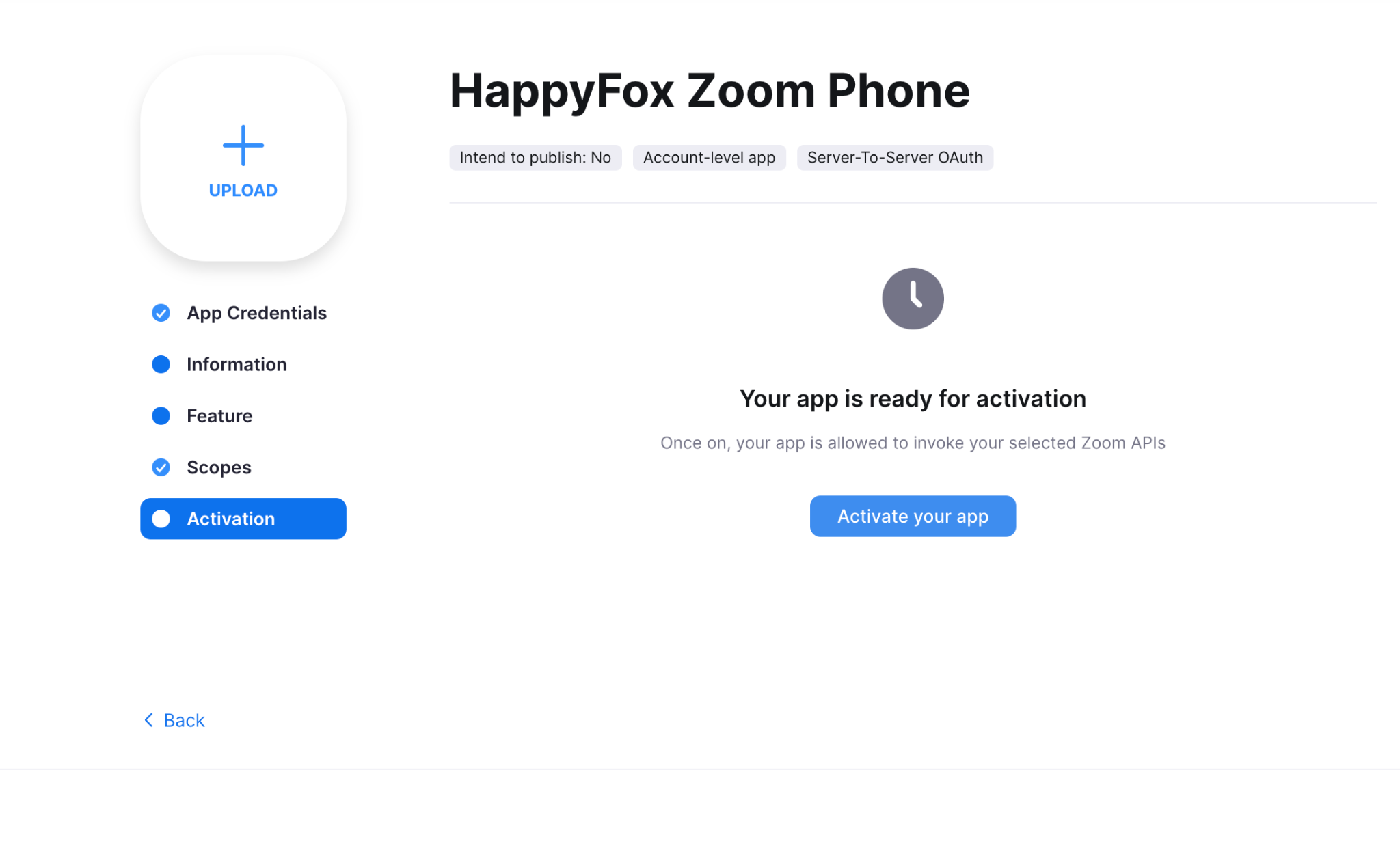
Part 2: Authenticate Zoom Phone App in HappyFox
User Steps:
- Navigate to Apps → Zoom Phone in HappyFox
- Click Install
- Provide Zoom Server-to-Server OAuth credentials:
- Account ID
- Client ID
- Client Secret
- Webhook Secret Token
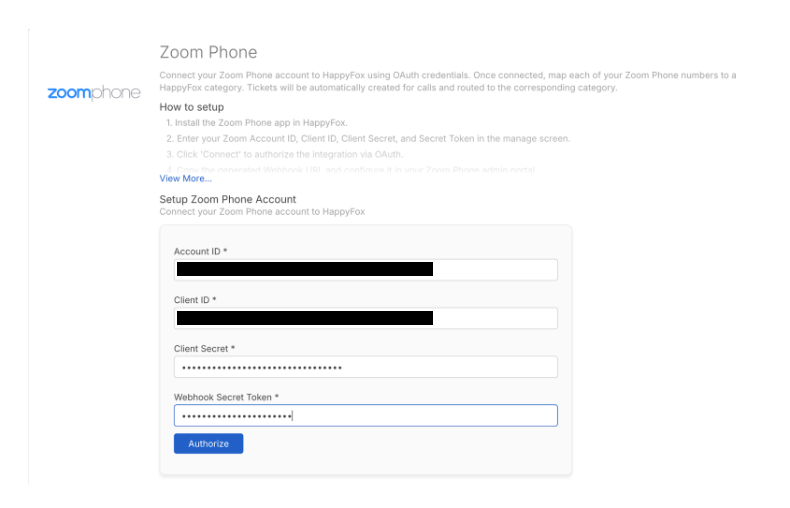
- Click Authorize
Part 3: Enable Phone Event Webhooks
User Steps:
- Copy the generated Webhook URL from HappyFox
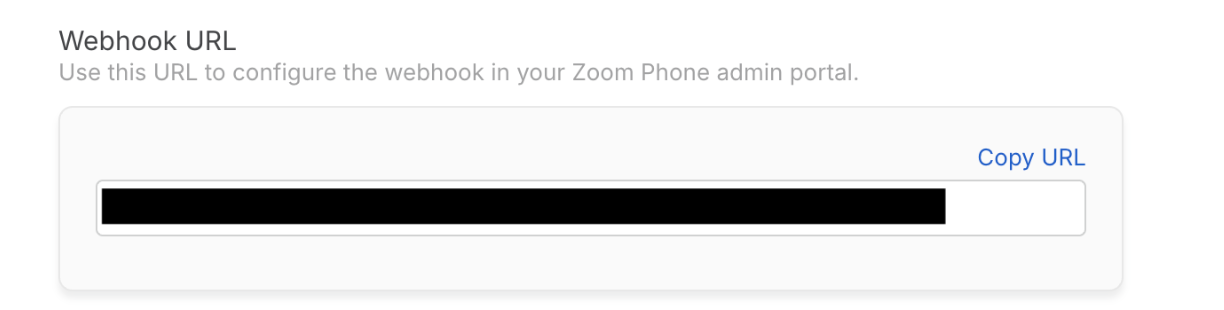
- In the created Zoom app: Navigate to Feature → Event Subscriptions → Add the webhook URL and click ‘Validate’
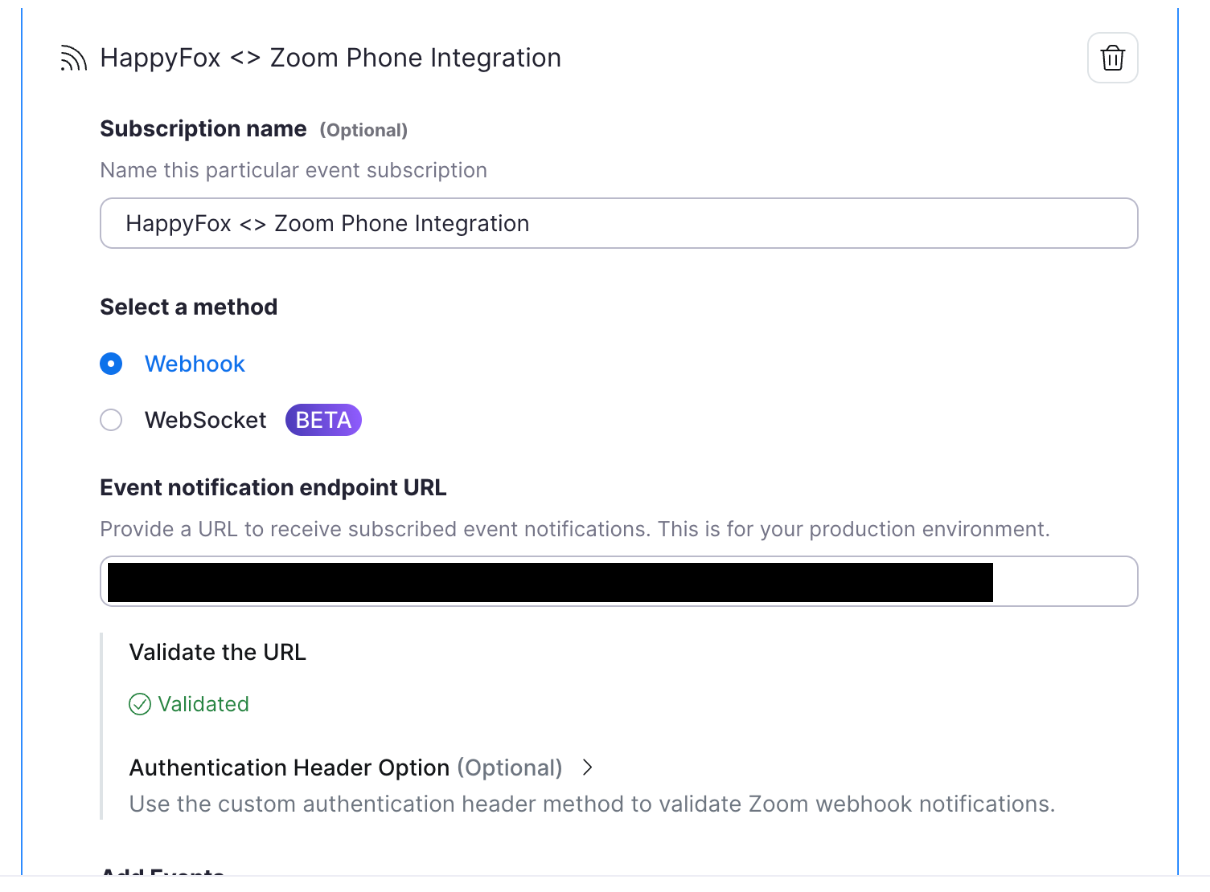
- Once validated, click on Add Events

- Add the following Event types:
- Callee missed a phone call
- Callee ended a phone call
- Caller ended a phone call
- Voicemail is received
- Call recording transcription is complete
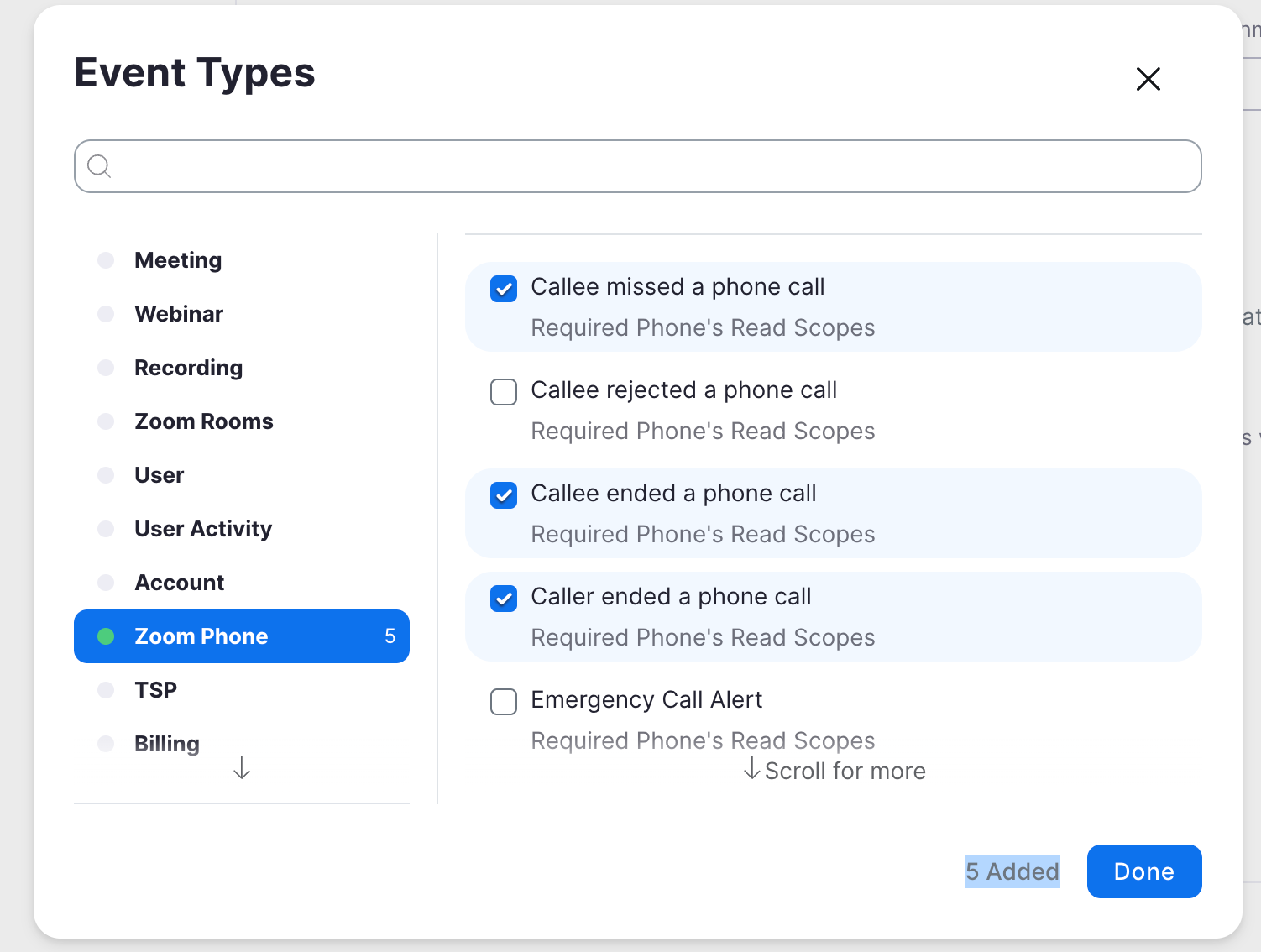
- Select ‘Done’ and click ‘Save’
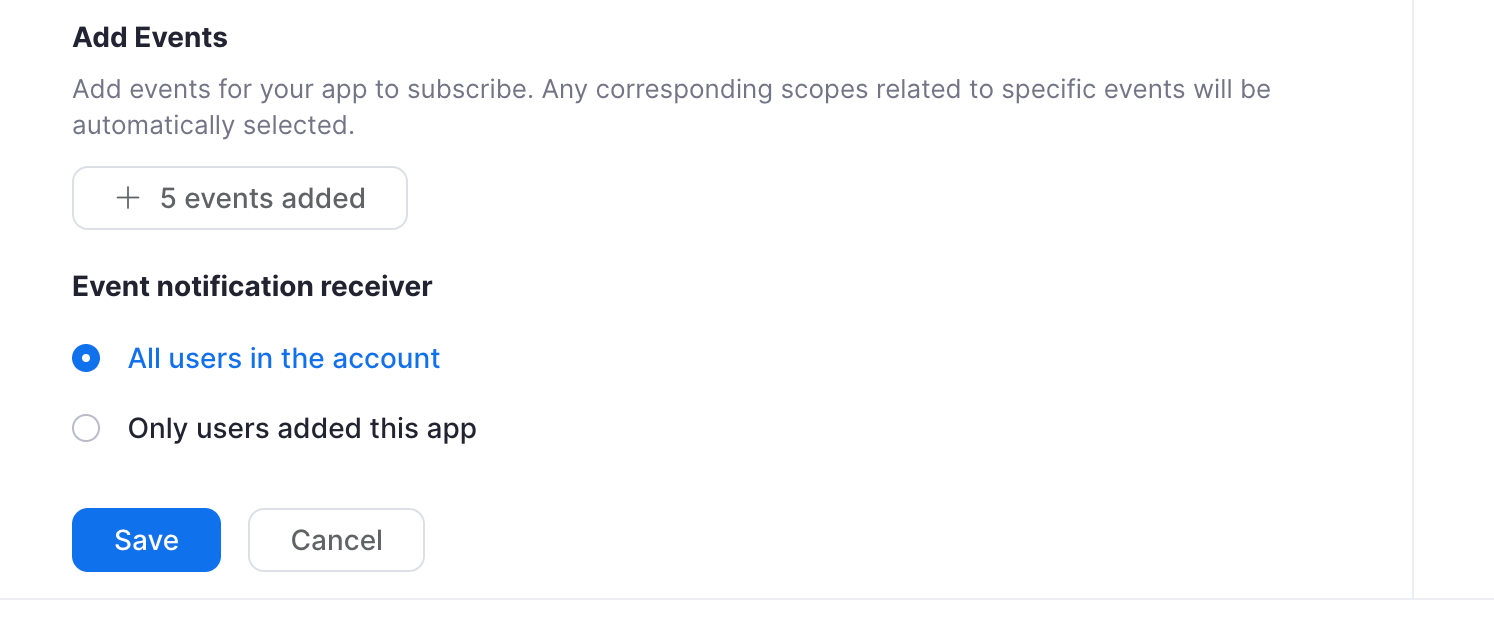
Part 3: Configuring Ticket Creation for Call Events
- Return to the HappyFox App Manage page of the Zoom Phone Integration.
- Under "Select Zoom Phone Numbers" choose the Zoom Phone numbers for which call activity should be logged as HappyFox tickets and map them to a category.
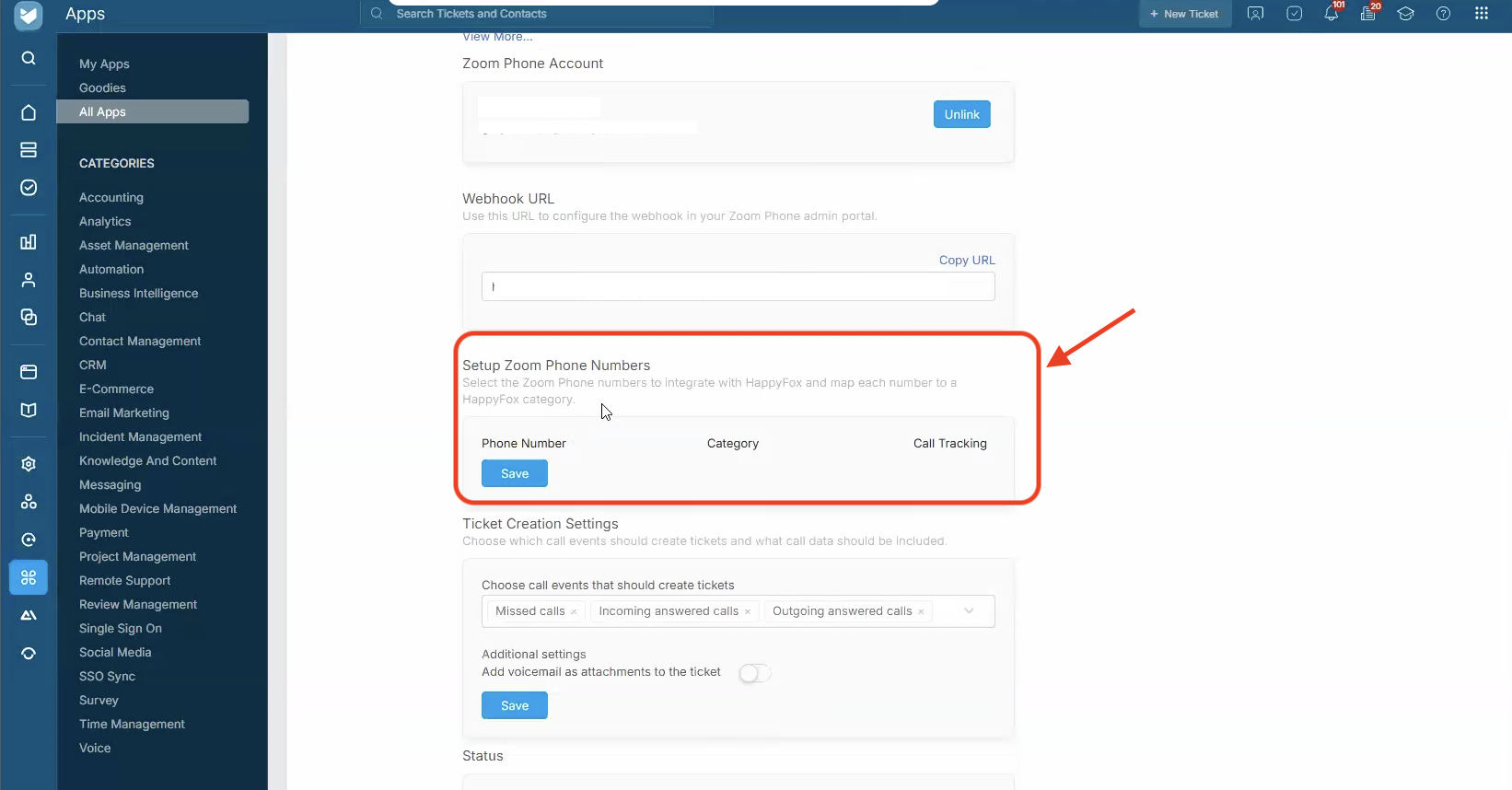
- Select Call events that should be logged as tickets and save your preferences.
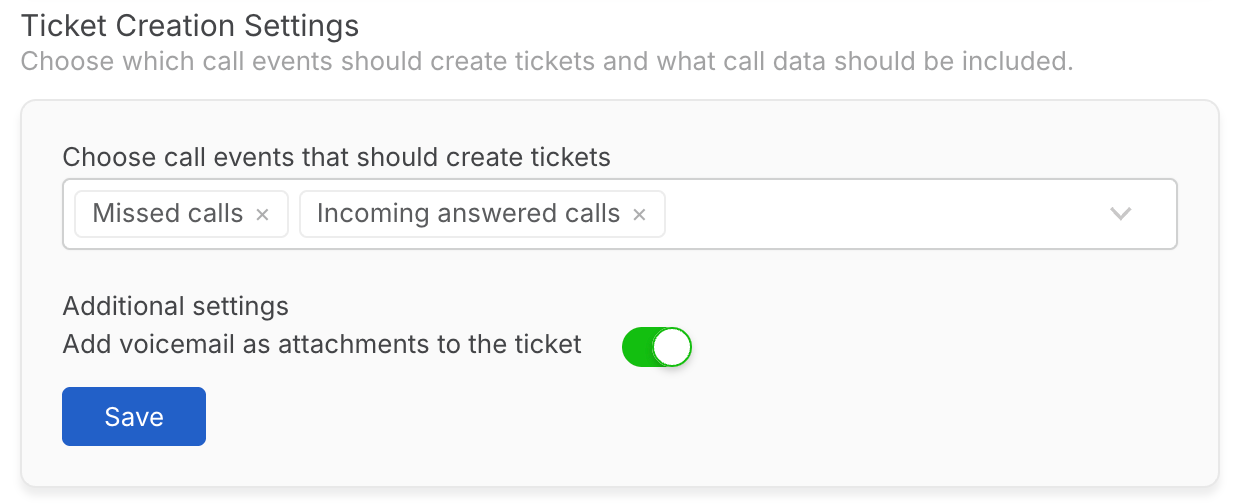
- The Zoom Phone integration will now log call activity as tickets for all configured call events of the selected phone numbers.
Note: Internal calls between Zoom Phone numbers on the same account are not logged as tickets.