Use Work Schedules to set support hours for HappyFox Messaging. Visitors can request an agent during those hours when an eligible agent is Available.
Before you start
You need Manage Chatbot permission and Messaging enabled for the widget. Prepare a work schedule with the intended hours, time zone, and holidays. See Create and manage work schedules for setup.
Apply the schedule
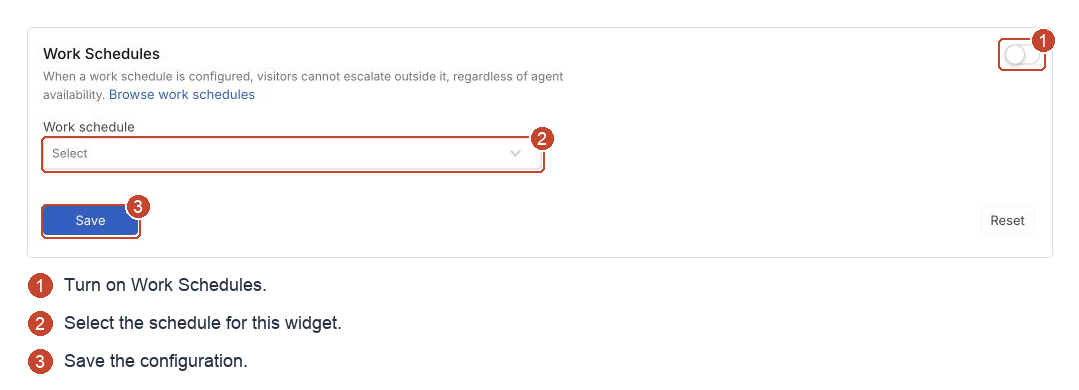
- In Chatbot administration, open the widget's WEB MESSAGING → Configuration page.
- Turn on Work Schedules.
- Select the Work schedule. Use Browse work schedules to review it.
- Select Save.
How hours and availability work together
Within the schedule, at least one eligible agent in the incoming category must be Available. Outside it, visitors cannot request an agent even if staff are Available. If you also offer chatbot assistance, visitors can continue using it.
With Work Schedules off, availability and category staffing govern the agent option. Agents start Unavailable after sign-in; see setting Messaging availability.
Test the widget during scheduled hours with an eligible agent Available. Use missing agent-option checks if needed.