Use conversation categories to route HappyFox Messaging requests to your team. Select one incoming category and any additional categories agents can move conversations into.
Before you start
You need Manage Chatbot permission. Prepare private categories dedicated to Messaging and associate the intended agents with them.
Check category requirements
- Privacy: The category must be private.
- Incoming channel: It must be dedicated to Messaging, rather than incoming email or another integration such as social, phone, widget, or webhook.
- Staffing: Unique agents across all incoming and movable Messaging categories must stay within the account's purchased Messaging licenses.
Count each agent once across all configured widgets and categories. HappyFox prevents additions that exceed this total. Review existing membership or arrange more licenses before adding another agent.
Select the categories
- In Chatbot administration, open the widget's WEB MESSAGING → Configuration page.
- Select the incoming category in What category should incoming conversations be created in?.
- Select additional destinations in What other categories can conversations be moved into?.
- Select Save.
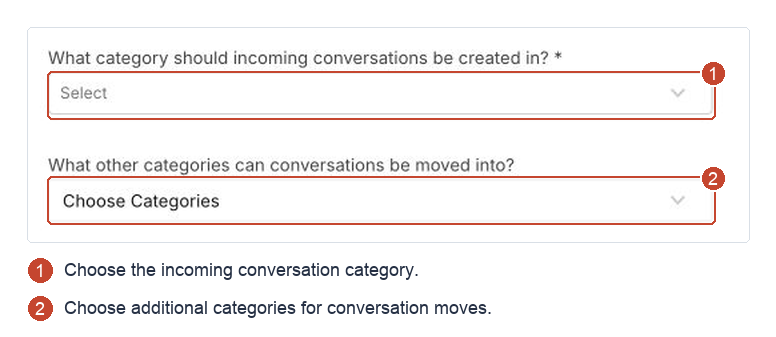
New conversations enter the incoming category and can move among these configured destinations. Keep the categories private and dedicated to Messaging as your team changes.
Category membership defines the team; Messaging availability identifies who is ready to respond. Use category and staffing checks if you cannot select a category or add an agent.