This KB article is an exhaustive troubleshooting guide for MS Teams integration. The instructions outlined here can be used specifically when you are running into problems while connecting MS Teams to HappyFox.
1. Open a new message or post in the integrated Team/Channel
2. a) Send @HappyFox Helpdesk link as message or post
b) Send @HappyFox Helpdesk as a message or a post
3. Click the newly generated Link button. In some cases, it can take 20 to 30 seconds for the button to appear.
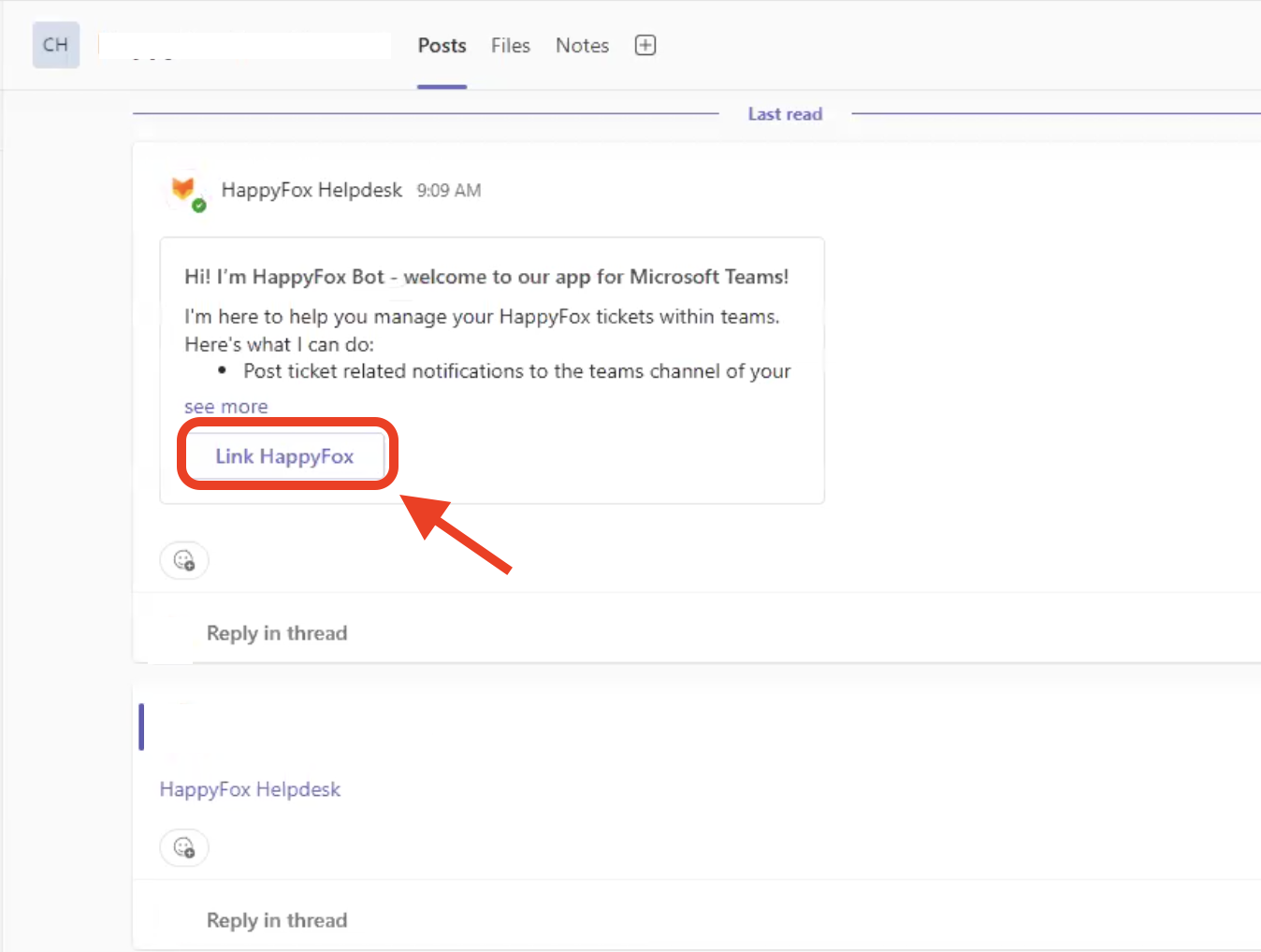
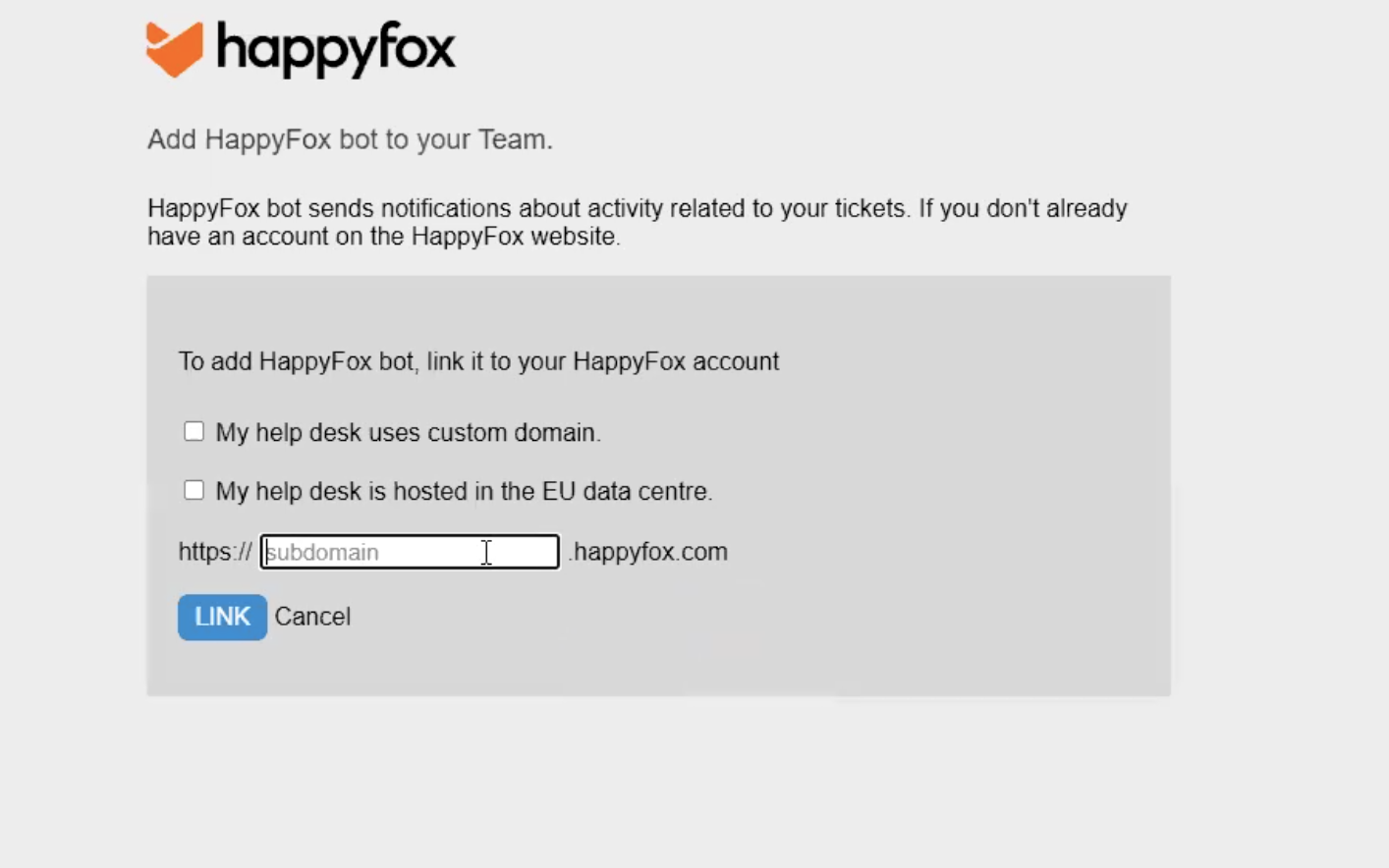
4. Teams would redirect to the following page to enter your HappyFox account details, post which you can login as HappyFox admin/agent.
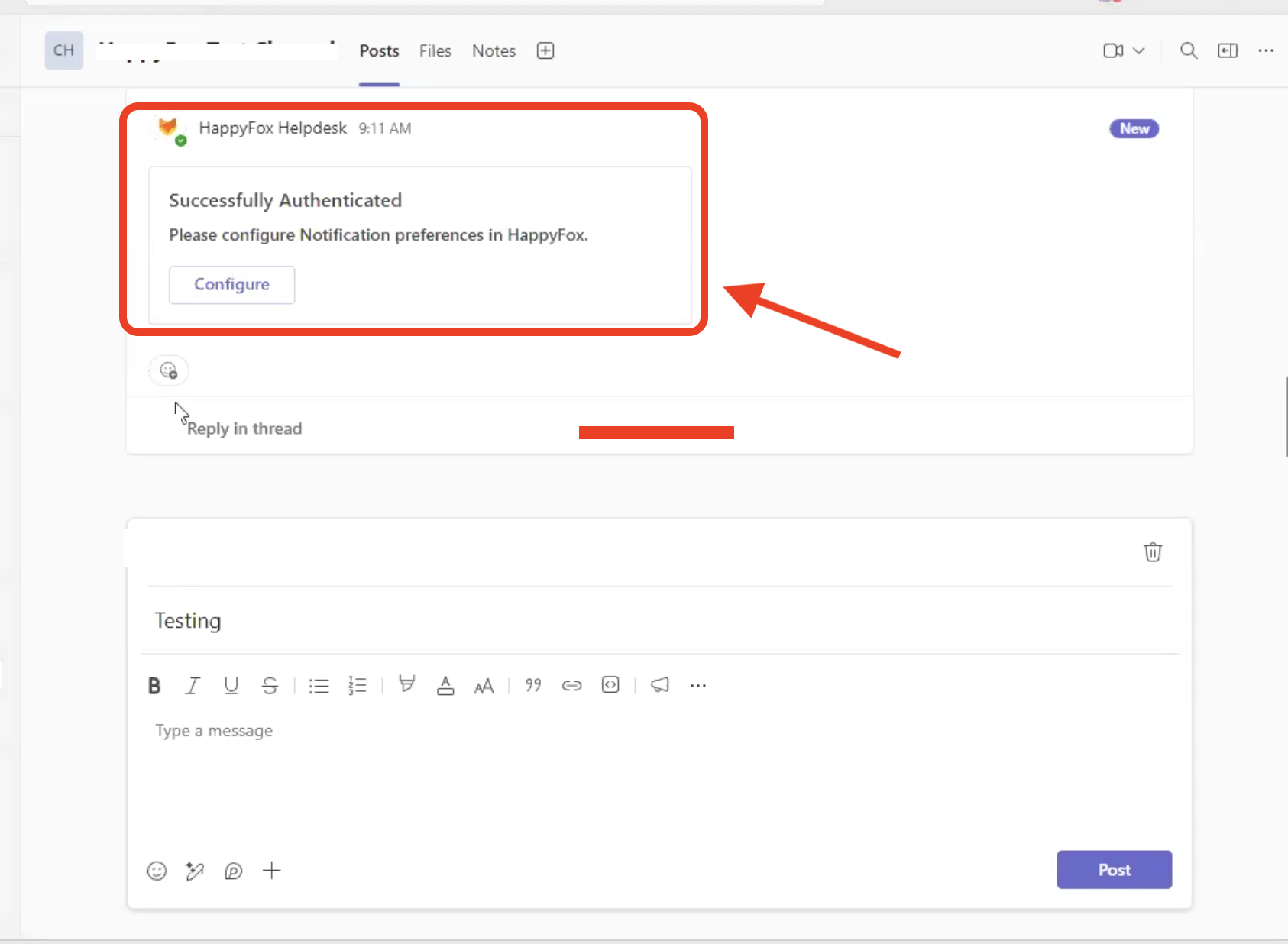
5. Upon successful completion, you will be redirected back to Teams and the following message would be shown. Upon clicking Configure you will be sent to the MS Teams apps setup page on HappyFox.
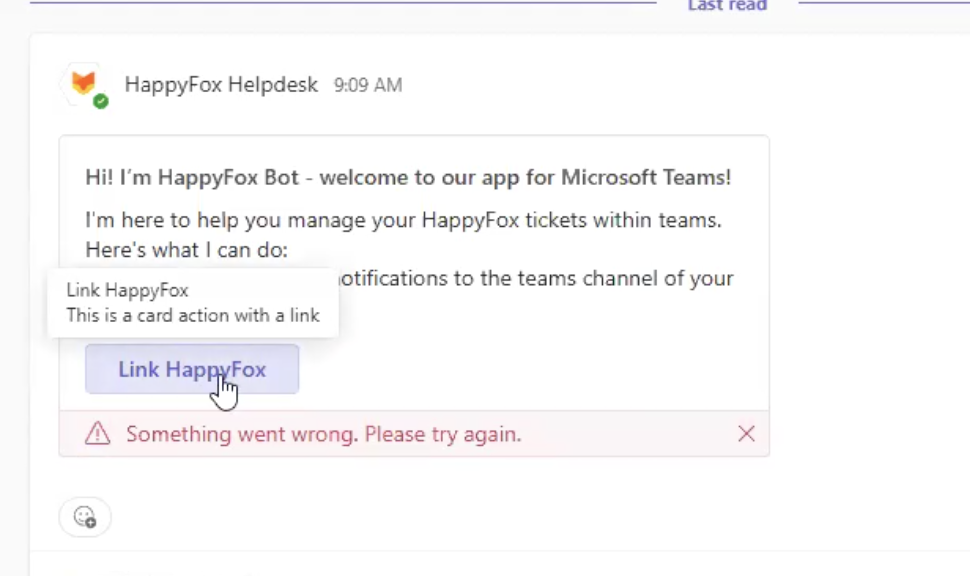
In some cases, Teams takes a bit longer to connect back and display this error. This will auto-refresh within seconds and show the success message as indicated above.
If you are facing any further issues with this, please reach out to [email protected] with screen-recordings and screen-shots.