Respond to repetitive support queries faster by inserting canned responses in ticket replies, without spending time typing manual replies. HappyFox allows you to create a repository of Canned Actions, which can be used for ticket reply or private note.
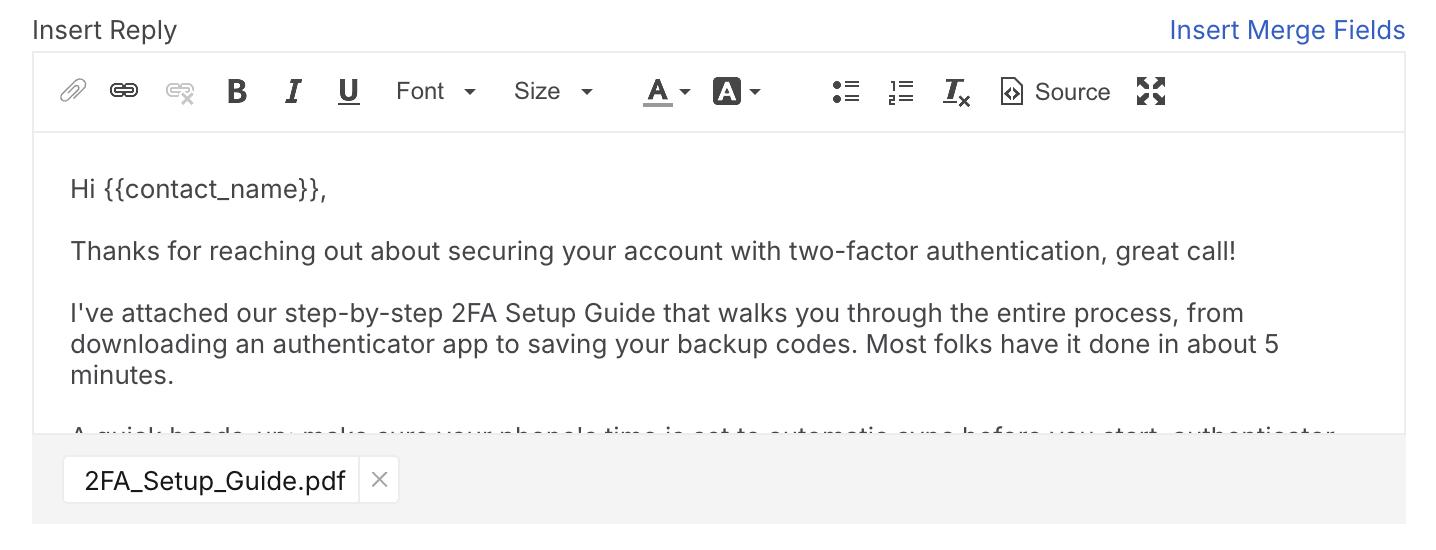
Canned Actions can now also include file attachments. This allows agents to attach frequently shared documents (such as guides, invoices, or reports) along with predefined responses, eliminating the need to upload the same files repeatedly.
Available on all subscription plans.
Canned Actions has two functions:
-
Auto-fills a predefined response with dynamic placeholders (Merge Fields).
-
Performs changes to ticket properties such as status, priority, assignee, etc.
-
Adds predefined attachments to the reply or private note.
Note: Both the functions mentioned above are optional towards defining a Canned Action. For example, Canned Actions can be customized to do ticket property changes without inserting any message.
Watch a Feature Walkthrough 📽:
Navigation:
Go to Automate >> Canned Actions.
Note: Page visibility is governed by a permission "Manage Canned Actions". If you are not able to see this page, contact your administrator.

Manage Canned Actions:
In this page, in addition to viewing existing/creating new canned actions, you may
- Export all Canned Actions to CSV/Excel.
- Edit, Clone or Delete Canned Actions through more actions.

Create a New Canned Action:
Steps:
- Click Create a Canned Action.
- Enter the content of the message that will be added on applying the Canned Action. Adding message as part of a Canned Action is optional.
- Upload attachments directly within the message editor (optional). The combined size of a reply/private note, including text and attachments, in a Canned Action can be up to 25 MB.
- Choose the ticket properties that need to change and set appropriate values.
- Enter name and description for the Canned Action. Choose applicable categories and define if the Canned Action will be publicly available.
- Click Finish Creating a Canned Action

Using Merge fields in Canned Actions message:
You can add merge-fields to your canned action message and have them replaced in real-time while adding a canned action to a ticket reply or a private note.

View/Modify Existing Canned Actions:
- Click on the desired Canned Action to view/edit in the Canned Actions page.
- Find all the information about that Canned Action in the "Quick Preview".
- Click "Edit" to edit the Canned Action information.
- Click "Clone" to create a similar Canned Action.
- Click "Delete" to delete the Canned Action.

Add Canned Action to a Ticket Reply/Private Note:
- Go to Ticket Details page of any ticket.
- Make sure Canned Actions are defined for the ticket's associated category.
- Click "Reply" or "Private Note".
- Select the desired Canned Actions from the list of Canned Actions inside the editor.
- Confirm your changes to text and send a reply.
Note: When a Canned Action with attachments is selected, the attachments are automatically added to the reply or private note. Agents can remove these attachments or add additional files before sending.
To know how Canned Actions work in HappyFox Classic, refer to the document attached.