Copy or blind copy other people on a ticket the same way you would in an email. Add Cc when you create a ticket, and add Cc or Bcc when you reply to one.
Available on all plans.
Watch a Feature Walkthrough 📽:
Cc someone when you create a ticket
- Click + New Ticket.
- Fill in the contact and ticket details.
- In CC, enter the email addresses you want to copy on this ticket.
- Click Create Ticket.
Everyone in CC gets a copy of every notification sent for this ticket going forward.
Note New tickets only support CC. If you need to copy someone without the contact seeing it, add Bcc when you reply to the ticket instead.
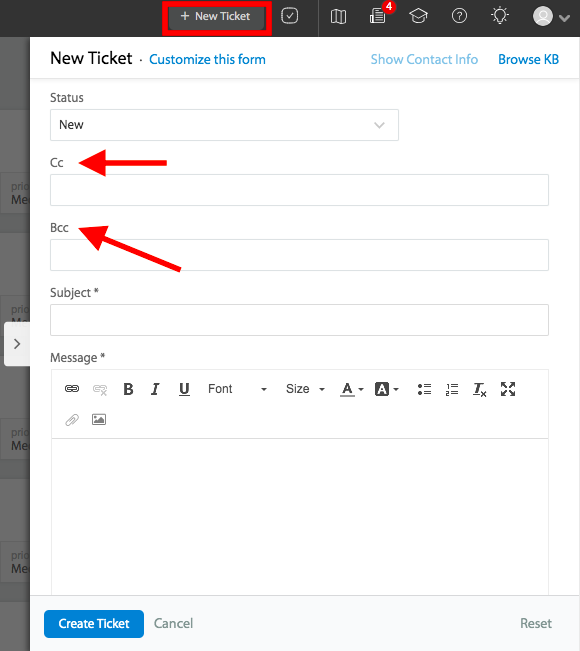
Cc and Bcc someone in a ticket reply
- Open the ticket and click Reply.
- Click +Cc or +Bcc, above the message box.
- Enter the email addresses in the CC and BCC fields that appear.
- Write your reply and click Add Reply.
CC recipients get a visible copy of the reply. BCC recipients get a copy too, but neither the contact nor the CC recipients can see that they were included.

Keep Cc recipients across replies
Addresses you add to CC are retained on the ticket, so you do not have to re-enter them every time you reply. For the full behavior, including how to turn it off, see Auto-populating CC recipients while adding an update.
Automatically Bcc every ticket notification
Add one or more email addresses that get Bcc'd on every ticket notification account-wide, without adding them to individual tickets.
Before you begin You need access to Channels settings to set this up. If you don't see this option, ask your account admin.
- Go to Channels > Email.
- Click the Email Archival tab.
- Under Add BCC recipients, enter the email addresses. Separate multiple addresses with a comma.
- Click Save.
These addresses are now Bcc'd on every notification sent for new tickets, ticket replies, smart rules, and forwarded tickets.

Continue reading