In HappyFox Messaging, use Start Translating to read contact messages in your team's language and Show original to check the original text.
Before you start
An administrator must enable Live Translations and select Translate visitor messages into. You must be the conversation's assignee to start or stop automatic incoming-message translation.
Translate incoming messages
- Open your assigned conversation.
- Select Start Translating in the header.
- Read new contact messages in the configured language.
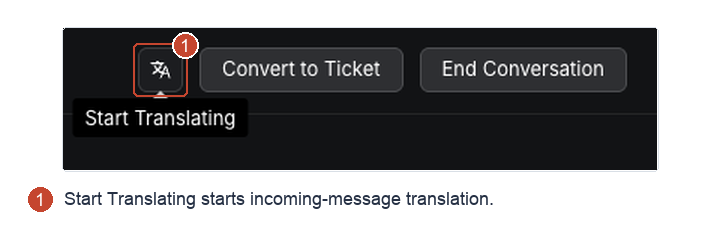
The control turns blue while active. Use it again to stop automatic translation.
Earlier messages are not translated automatically when you start. Select Translate beneath an earlier message, or Show original beneath a translation to check the contact's wording.
Send translated replies
With Live Translations enabled, agent replies are translated into the language inferred from the contact's last three messages. Review your reply before sending.
Use translation troubleshooting if the controls or language are unexpected.