Enable Live Translations in HappyFox Messaging to read contact messages in your team's language and translate replies into the contact's inferred language.
Before you start
You need Manage Chatbot permission and Messaging enabled for the widget.
Configure translation
- In Chatbot administration, open the widget's WEB MESSAGING → Configuration page.
- Turn on Live Translations.
- In Translate visitor messages into, select the language your agents should read.
- Select Save.
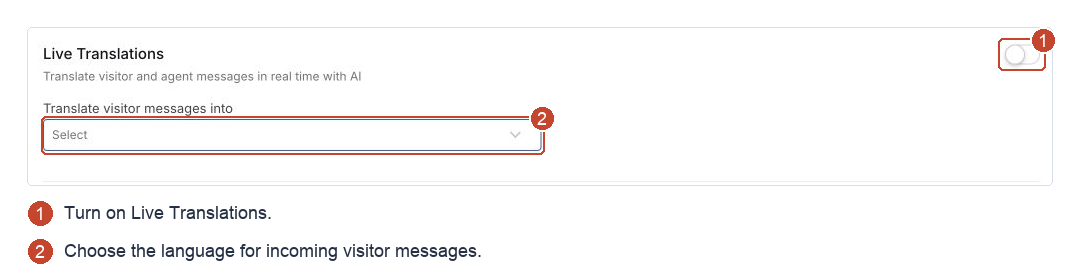
The selector shows languages available for this setting. This choice controls incoming translations for agents; outgoing replies use the contact's inferred language.
The assigned agent selects Start Translating in the conversation header to translate new incoming messages. See using translation during a conversation for starting, stopping, earlier messages, and original text.
Use translation checks if the controls or language are unexpected.