DKIM adds a cryptographic signature to every email sent from your domain through HappyFox Help Desk, improving deliverability and protecting your domain from spoofing.
Applicable plans: All plans except Basic
What is DKIM?
DKIM (DomainKeys Identified Mail) adds a cryptographic signature to every email sent from your domain. This signature proves the email genuinely came from you and was not altered in transit, which significantly improves deliverability and protects your domain from spoofing. Learn more about DKIM
Warning: Do not skip this step. If DKIM verification is not completed, outgoing emails from this channel will be sent from a generic HappyFox address instead of your custom domain. This makes replies look unprofessional to recipients and may cause deliverability problems.
DKIM verification is part of the DNS Verification panel. Five CNAME records are required.
Where to find your DNS settings
DNS records are managed at either your domain registrar or your DNS provider, whichever hosts your nameservers.
Quick links for adding CNAME records by provider:
Step 1: Get the record values from HappyFox
- Go to Channels > Email > Email Addresses tab.
- Click the channel you are configuring.
- Under Configure Outgoing Email select "Configure" for HappyFox Managed.
- Open the DNS Verification section and expand DKIM Verification.
- HappyFox displays 5 pairs of CNAME Key and CNAME Value. Copy all 5 pairs. Do not modify them.
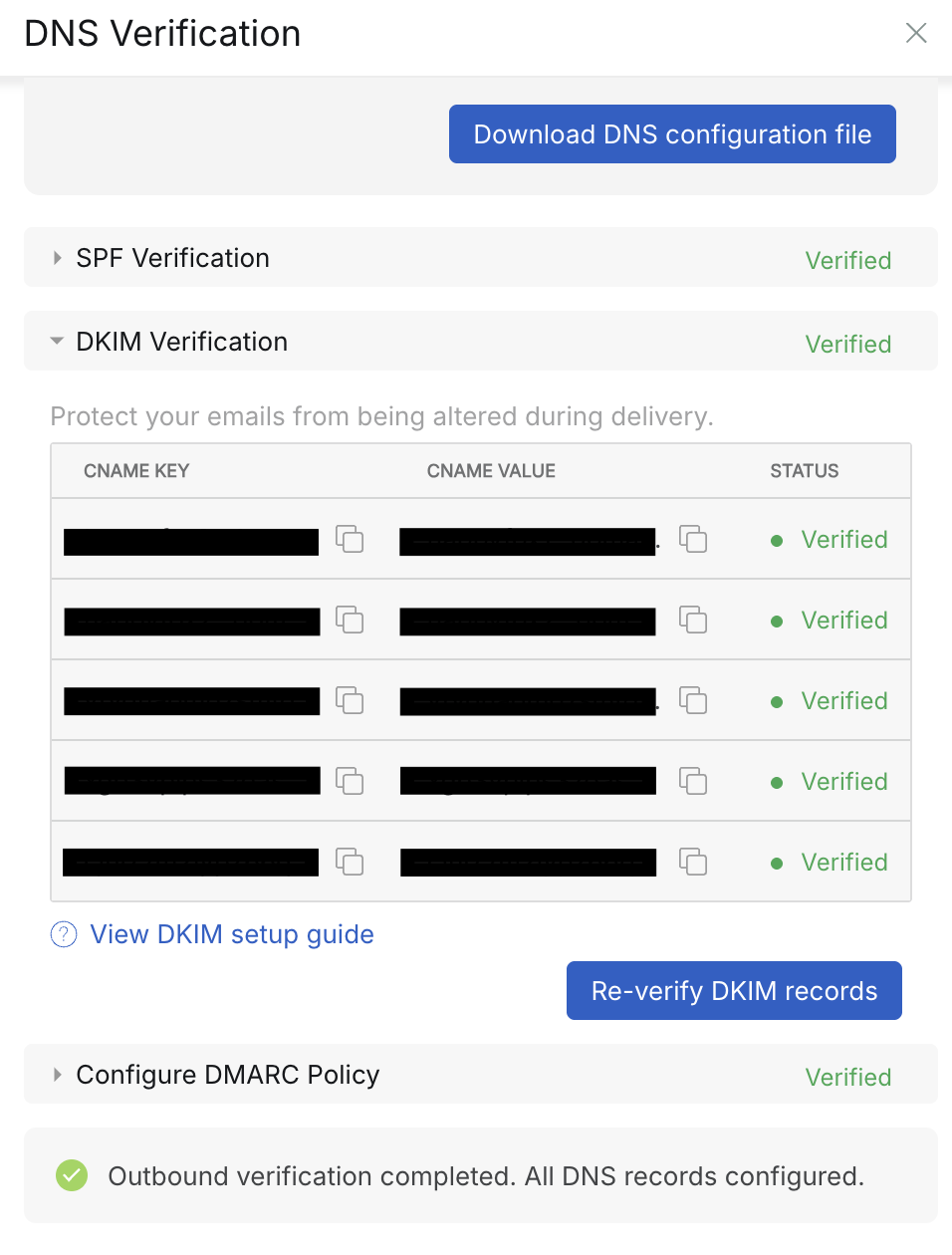
Step 2: Add the 5 CNAME records in your DNS provider
For each of the 5 records, create a new CNAME record:
| Field | What to enter |
|---|---|
| Type | CNAME (Cloudflare users: set to DNS only, not Proxied) |
| Name / Host | The CNAME Key value from HappyFox (e.g., happyfox1._domainkey) |
| Value / Target | The CNAME Value from HappyFox |
| TTL | 3600 or Default |
Repeat for all 5 records.
Warning: Critical: Watch out for DNS auto-fill Many DNS providers (including Cloudflare, GoDaddy, and Namecheap) automatically append your domain name to CNAME entries. If your provider does this, you must enter only the subdomain portion in the Name/Host field.
- Correct:
happyfox1._domainkey- Wrong:
happyfox1._domainkey.yourcompany.comEntering the full hostname in a provider that auto-appends creates an incorrect record that silently fails verification. Check your provider's documentation to confirm. When in doubt, enter only what HappyFox shows in the CNAME Key column.
Step 3: Verify in HappyFox
- Return to the DNS Verification section in HappyFox.
- Click Verify and Enable DKIM.
DNS propagation can take up to 72 hours. If verification does not pass immediately, wait a few hours and try again.
Still failing after 72 hours?
- Confirm all 5 records were added, not just some.
- Check whether you entered the Name/Host with your domain auto-appended. This is the most common cause of failure.
- Use MXToolbox CNAME Lookup to check whether the records are publicly visible.
- Contact HappyFox support if the issue persists.
Once DKIM passes, continue with Configure DMARC Policy.