


Import Contact Groups from Spreadsheets

Jan 16, 2026
 134
134
HappyFox allows you to create or update contact groups using CSV, XLS and XLSX files containing contact group fields and their corresponding values. This article covers the general guidelines on importing contact groups.
Available on all pricing plans.
Import Checklist
- Make sure you have the Manage Contact Groups permission that governs the visibility of the Import Contact Groups option. Contact your helpdesk admin if you don’t see this option.
- Make sure all required contact group custom fields are created beforehand.
- Verify dropdown and multi-select custom field values match the values in your import file.
Make Your Import File Ready
HappyFox supports importing contact groups from .csv, .xls and .xlsx file formats.
- You can import one file at a time
- The first row must contain column headers (in any order)
- Field names are case sensitive and must exactly match HappyFox field names
- Subsequent rows should contain values for each contact group
Table format for import
Mandatory Fields
- Name
- This is the Contact group name
- Case sensitive
- It acts as the unique identifier for updates
- Mandatory Contact Group-Custom Fields
- This is case sensitive
Optional Fields
- Description
- This is a description of the contact group
- This is a description of the contact group
- Auto add domains
- These should be added as comma-separated domains
- Do not include @ or spaces
- Example: example.com, example.org
- Custom Fields
- Must be created in HappyFox before import
- Column headers must be an exact match (case sensitive)
Note: Only custom fields included in the sheet will be updated for existing contacts; all other data will be preserved.
Example of an Import File:
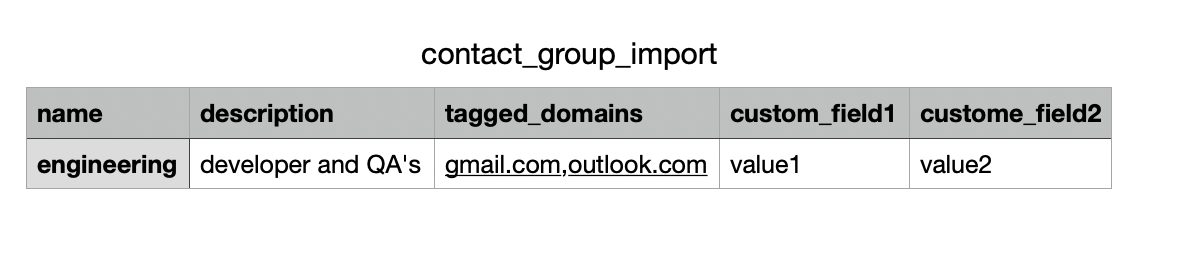
For a reference file, please refer to the .csv file attached at the end of this knowledge base article.
Formatting Guidelines
- Use comma-separated values within double quotes for multi-value fields for csv files
- Example: "gmail.com,outlook.com"
- Example: "gmail.com,outlook.com"
- Do not use brackets ([ ]) or semicolons
- Avoid spaces before or after commas
Steps to Import Contact Groups
Follow the steps below:
- Go to Contacts → Contact Groups from the module switcher.
- Click the Import Contact Groups icon next to the search bar.

- Click Upload file and select your CSV/XLS file.
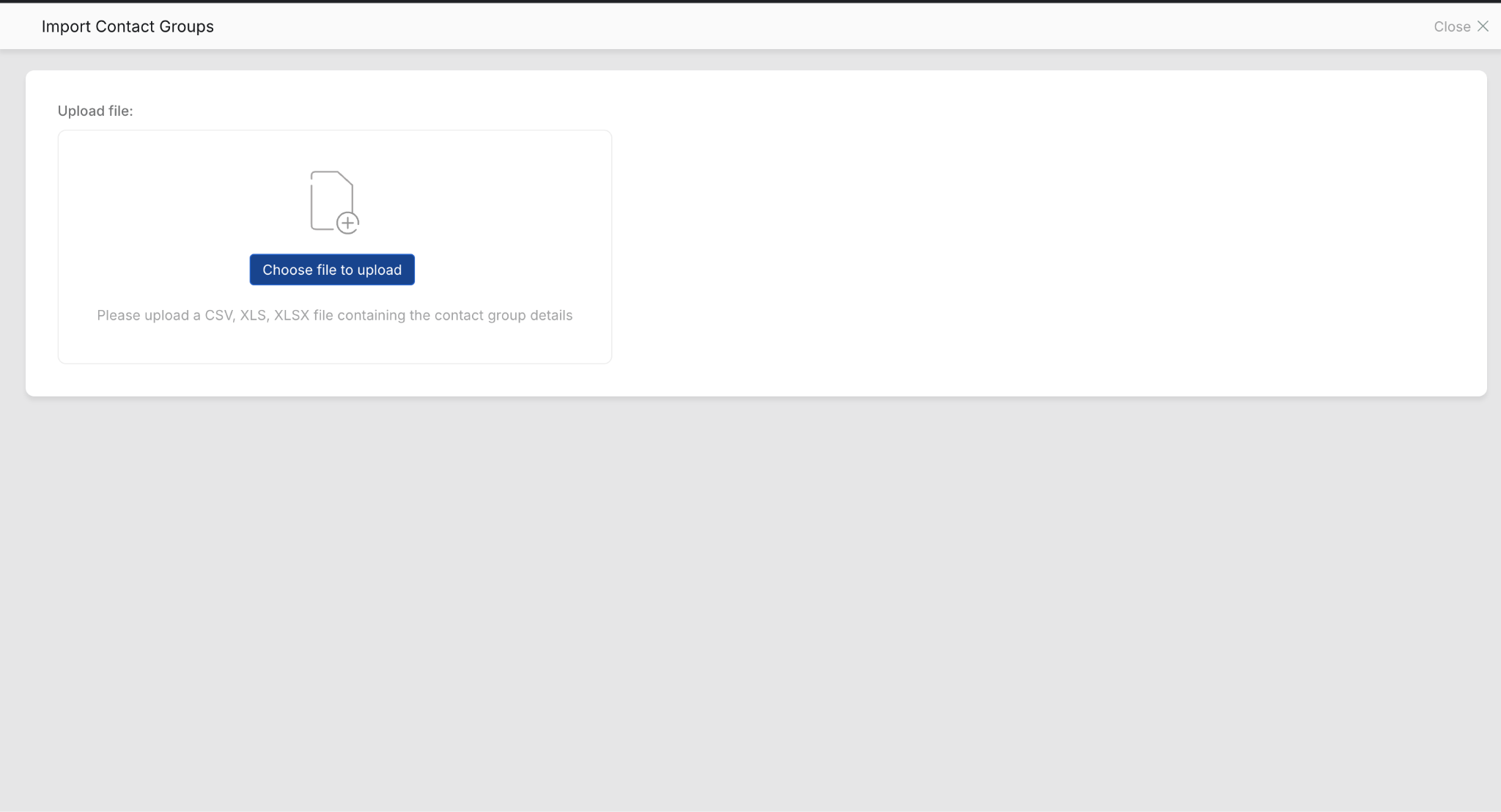
- The import starts automatically.
Import Status & Results
- You can abort the import at any time
Once the import completes:
- Valid records → Contact groups are created or updated
- Invalid records → Skipped
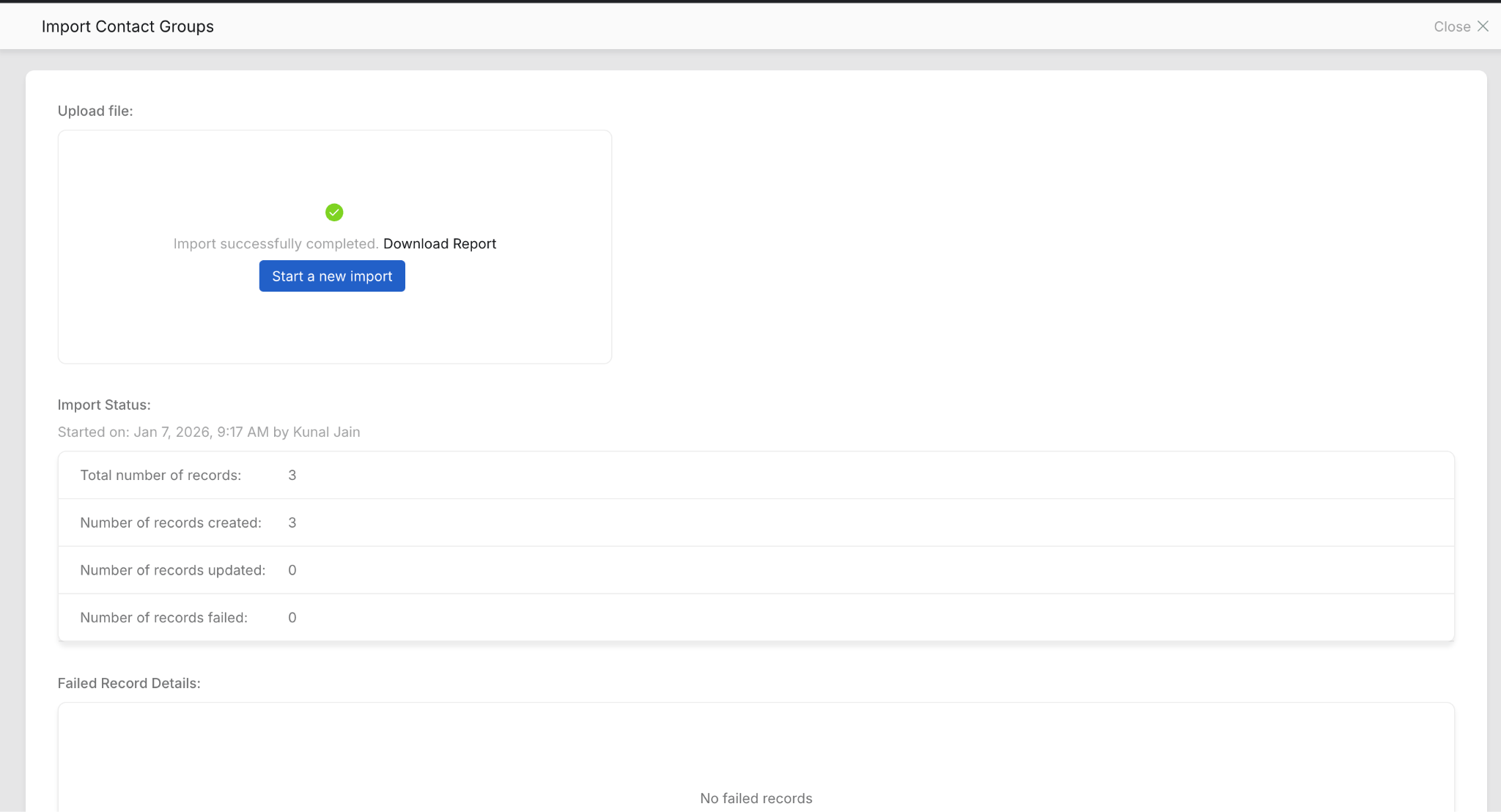
You will see:
- Total number of records
- Number of records created
- Number of records updated
- Number of records failed
Error Report & Download
After completion, click Download Report to download an XLSX file containing:
- Number of new contact groups created
- Number of contact groups skipped
- Failed rows
- Detailed error logs:
- Row number
- Field name
- Error message
You can use this report to fix errors and re-import only failed rows.


