Kandji is an Apple Device Management (MDM) platform for managing macOS, iOS, iPadOS, and tvOS devices. By integrating Kandji with HappyFox Helpdesk, you can synchronize Apple devices as read-only managed assets in HappyFox.
This ensures your support teams have real-time access to device information, helping with faster resolution and more efficient asset tracking.
Applicable Plans ✔ Pro ✔ Enterprise Pro ✔ All Unlimited Agents plan
With Kandji – HappyFox Helpdesk Integration
- Sync Devices: Devices managed in Kandji are imported into HappyFox as managed assets.
- Platform-Based Asset Types: Each device platform (Mac, iPad, iPhone, AppleTV, Android, Windows) is mapped to its own asset type in HappyFox.
- Associate Tickets and Contacts: Assets can be linked with tickets and contacts for more efficient support.
Steps to Configure Kandji Integration
1. Create a Kandji API Token
To enable the HappyFox–Kandji integration, you need a Kandji API token with the required permissions. Follow these steps:
- Log in to Kandji:
Go to your Kandji account and click Settings from the left navigation menu.
- Access API settings:
Click on Access.
- Copy API URL:
Copy your organization’s API URL and note it down for later use.
- Add a new token:
- Click Add Token.
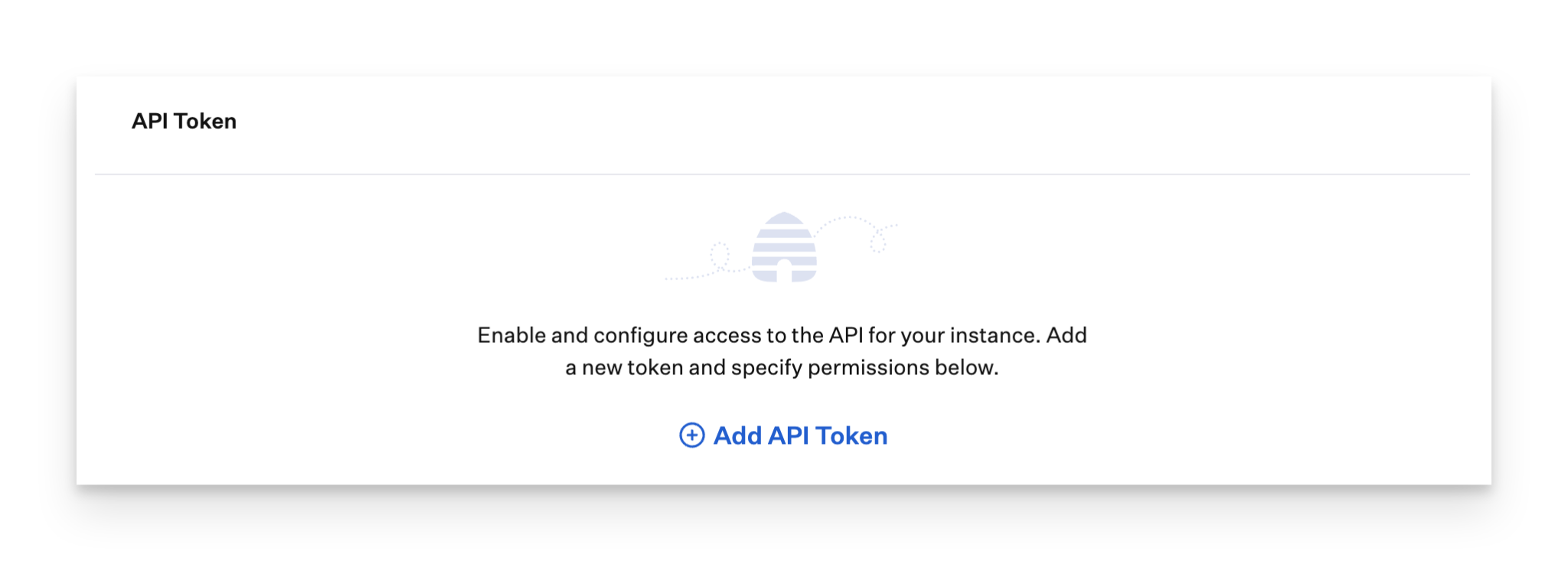
- Give the token a descriptive name (e.g., Asset Sync for HappyFox).
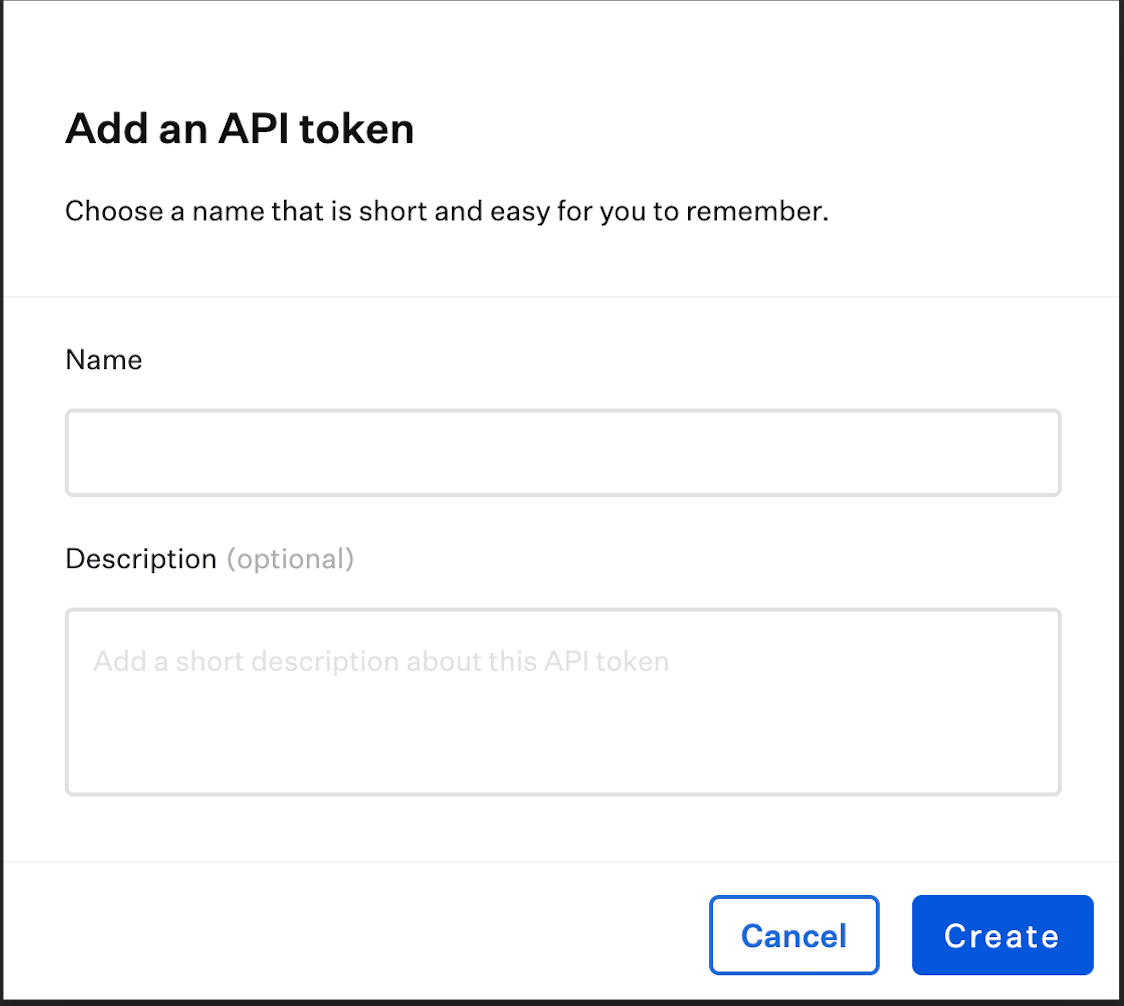
- Click Create.
- Click Add Token.
- Copy the token:
- Click Copy Token and save it securely.
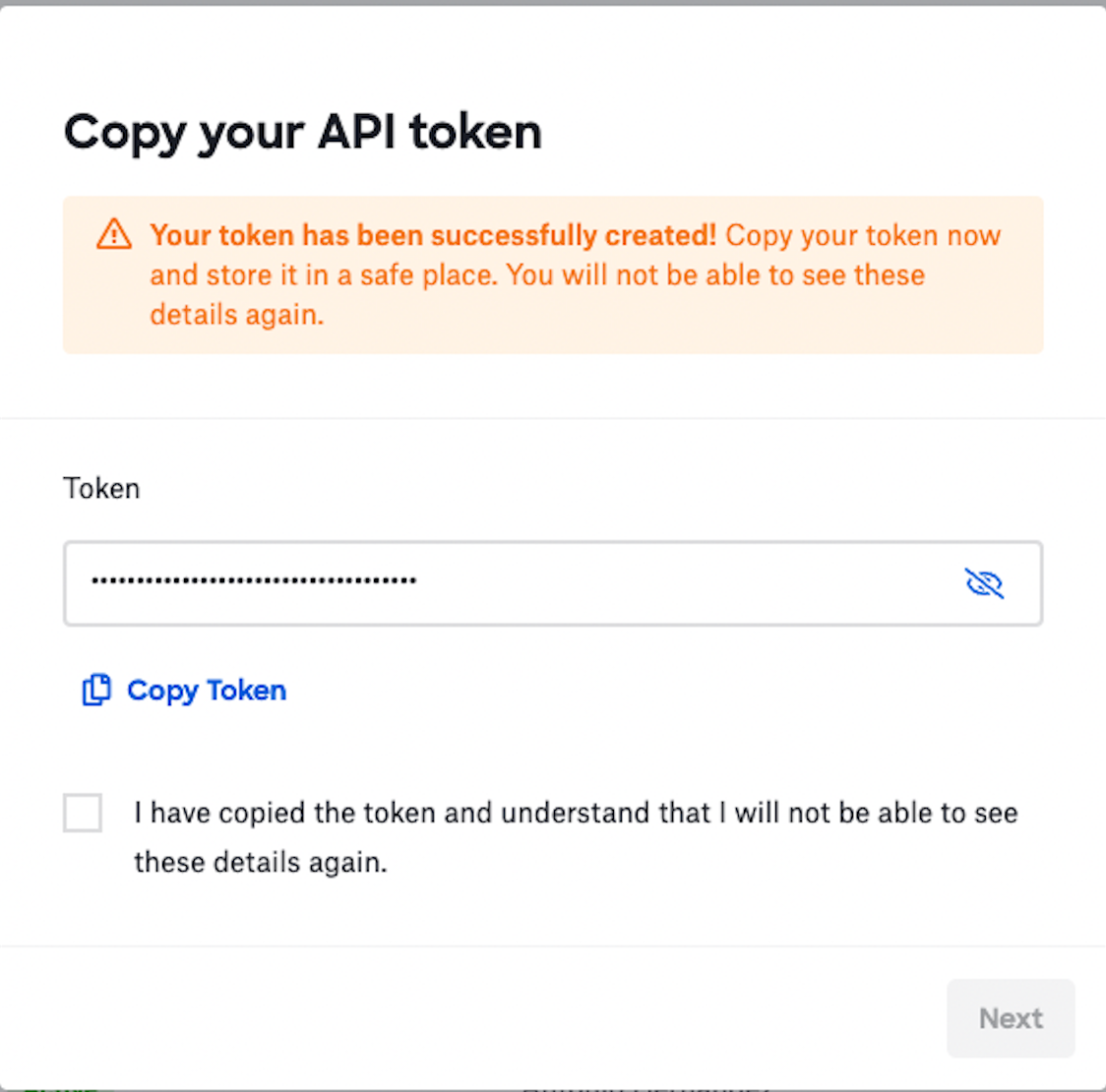
- Tick the confirmation checkbox and click Next.
- Click Copy Token and save it securely.
- Configure permissions:
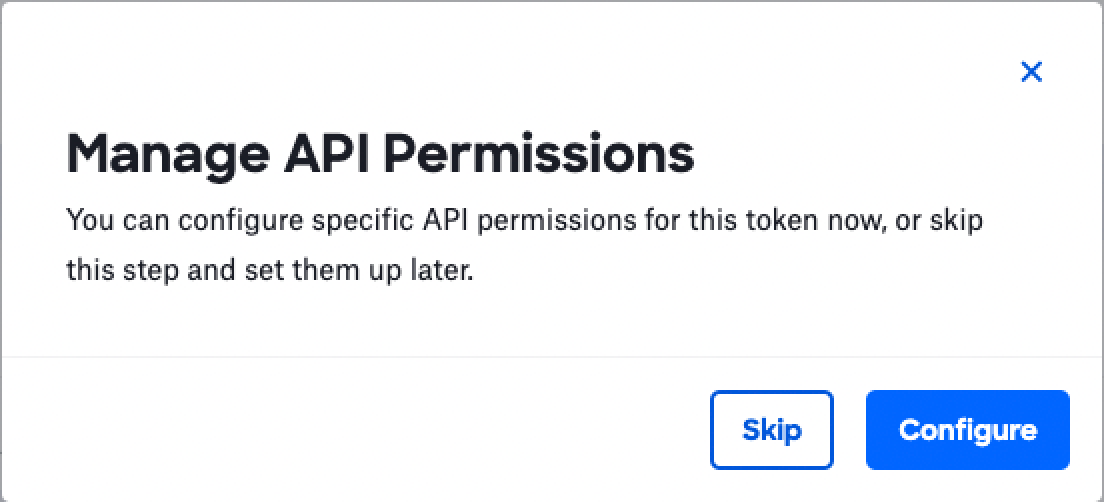
- Scroll to the Device Information section.
- Select Device list and Device details.

- Click Save.
- Scroll to the Device Information section.
Note: This token will be used in HappyFox to authenticate API access and sync device information.
2. Install and Authorize the Kandji App in HappyFox Helpdesk
- Install the Kandji integration from the Apps section in HappyFox.
- Enter your Kandji credentials:
- API Token: With required permissions (Device List and Device Details)
- API Token: With required permissions (Device List and Device Details)
- Click Authorize to validate credentials.
2. Configure Field Mapping
- Select the source for Asset Name (e.g., Device Name, Model).
- Select the source for Asset Display ID (Serial Number or Device ID recommended).
- The system automatically pre-populates Kandji fields in dropdowns.
Important: Asset Display ID must be unique. Duplicate IDs may overwrite existing assets.
3. Initial and Recurring Sync
- Initial Sync: Triggered immediately after field mapping, importing all supported devices.
- Recurring Sync: Runs daily automatically.
- Sync Reports: CSV reports summarize created, updated, skipped, and failed assets.
- Attachments: Kandji attachments are not imported.
4. Managed Asset Types
- Each platform creates its own asset type:
- Mac, iPad, iPhone, AppleTV, Android, Windows
- Mac, iPad, iPhone, AppleTV, Android, Windows
- Managed asset types:
- Read-only and system-controlled
- Display Kandji icon
- Cannot be renamed or deleted
- Allow manual asset creation
- Read-only and system-controlled
5. Managed Asset Fields
- All Kandji attributes are added as managed fields under a Kandji field group.
- Read-only and system-managed
- Fields include: device_id, serial_number, device_name, platform, model, os_version, asset_tag, last_check_in, blueprint, enrollment_state, supervised, udid, and user.
6. Managed Assets
- Assets are automatically synced into their platform-based asset type.
- Read-only and marked with Kandji logo.
- Clicking the icon redirects to the Kandji device detail page.
- Manual assets can be added, edited, or deleted to the synced asset types but synced assets remain read-only.
- Contacts can be associated with assets, and tickets linked to these assets appear in the Recent Tickets section.
7. Manage the App
- Disable the app: Stops future syncs; previously imported assets remain read-only.

Note: Disabling the app does not remove synced assets from HappyFox Helpdesk.