This Knowledge Base article provides a comprehensive overview of the new Task Management module within HappyFox Help Desk, designed to streamline ticket-related task organization and tracking.
Applicable Plans:
✖️ Basic ✖️ Team ✔️ Pro ✔️ Enterprise PRO
✔️ Growth ✔️ Scale ✔️ Scale Plus ✔️ Ultimate
I. Overview of Task Management Page
The Task Management page serves as a centralized hub for overseeing all tasks associated with your tickets. It enables users to:
- View All Tasks: Access both pending and completed tasks efficiently.
- View Associated Tickets: Directly view the associated ticket for each task.
- Access Communication: Review all replies and private notes within the associated ticket.
II. Navigation
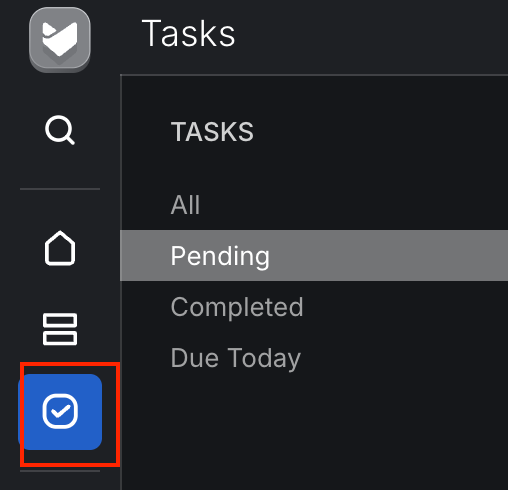
To access the Task Management page, click on the Tasks icon located in the navigation bar.
III. Page Layout and Features
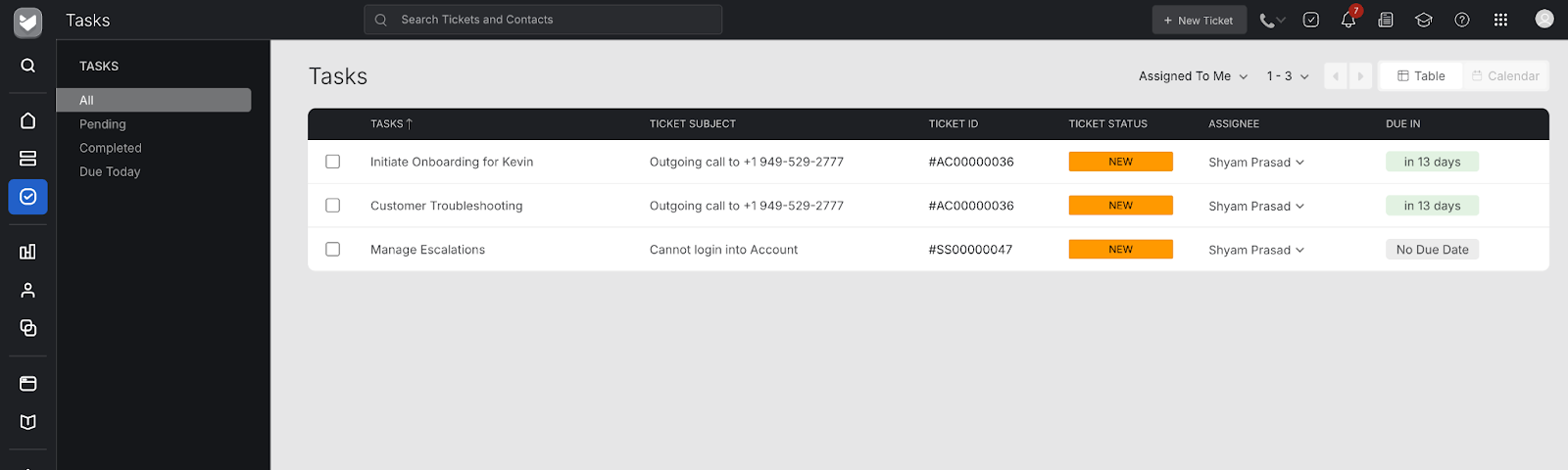
Upon navigating to the Task Management page, you will observe the following key sections:
- Left Panel - Task Filters:
- "All": Displays all tasks.
- "Pending": Filters to show only pending tasks.
- "Completed": Filters to show only completed tasks.
- "Due Today": Displays tasks scheduled for completion on the current day.
- Main Table - Task Information:
- Task Name: The title of the task.
- Ticket Subject: The subject line of the associated ticket.
- Ticket ID: The unique identifier of the associated ticket.
- Ticket Status: The current status of the associated ticket.
- Task Assignee: The user or team assigned to the task.
- Due Date: The deadline for task completion.
- Top Right Panel - View Options:
- Assignee Filter: Options to filter tasks by "Assigned to Me" or "Assigned to Anyone."
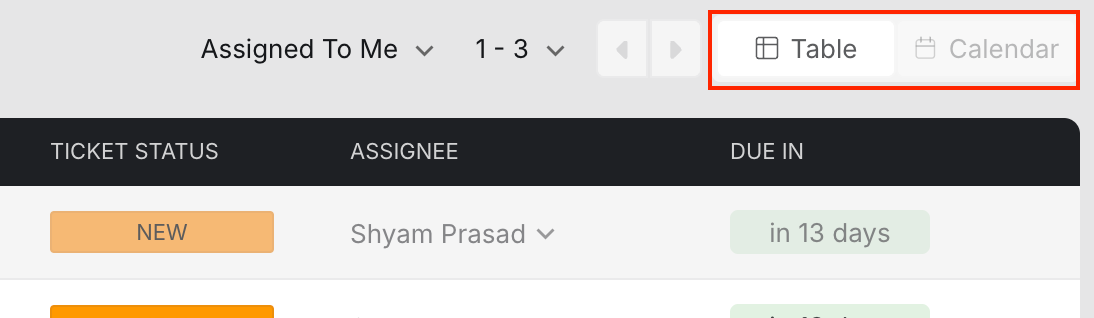
- View Switcher: Toggle between "Table View" (default) and "Calendar View."
IV. Task Actions
The Task Management module facilitates the following actions:
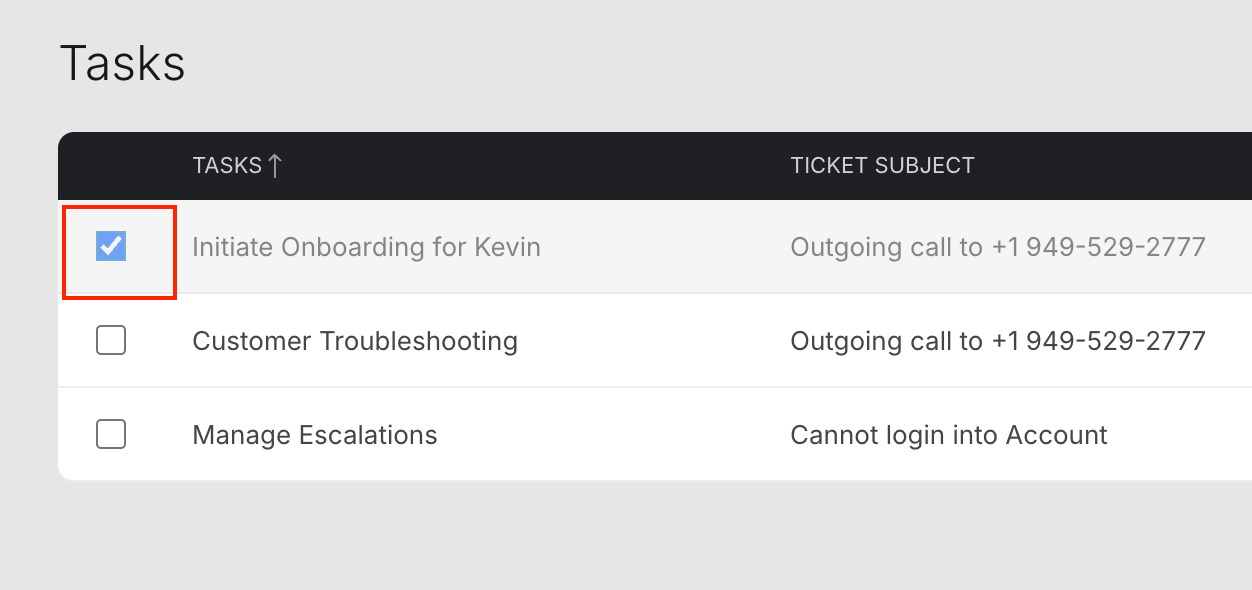
- Task Completion: Mark a task as "Completed" by clicking the checkbox adjacent to the task entry.
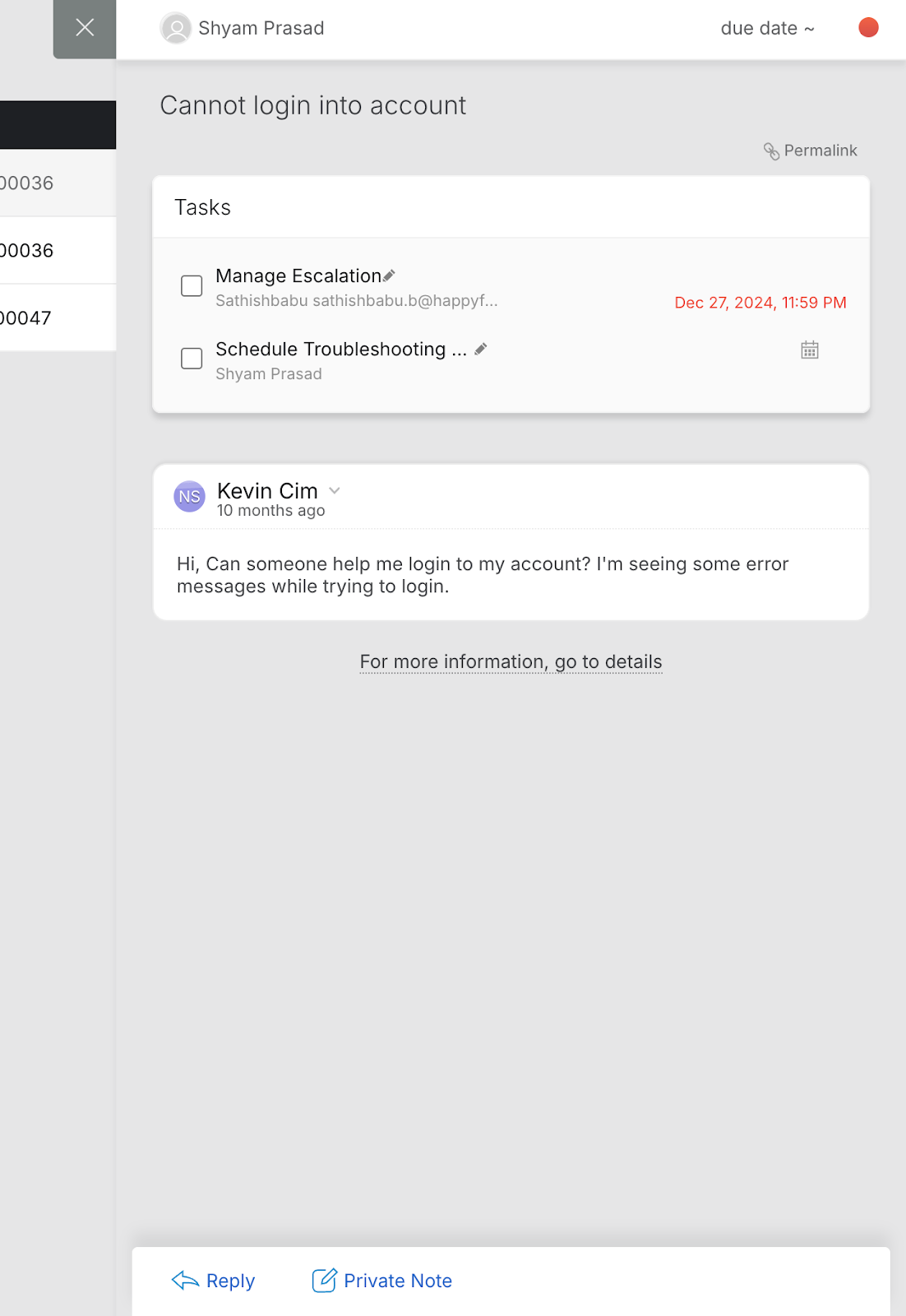
- View Ticket Details: Clicking on a task name opens a detailed side window, providing:
- The subject of the associated ticket.
- A list of other tasks linked to the same ticket.
- All replies and private notes within the ticket.
- Options to add new replies or private notes directly to the ticket.
V. Calendar View
The Calendar View offers a visual representation of tasks, organized by their respective due dates.
- Switching to Calendar View: Click the toggle button situated in the top-right corner of the table to switch from Table View.
- Default View: By default, the Calendar View displays the "Month" view, showcasing all tasks due within the current month.
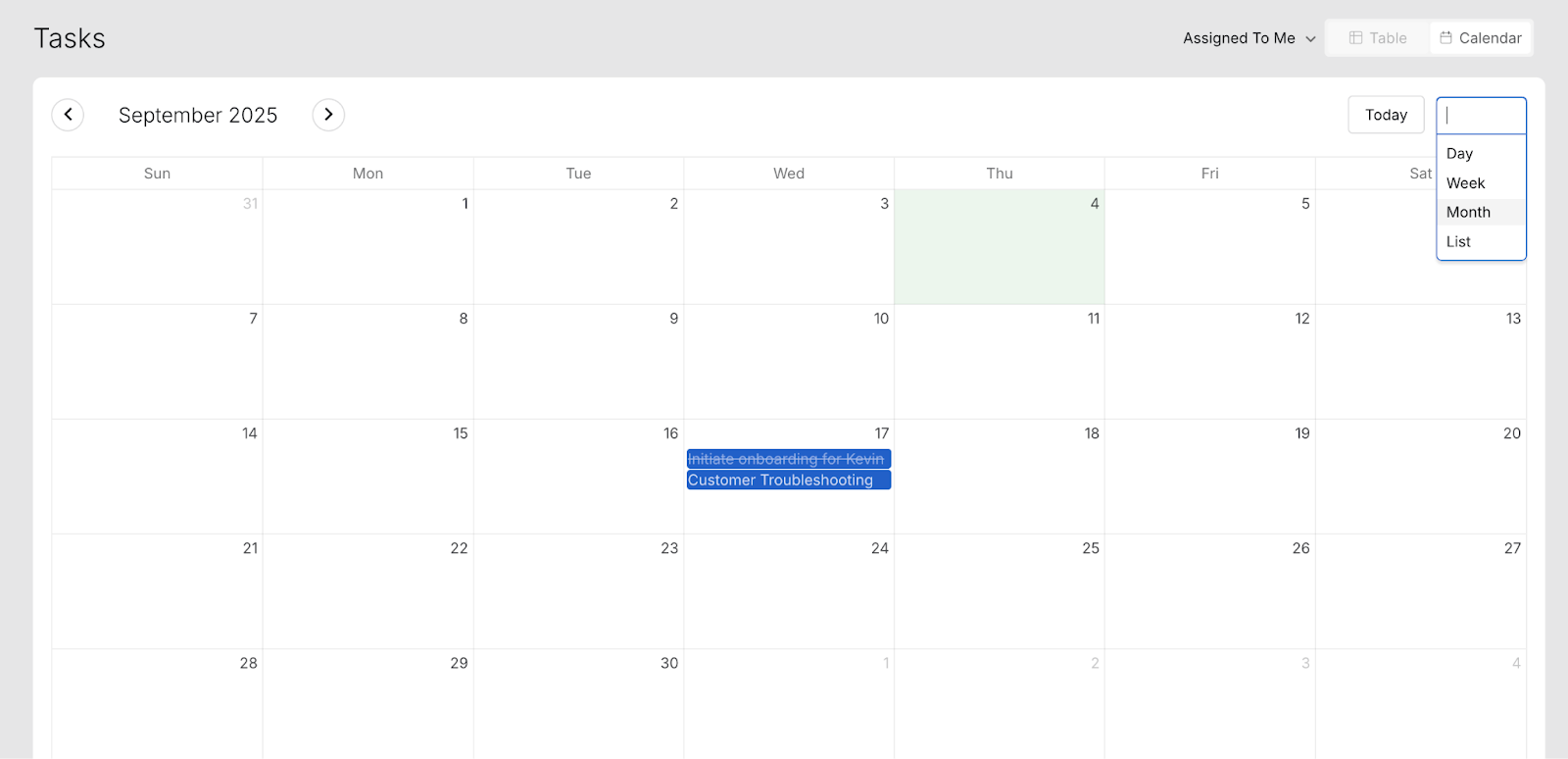
- View Switcher Options: You can customize the calendar display using the view switcher in the top-right corner of the calendar:
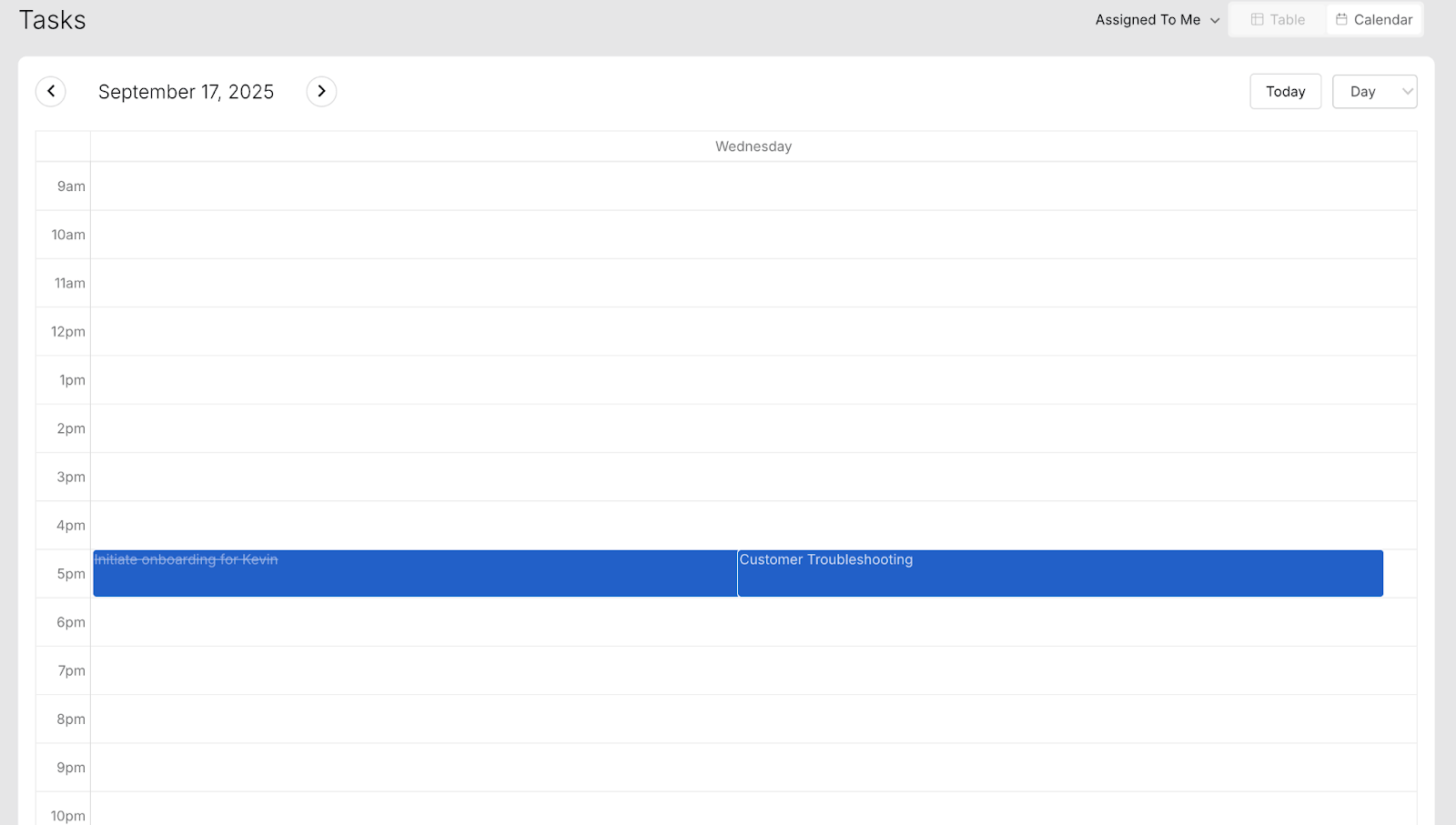
- "Day": Shows all tasks due on a specific day, arranged by their due time.
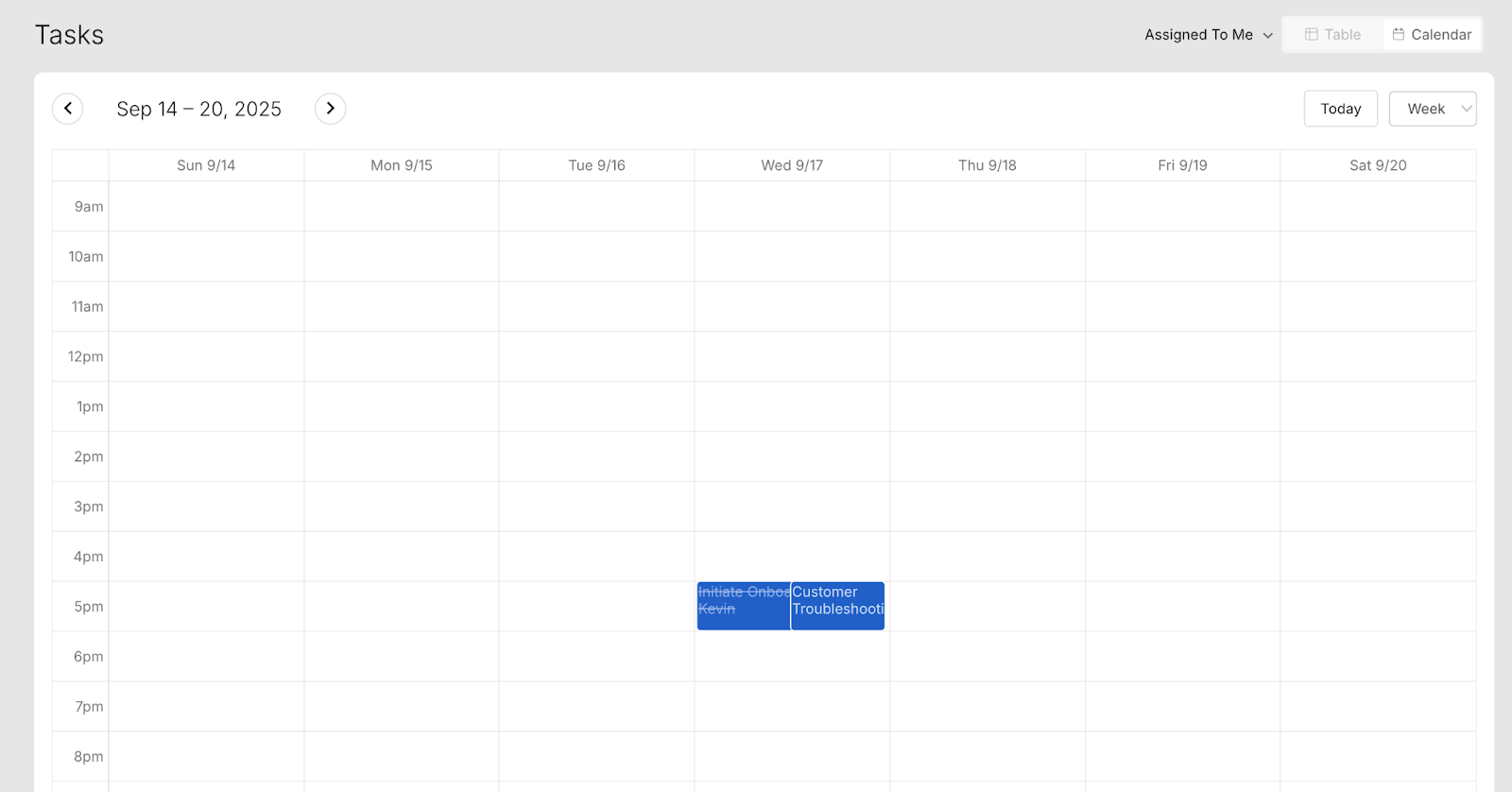
- "Week": Shows all tasks due within a specific week, arranged by their due time.
- “Month”: Shows all tasks due within a specific month, arranged by their due date.
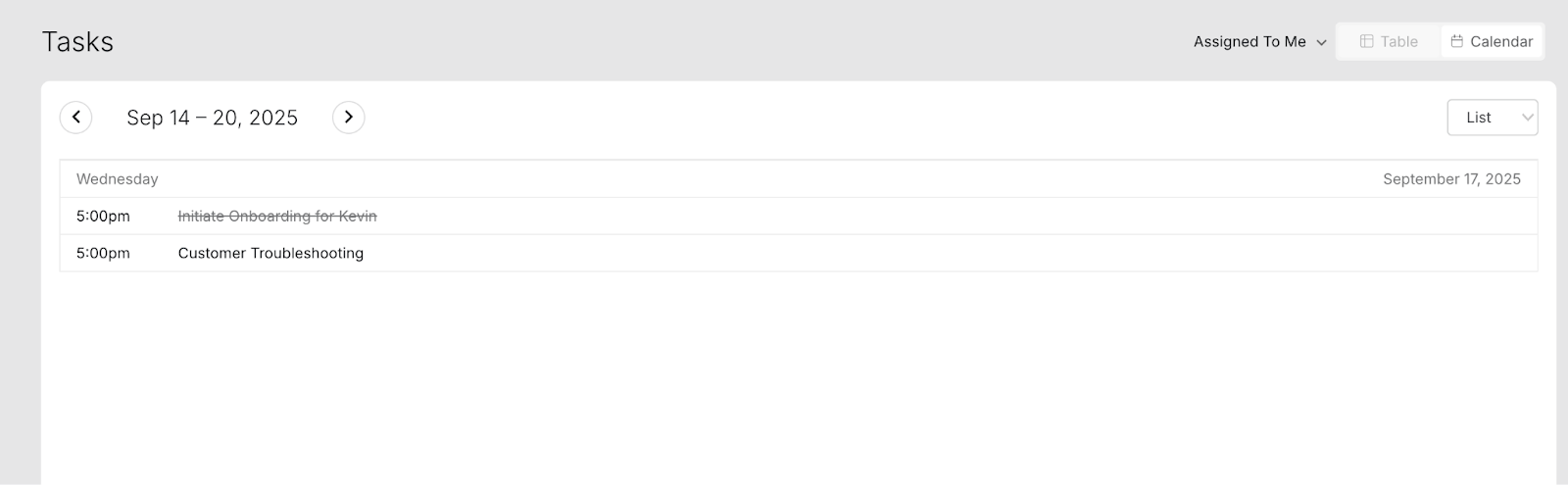
- "List": Presents all tasks as a straightforward list, with date ranges similar to the "Week" view but without the calendar grid.
VI. FAQ
Q1 - Can I edit task details from the Task Management page?
A - Yes. Upon clicking a task, a right window will appear and all the tasks under the ticket will have an Edit option, which can be used to edit the Task details such as Name, Assignee, Due Date, etc. However, it requires Manage Tasks in Tickets permission for editing the Tasks, and specifically the Tasks Change Assignee permission to change the Assignee of the tasks.
Q2 - Can I export my task list?
A - No. Currently we do not support this capability.
Q3 - What's the most efficient way to handle daily task management?
A - Start with the "Due Today" filter to prioritize immediate tasks, then use "Assigned to Me" to see your personal workload, and switch between Table and Calendar views based on your preference for the day's planning.