Organization owners use Settings > Team to invite members and choose which brands they can access. Give someone Viewer access to review results or Editor access to manage tracking for their assigned brands.
Choose a role
- Viewer can view results for assigned brands.
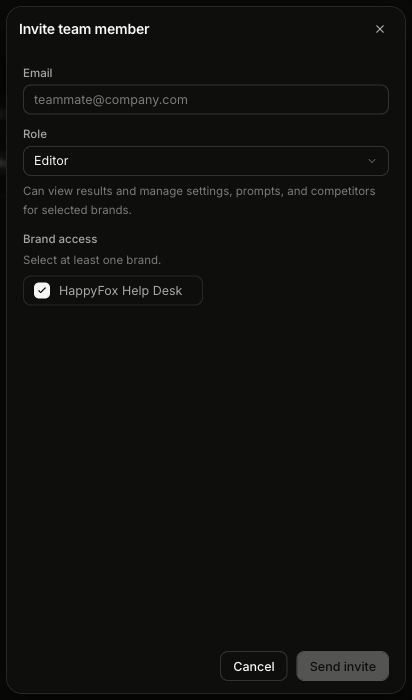
- Editor can view results and manage settings, prompts, and competitors for assigned brands.
- Owner manages the organization, including the team, billing, and brand creation and deletion. Owners need brand access to work with a brand’s data.
Use the invitation and member-edit forms to assign Viewer or Editor. The role and deactivation controls apply to Editors and Viewers.
Invite a teammate
- Go to Settings > Team and select Invite member.
- Enter the teammate’s email address and choose Editor or Viewer.
- Under Brand access, select at least one brand.
- Select Send invite. Check Pending for the invitation.
Each pending invitation reserves a seat. Check team seat usage if you need room for another person.
Accept an invitation
Open the link in your invitation email and review the organization, email, role, and brands. Enter a password and select Accept invite. If verification fails, ask an owner for a fresh invitation. If no brand is available after you join, ask an owner to assign one and reload AEO.
Resend an invitation
In Settings > Team, open Pending and use the resend action on the invitation. Ask the recipient to use the newest link. If the status is Send status unknown, check its status and follow the message before resending. An expired invitation releases its seat, so you need an available seat to resend it.
Change a member’s role or brand access
- Under Active, find the member and select their edit action.
- Update Role and Brand access. Select at least one brand.
- Select Save changes.
Deactivate a member
On the member’s row, select the deactivate action and confirm Deactivate member. This suspends their access to the organization’s brands and disconnects their existing AEO integrations with AI assistants. The connections belong to the member, so they may need to reconnect assistants they use with other organizations. AEO retains their profile and membership history.
If AEO shows Retry deactivation, use it to finish the operation. Access stays suspended while deactivation is pending. The seat becomes available when deactivation completes.
Reactivate a member
- Open Deactivated and select the member’s reactivate action.
- Review the role and select the brands to restore.
- Select Reactivate member. If AEO shows Retry reactivation, use it to finish.
Reactivation requires an available seat. To use AEO with an assistant again, the member needs to reconnect it.