Connect an AI assistant to retrieve visibility results and captured answers. With the permissions you grant, the assistant can also manage tracked prompts and competitors. Access follows your organization and brand permissions.
Before you connect
Use an AI client that supports remote Model Context Protocol (MCP) servers with Streamable HTTP and OAuth. You authorize the connection by signing in to AEO and reviewing the requested permissions.
Open Settings > MCP. If you already have connected apps, select Connect another MCP client.
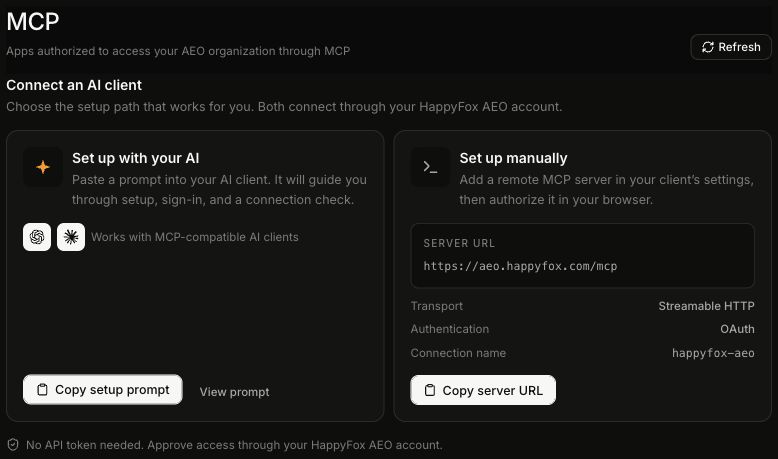
Set up with your AI
- Under Set up with your AI, select Copy setup prompt.
- Paste it into the AI client you want to connect.
- Follow the client’s guidance to add the server and start authorization.
- Sign in to AEO when prompted. Review the requesting client and approve the access you want to grant.
Set up manually
- Under Set up manually, select Copy server URL.
- In your AI client, add a remote MCP server using the copied URL.
- Set the name to
happyfox-aeo, the transport to Streamable HTTP, and authentication to OAuth. - Start authorization in the client. In the browser, sign in to AEO if prompted and approve the access you want to grant.
- Return to your AI client to finish setup.
Choose what the assistant can do
- Read analytics gives access to available brands, performance, answers, citations, and competitor comparisons.
- Create prompts allows the assistant to add tracked prompts and start collection, subject to role, subscription, and usage limits.
- Delete prompts allows the assistant to remove tracked prompts.
- Manage competitors allows the assistant to add competitors or update their names and domains.
- Delete competitors allows the assistant to remove tracked competitors.
Manage brands, scans, billing, and team access in AEO.
Verify the connection
Back in Settings > MCP, use Check now or Refresh and look for the app under Connected apps. Paste this into the connected assistant to test access.
Use the HappyFox AEO connection to list the brands I can access. If the request fails, tell me what error the connection returned.
If the app is missing, finish authorization in the client and refresh AEO. If a request is denied, check the client’s permissions and your role for the brand. For a tracking change, also check subscription status and available usage.
Disconnect an app
In Settings > MCP > Connected apps, find the app, select Disconnect, and then confirm Disconnect app. AEO revokes the app’s access and retains your tracking data. You can disconnect an app during an inactive subscription. To reconnect it later, authorize it again.