Open AI Engines to see which engines can collect answers for the selected brand. An engine needs to be both available on your plan and enabled for that brand.
Check an engine’s tracking state
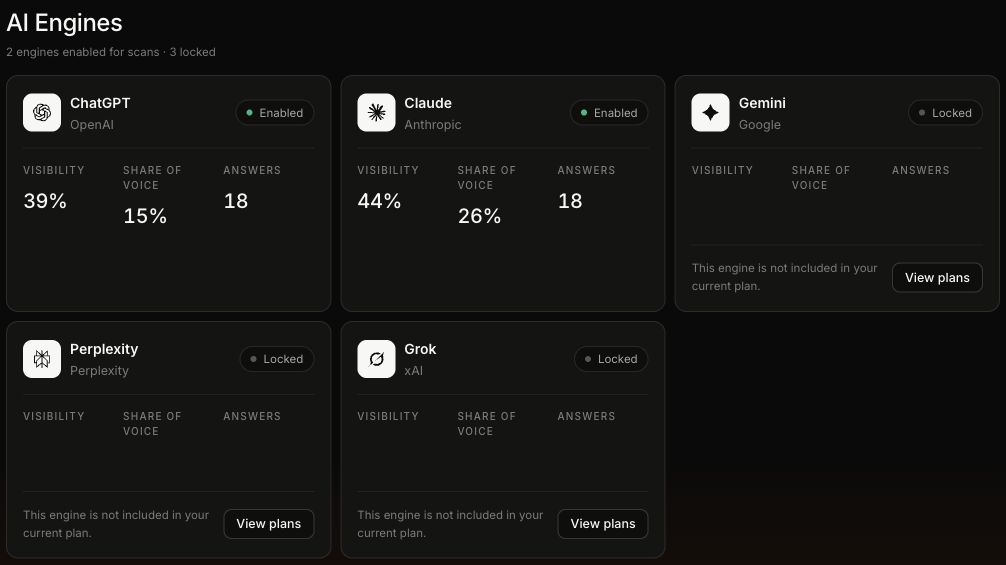
The page lists ChatGPT, Claude, Gemini, Perplexity, and Grok. Check the badge on each card for its state on the selected brand.
- Enabled means the engine is selected for the brand and can be included in future collection.
- Disabled means your plan includes the engine and you can enable it in brand settings.
- Locked means your plan excludes the engine. Select View plans to see which plans include it.
Change engine selection
Organization owners and Editors can change engine selection for brands they can manage.
- Go to Settings > Brands and select Edit on the brand.
- Under AI engines, select the engines you want to track and clear any you want to disable.
- Select Save changes.
You can also select Enable on a disabled engine card to open the settings. Changes apply to future collection. See when AEO collects answers for the events that start collection.
Read the results on an engine card
Visibility is the share of analyzed answers from that engine that mention your brand. Share of Voice is your brand’s share of mentions among your brand and configured competitors for that engine. Answers is the answer count reported for the engine. Blank values mean there’s no measured result to show. Historical results can still appear on cards for engines that are disabled or locked.
If an engine you need is locked, ask an organization owner to check the available plans. After a plan change, review the engine selection for your brand and save your choices.