Each brand has its own prompts, competitors, AI engines, scan schedule, and visibility results. Check the brand selected in the sidebar before you review results or change tracking.
Switch brands or set your default
Use the sidebar brand selector to open a brand you can access. To set the default dashboard brand, go to Settings > Brands and select Set primary on that brand. The Primary badge identifies your default in the list.
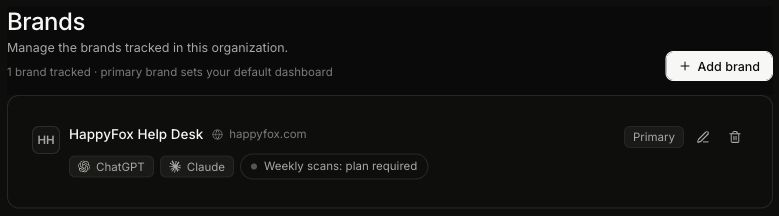
Add a brand
Organization owners can add brands when a slot is available. Check Billing & Usage for capacity.
- Go to Settings > Brands and select Add brand.
- Enter the website domain or product page URL and select Continue.
- Review the brand details, choose competitors and AI engines, and select Review prompts.
- Choose your questions and select Start tracking, or select Add prompts later to save the brand first.
For details on the suggestions and confirmation, see Set up your first brand and start tracking.
Edit a brand
Organization owners and Editors can change settings for brands they can manage. Viewers can review results.
- Go to Settings > Brands and select Edit on the brand.
- Update the name, primary domain, or category under Brand details. You can also change the engines you track or manage weekly scans.
- Select Save changes.
If AEO reports a partial save, check which settings took effect before retrying the remaining changes.
Delete a brand
Organization owners can use the delete action beside a brand in Settings > Brands. Review the confirmation and select Delete brand. AEO removes the brand from your organization’s available brands and stops active tracking. AEO retains the historical scan data.