Note: To review tickets, you need to be added as a reviewer under Manage Access by your Admin.
This guide walks you through rating a ticket and what happens once you publish.
Finding a ticket to review
A review form only shows up on a ticket once an agent has sent at least one agent reply or added a private note. There's no time limit, so you can go back and review older, closed tickets too.
If more than one agent replied on the ticket, you'll pick who you're rating from the Review For dropdown — each agent gets their own independent review.
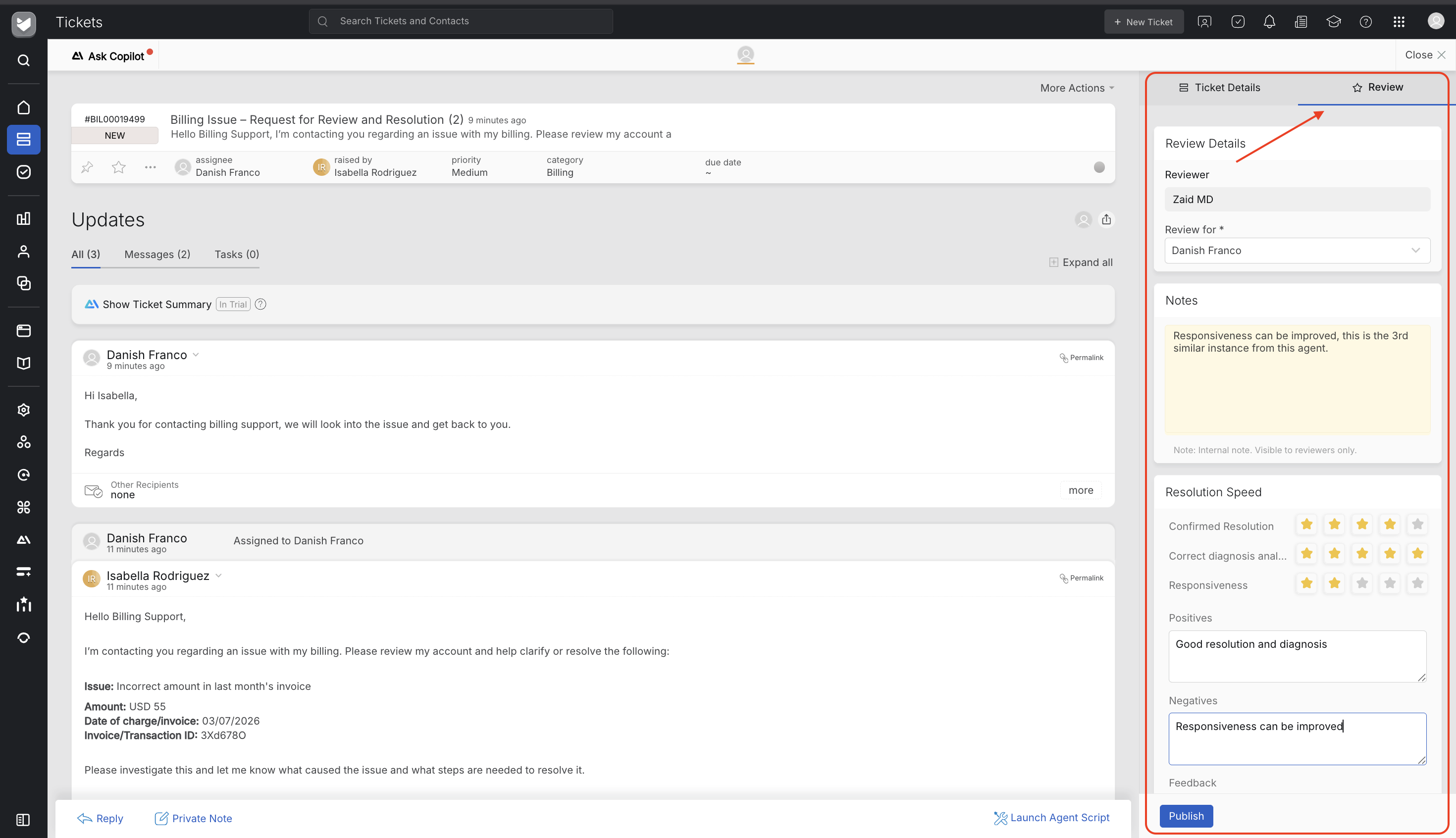
Open the ticket you want to review. The review form appears on the ticket details page, in the right-side panel next to the Ticket Details tab.
Filling in a review
- Notes — Optional, private notes for reviewers only. These notes are not visible to the agent or other reviewers.
- Scorecards — not all criteria on a scorecard are mandatory; your score is derived only from whatever you actually rate. A ticket can also have more than one scorecard, and you are not required to score every scorecard associated with the ticket.
- Scorecard Comment — Optional, if a scorecard has one set up, use it to explain your score in your own words and only the filled comments will be shown to the agent. Unlike Notes, the agent will see this once you publish.
One thing to know: you can't publish a scorecard on Scorecard Comment text alone — rate at least one criterion on it first.
Publishing
Before you can publish, at least one criterion on the scorecard needs to be rated — you can't publish a scorecard with zero ratings.
When you're ready, click Publish. You'll see:
“The submitted scorecard cannot be edited. The agent will be notified of the score.”
Once you confirm, everything you filled in — ratings, and Scorecard Comment text — is locked for good. There's no edit path afterward, for anyone. Double-check your scores and comments before confirming. The agent is notified by email as soon as you publish.
Two situations bring you back to a review after you've already published it, and both work the same way:
- You left a scorecard blank the first time around — it stays open, and you can score it whenever you're ready, even later.
- A new scorecard gets added to the account after your review was already published — it'll show up on that same ticket for you to fill in.
Either way, the moment you fill it in, it locks the same way as everything else: same Publish confirmation, same permanent lock, right there in that scorecard's block.
Good to know
- You can't review your own replies on a ticket — only a colleague's.
- You only see the reviews you personally submitted, not other reviewers' reviews on the same ticket.