This article explains how to enter Google Sheets formulas in the Column Value field of the Update a Row with Provided Values action, so Google Sheets calculates the result automatically after your workflow updates the row.
Applicable Plans: Available on all plans.
Prerequisites
- The Google Sheets integration must be connected. See Integrating Google Sheets with HappyFox Workflows.
- Your workflow must already include the Update a Row with Provided Values action, with a spreadsheet and worksheet selected.
Configuring a Google Sheets formula
- Open your workflow and go to the Update a Row with Provided Values action.
- Select the Spreadsheet, Worksheet, and Row Number for the row you want to update.
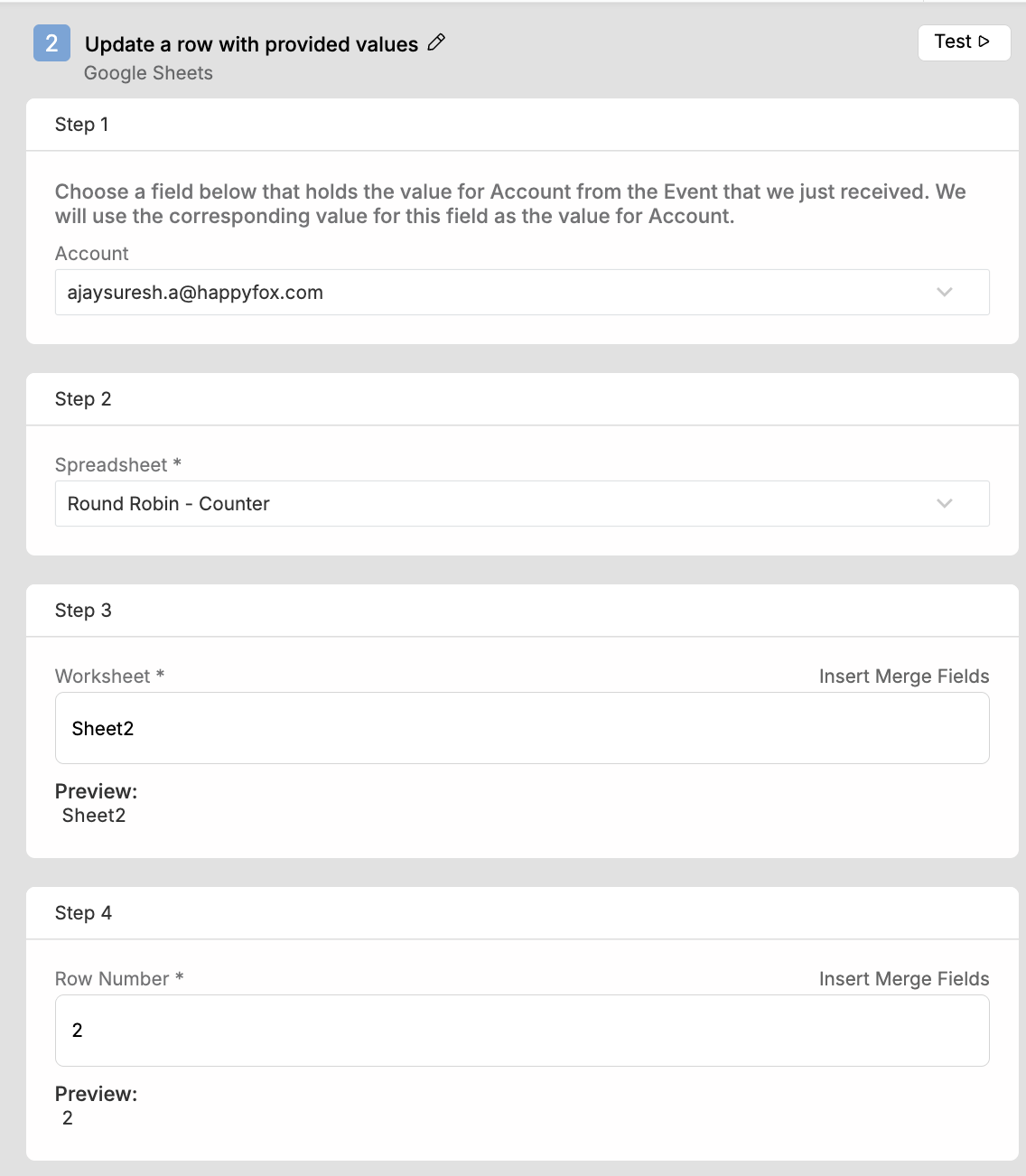
- Under Column Values, click Add Column Value.
- Enter the exact column header from your Google Sheet in Column Name.
Note: Column Name must match the corresponding column header in the worksheet exactly.
- Enter the value in Column Value. This can be static text, a merge field, or a Google Sheets formula.
- To enter a formula, start the value with an equals sign (
=).
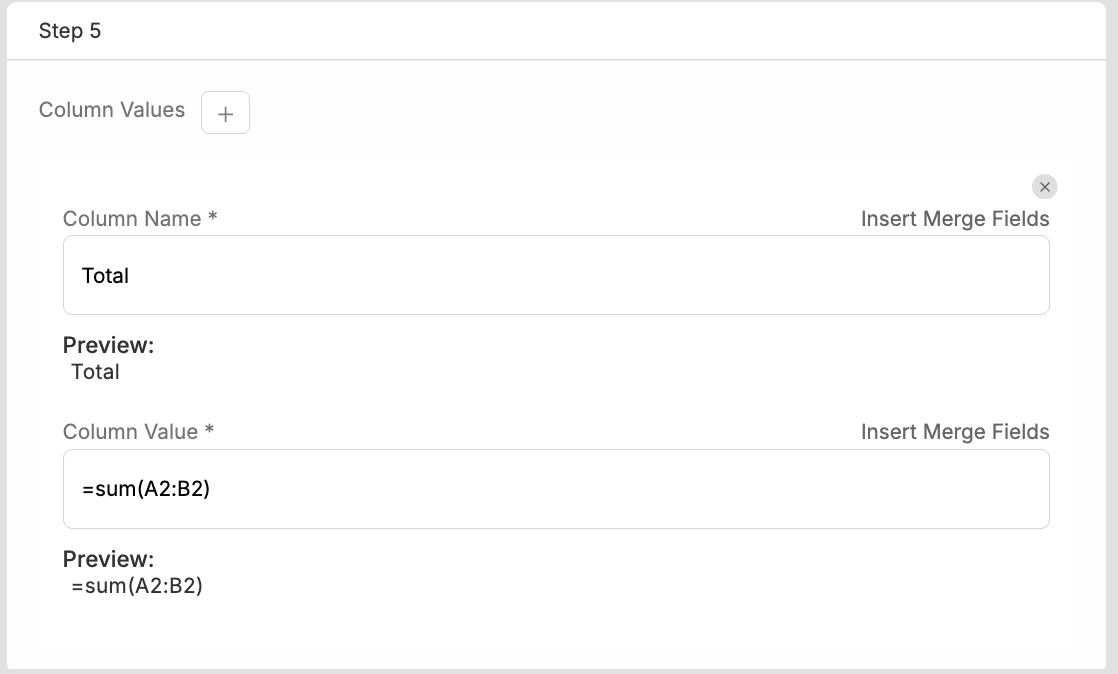
The following formulas are commonly used in this field:
| Formula | Description |
|---|---|
=SUM(A2:B2) |
Calculates the sum of values in columns A and B. |
=CONCATENATE(A2," ",B2) |
Combines values from multiple columns. |
=AVERAGE(A2:C2) |
Calculates the average value. |
=TODAY() |
Returns the current date. |
=IF(C2>100,"Approved","Pending") |
Returns a value based on a condition. |
Example: calculating a total
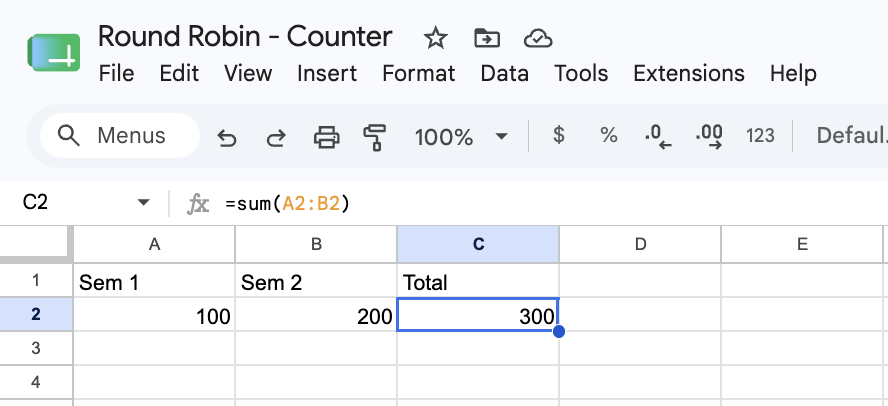
Suppose your worksheet has an Item Cost column, a Shipping Cost column, and a Total column, and the workflow is updating row 2.
To calculate the total automatically when the row is updated, configure the column value as follows:
| Field | Value |
|---|---|
| Column Name | Total |
| Column Value | =SUM(A2:B2) |
When the workflow runs the Update a Row with Provided Values action, HappyFox Workflows writes the formula into the Total column, and Google Sheets evaluates it and displays the calculated result.
How formula evaluation works
- HappyFox Workflows updates the specified row in the selected worksheet.
- The configured value is written to the target column.
- If the value starts with an equals sign (
=), Google Sheets interprets it as a formula rather than static text. - Google Sheets evaluates the formula and displays the result. No additional workflow configuration is required.
Note: HappyFox Workflows writes the formula to the sheet but does not validate its syntax. If a formula is invalid, Google Sheets returns its own formula error in the cell.
Note: Ensure the formula references the row the workflow is updating. If the workflow updates row 5, the formula should reference cells in row 5, not row 2.
Best practices
- Enter formulas only in the Column Value field.
- Confirm the row references in the formula match the row the workflow updates.
- Test the configuration using Save and Test before enabling the workflow.
- Combine merge fields with formulas to build values that update dynamically at runtime. See how to use merge fields and dynamic variables in HappyFox Workflows.
- Validate a formula directly in Google Sheets before adding it to the workflow.
Your Update a Row with Provided Values action now writes calculated values to your worksheet whenever the workflow runs. Next, see the Lookup Table in HappyFox Workflows article for another way to reference values within a workflow without an external tool.