This article explains how to configure the Filter Tickets and Filter Contacts actions in HappyFox Workflows, including how condition matching, result limits, and field-specific operators work.
Applicable Plans: Available on all plans.
What these actions do
Filter Tickets and Filter Contacts search HappyFox Help Desk for records that match one or more conditions you define, and return the matching results for use in later workflow steps. Both actions work the same way — you add conditions, choose which condition group they belong to, and set a limit on how many results come back.
Filter Assets searches HappyFox assets the same way, but with two differences worth knowing upfront:
- It only supports a Match All condition group — there is no Match Any option.
- It doesn't use a result-limit field. Instead, it fetches every matching asset across paginated results (50 assets per page) and returns all of them.
How condition matching works
The Filter Tickets and Filter Contacts actions show two separate condition groups on the same screen:
- Match All — every condition you add to this group must be true (AND logic).
- Match Any — at least one condition you add to this group must be true (OR logic).
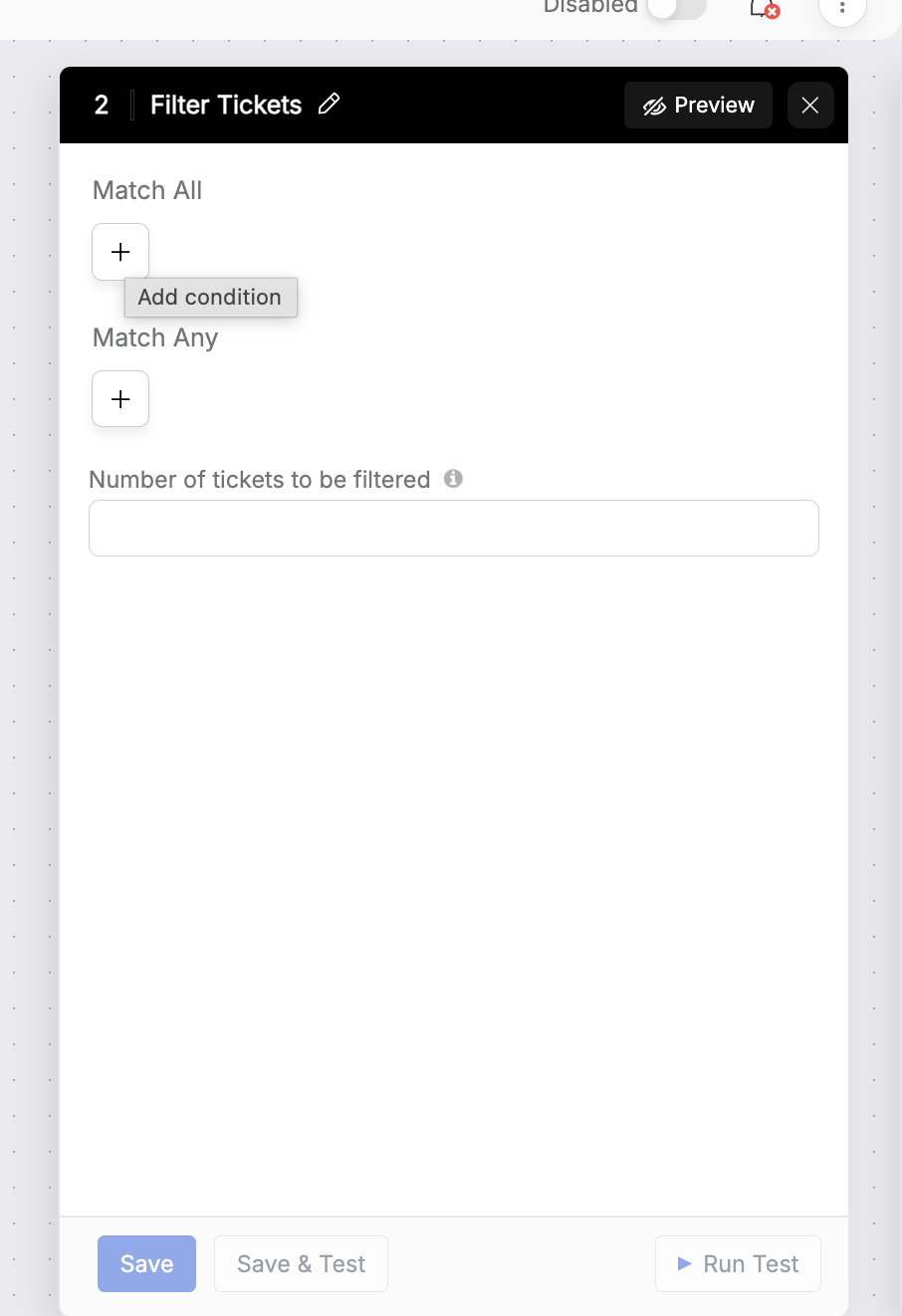
Each group has its own + button — labeled Add condition on hover — for adding conditions to that group. This uses the same AND/OR structure as combining trigger conditions when starting a workflow.
The Filter Tickets action configuration panel, showing the separate Match All and Match Any condition groups, the Add condition button, and the Number of tickets to be filtered field.
Note: When conditions are indicated in BOTH Match All and Match Any, the overall evaluation is done as [Match ALL conditions] AND [Match ANY one condition]
Result limits and sort order
Note: By default, Filter Tickets returns up to 10 matching tickets, sorted by Last Modified At in descending order — the most recently updated ticket first. Set Number of tickets to be filtered to raise this to a maximum of 25.
Note: Filter Contacts returns up to 10 matching contacts by default, sorted by ID in descending order — not by last modified date. Set Number of contacts to be filtered to raise this to a maximum of 25.
Note: If no tickets or contacts match the conditions you've configured, the filter action has an empty output and continues past this step. If you can want to configure a dedicated block to check if there are no filtered records, you would be able to do that.
Note: Matched tickets or contacts are available in later workflow steps as a merge field array, indexed starting at 0 — the first matching record is index 0, the second is index 1, and so on. See how to use merge fields and dynamic variables for the exact syntax once that article is published.
Filter Tickets — available conditions
Available operators depend on the field type. This is most visible on Ticket Custom Fields, where the operator list changes based on whether the underlying field is a dropdown, text, number, or date field.
| Field | Available operators |
|---|---|
| Status | Is, Is Not |
| Status Behavior (Pending / Completed group) | Is, Is Not |
| Priority | Is, Is Not |
| Assignee | Is, Is Not, Is Set, Is Not Set |
| Category | Is, Is Not |
| Due Date | Is, Is Not (with Yesterday, Today, Tomorrow, Next 7 Days, a specific date, or a date range), Is Set, Is Not Set |
| Tags | Contains, Does Not Contain, Is Empty, Is Not Empty |
| Unresponded | No operator — filters for unresponded tickets directly |
| Subscribed | No operator — filters for tickets with subscribers directly |
| Has Attachments | No operator — filters for tickets with attachments directly |
| SLA Breached | No operator — filters for tickets that have breached SLA directly |
| Ticket Custom Fields | Dropdown/multi-select and text fields: Is, Is Not, Is Set, Is Not Set. Number fields add: less than, less than or equal to, greater than, greater than or equal to. Date fields: Is, Is Not, Is Set, Is Not Set, on or before, on or after |
| Ticket Visibility (Private / Public) | Is, Is Not |
| No. of Messages | Is, Is Not, less than, less than or equal to, greater than, greater than or equal to |
| Created | On, Before, On or Before, After, On or After, Between |
| Last Contact Reply | On, Before, On or Before, After, On or After, Between |
| Last Modified At | On, Before, On or Before, After, On or After, Between |
| Last Staff Reply | On, Before, On or Before, After, On or After, Between |
| Last Updated At | On, Before, On or Before, After, On or After, Between |
| Contact (by contact ID) | Is, Is Not |
| Subject | Contains, Does Not Contain |
| Ticket ID | Is |
Note: Contains, Does Not Contain, and other text-based operators are case-sensitive — "Refund" and "refund" are treated as different values.
Filter Contacts — available conditions
| Field | Available operators |
|---|---|
| Name | Is, Is Not |
| Is, Is Not | |
| Contact Phone Number | Is, Is Not |
| Contact Custom Fields | Dropdown/multi-select and text fields: Is, Is Not, Is Set, Is Not Set. Number fields add: less than, less than or equal to, greater than, greater than or equal to. Date fields: Is, Is Not, Is Set, Is Not Set, on or before, on or after |
Filter Assets — available conditions
| Field | Available operators |
|---|---|
| Asset Type | Is |
| Asset Custom Fields | Is only. For dropdown or multi-select custom fields, you pick from the available options. For text, textarea, number, or date custom fields, you enter a matching value. |
Note: Unlike Ticket Custom Fields and Contact Custom Fields, Asset Custom Fields only support Is — there's no Is Not, no Is Set/Is Not Set, and no greater-than/less-than comparison, even for number or date fields.
Note: Filter Assets returns full asset records, not just IDs. If you only need details for one specific asset rather than a filtered list, use Get Asset Info instead — it looks up a single asset directly by Asset ID or Display ID (you need at least one of the two) and is simpler than filtering when you already know which asset you want.
How to use it
-
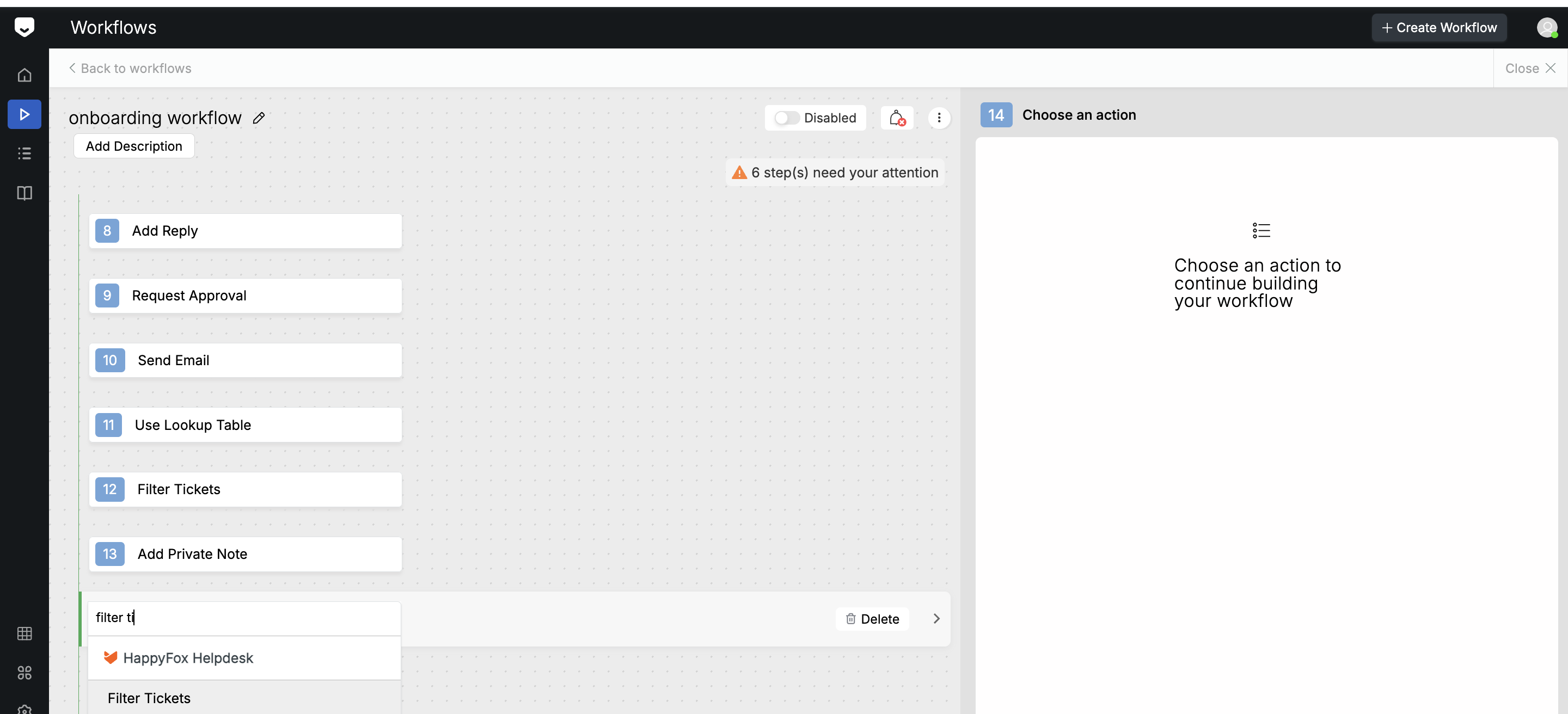
In your workflow, add a new step, then type into the action search field and select Filter Tickets or Filter Contacts from the HappyFox Helpdesk group of results.
Searching for and selecting the Filter Tickets action under the HappyFox Helpdesk group when adding a new workflow step.
-
Click + under Match All to add a condition that must always be true, or under Match Any to add a condition where only one match is required.
-
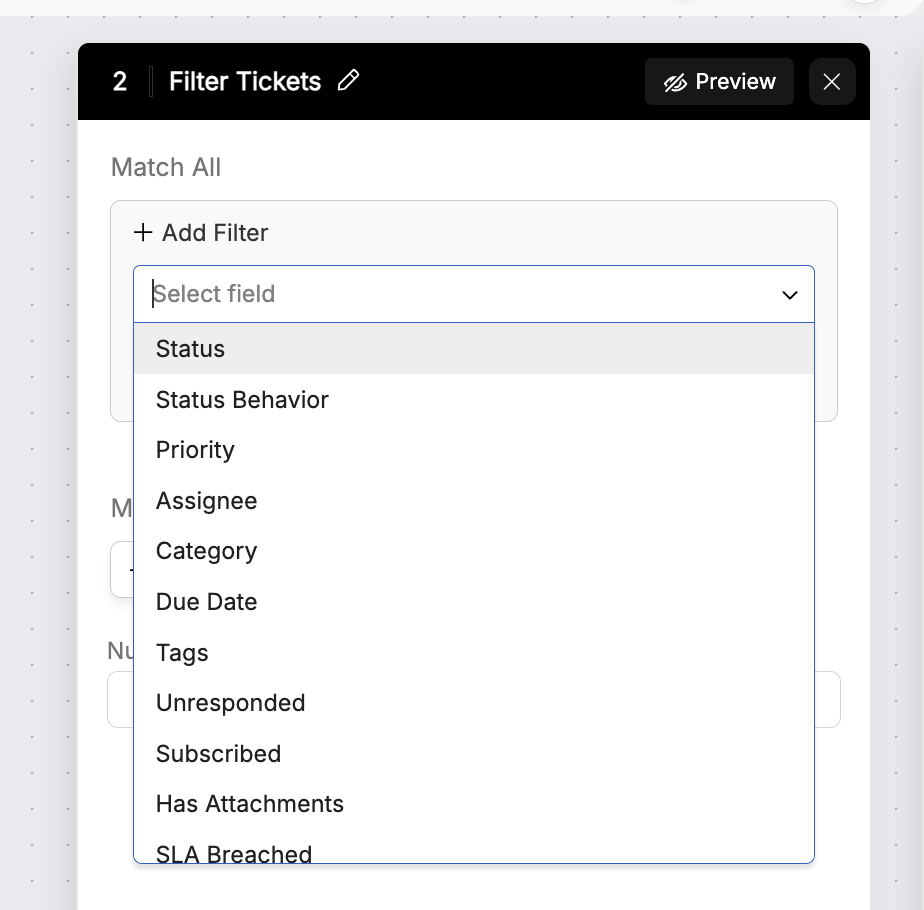
In the Add Filter row, select the field you want to filter by from the Select field dropdown — for example, Status or Priority for tickets, or Email for contacts.
The Select field dropdown showing available ticket fields, including Status, Priority, Assignee, Category, and Due Date.
-
-
Select the operator for that field. Available operators depend on the field type — see the tables above.
-
Enter or select the value to match against.
-
Repeat steps 2–5 for each additional condition, adding it to whichever group — Match All or Match Any — matches your logic.
-
Enter a value in Number of tickets to be filtered (or Number of contacts to be filtered) if you want to raise the default limit, up to a maximum of 25.
-
Click Save & Test to save the action and confirm it returns the results you expect.
Your Filter Tickets or Filter Contacts action now returns only the records that match your defined conditions, ready to use in later workflow steps.