


 179
179
With the QuickBooks Online-HappyFox Helpdesk integration, your HappyFox agents can view customer invoices associated with a ticket’s contact directly within the Help Desk interface, without switching between applications.
Available Plans: All Plans
Key Capabilities
- View recent QuickBooks Online invoices associated with the ticket contact
- Access invoice summary details including Invoice Date, Total Amount, and Balance Due
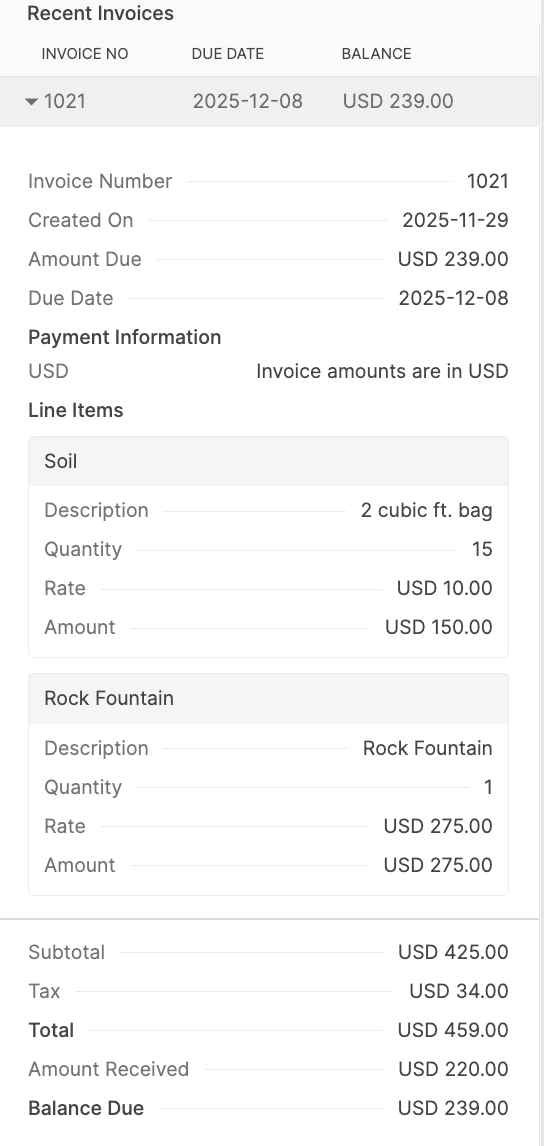
- Expand invoices to view line items, totals, tax, and payment information
- Read-only, non-intrusive access to QuickBooks Online data
Prerequisites
To configure the integration, you will need:
- An active QuickBooks Online account
- A role with Manage App permissions in HappyFox
Setting Up the QuickBooks Online Integration
Step 1: Install the Integration in HappyFox
Go to Apps → Accounting → QuickBooks Online.
Click Install.
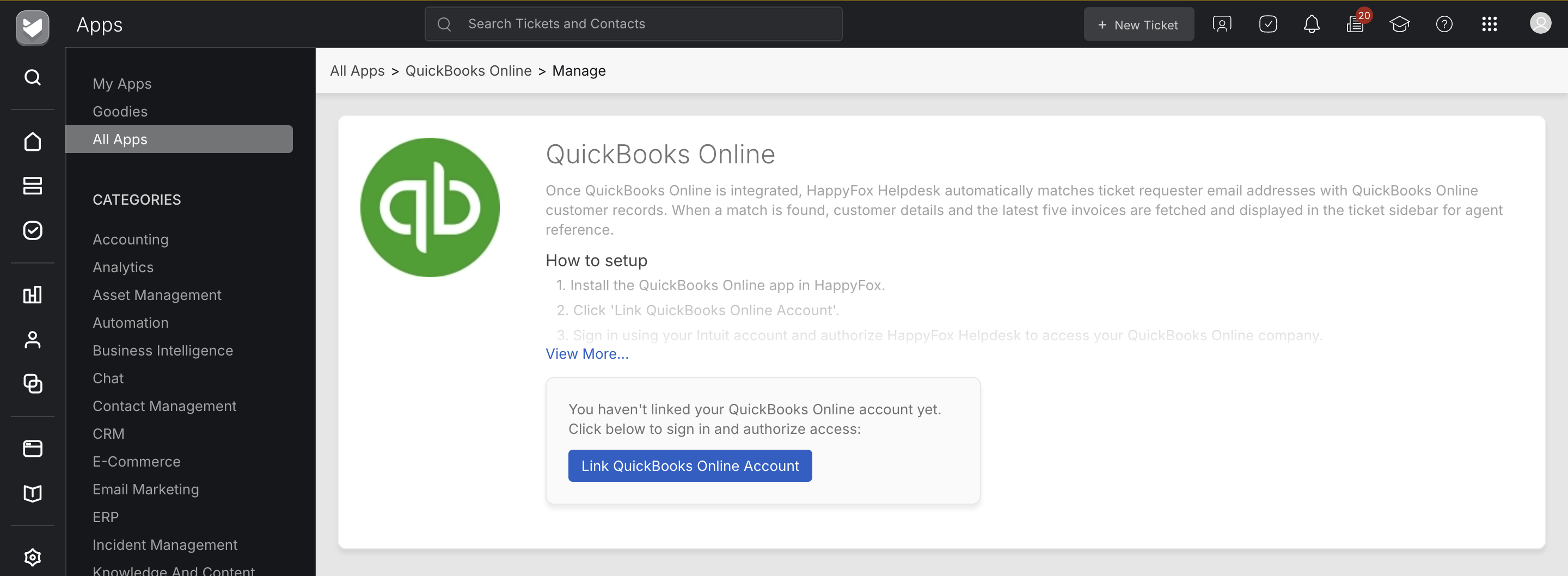
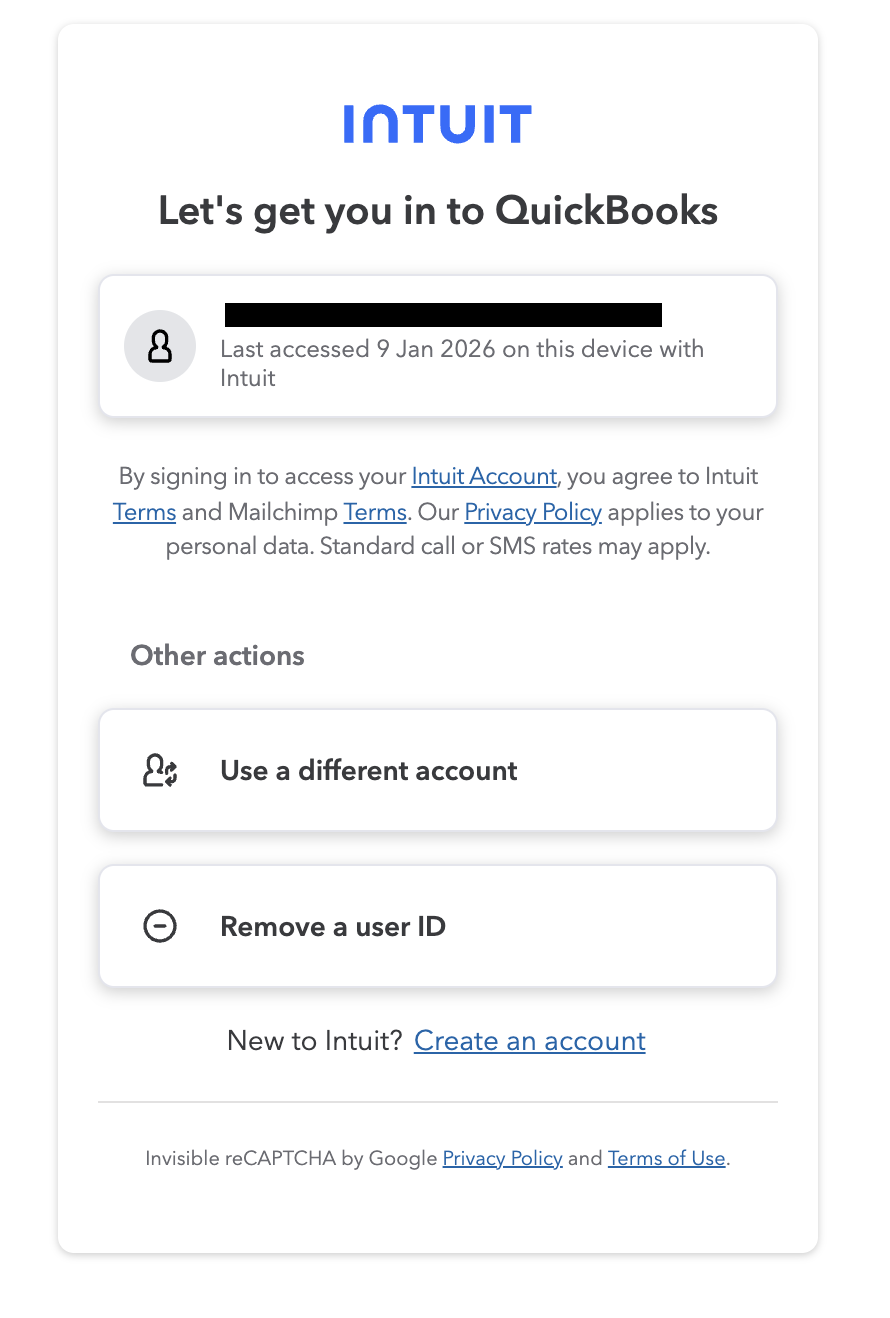
Step 2: Authorize QuickBooks Online
Sign in to QuickBooks Online when prompted and grant the required permissions.
Click Save to complete setup.
The integration activates immediately after authorization.
Viewing QuickBooks Invoices in HappyFox
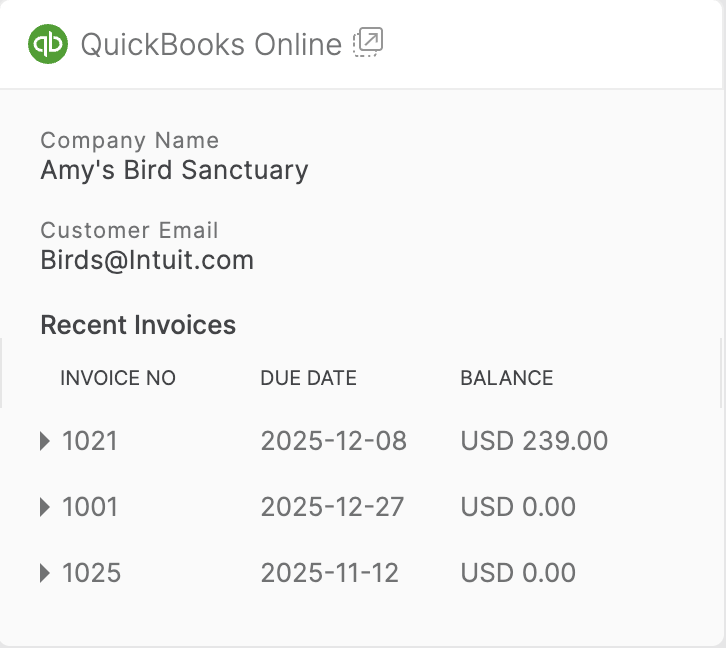
After installation, a QuickBooks Invoices section becomes available in:
- The Ticket Details page
- During Ticket Creation
This section displays invoices associated with the QuickBooks customer matched to the ticket contact.
Invoice Summary View
All invoices belonging to the customer contact appear in a collapsible list in the ticket side pane.
Expanded Invoice View
Clicking an invoice displays detailed information including:
- Line items
- Subtotal, tax, and total
- Amount received and balance due
- Invoice and due dates
Unlinking the Integration
To unlink the integration at any time, click Unlink Integration on the App Manage page.


