


Getting Your Browser Ready for Calls

Mar 31, 2026
 546
546
If you're facing issues with making or receiving calls, please go through the following checklist before raising a support request. These quick checks ensure your browser is properly set up for voice calls in HappyFox Contact Center.
1. Use a Supported Browser
- We highly recommend using the latest version of Google Chrome.
- Other browsers are supported too. Make sure you have the latest version of them.
2. Allow Microphone Access
- Make sure your browser has microphone access enabled.
- When prompted, always click "Allow" on the microphone permission pop-up.
- You can check and manage permissions in your browser settings:
- Chrome:
chrome://settings/content/microphone
- Chrome:
3. Ensure Audio Output Is Working
- Verify that your computer audio is not muted.
- Check if your speakers or headset are correctly selected and functioning.
- Do a test call or play any audio to confirm output is working.
4. Disable Unnecessary Extensions
- Some browser extensions (especially ad blockers, script blockers, or privacy tools) can interfere with call handling.
- Try disabling all extensions and refreshing the page to see if the issue is resolved.
5. Don’t Use Incognito Mode
- Incognito mode can block certain background services or permissions needed for calls.
- Always use HappyFox Contact Center in a regular browser window.
6. Ensure Stable Internet Connection
- Make sure you're on a stable, high-speed internet connection.
- Avoid switching networks during a call.
- Avoid mobile hotspots or VPNs unless absolutely necessary.
- Do not open heavy sites or video streams in parallel tabs.
7. Allow Cookies for realtime.happyfox.com (for accounts using Custom Domain to access the agent portal)
Note: This step is only required if your HappyFox account is on a custom domain.
If your account uses a custom domain, your browser may close the connection before it is fully established, causing calls and other things to fail. To fix this, allow realtime.happyfox.com to save data on your device.
- In the browser tab where HappyFox HelpDesk is open, click the settings icon next to the URL bar.
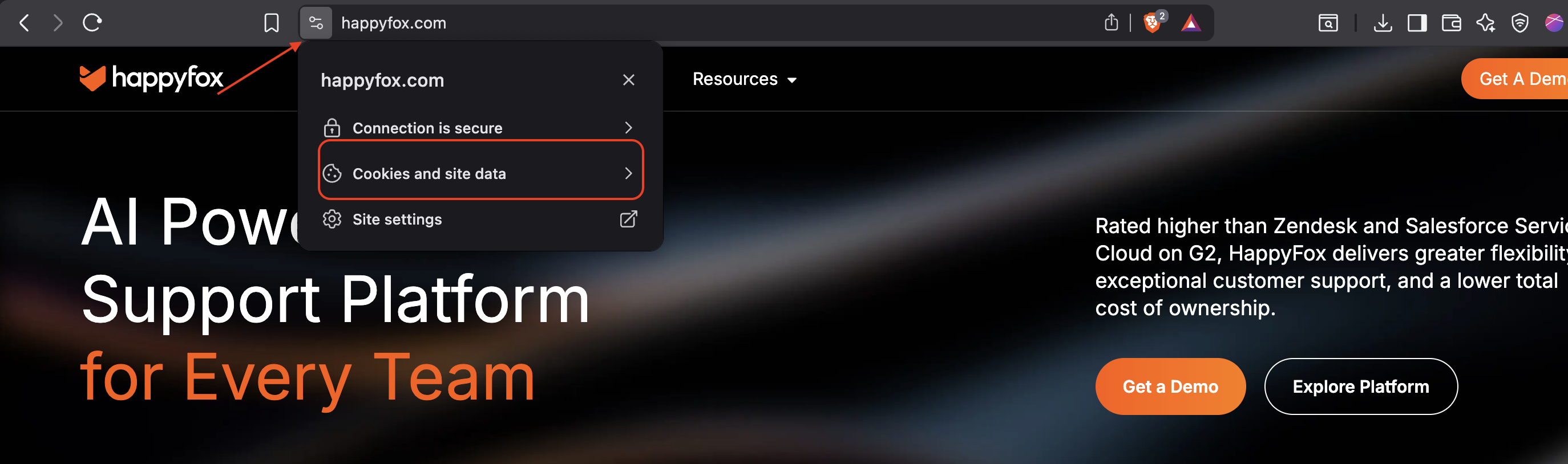
- Click on Cookies and site data.
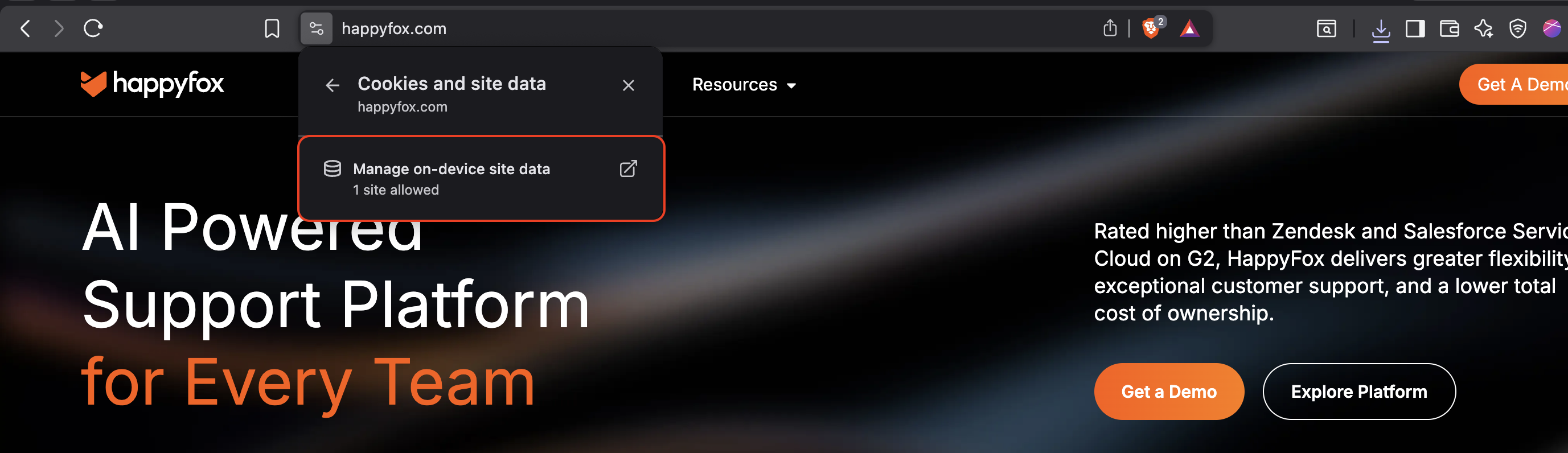
- Click Manage on-device site data.
- Look for
realtime.happyfox.comin the list.
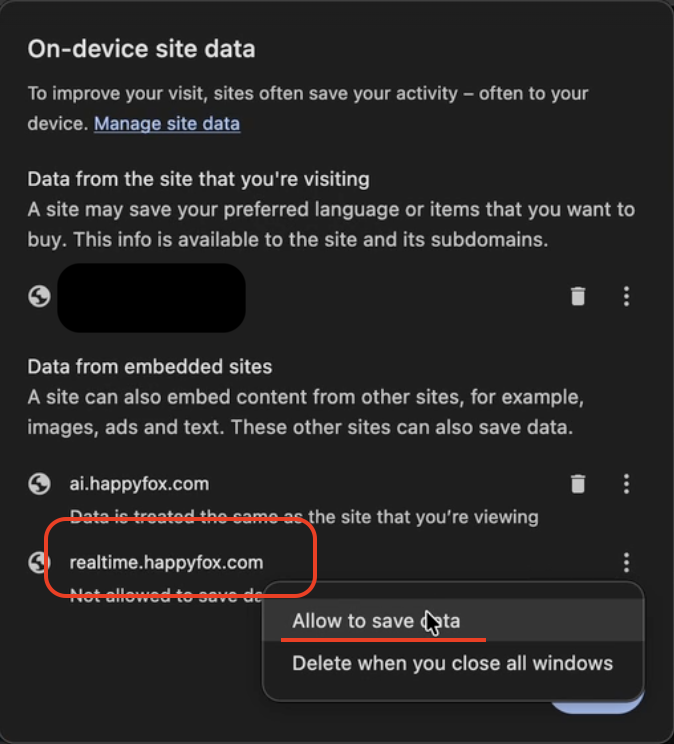
- Click the three dots next to it and select Allow to save data.
- Refresh the page.
8. Restart Your Browser (and System)
- Sometimes a simple restart clears up microphone or browser conflicts.
- Close all browser windows and re-launch the app. If needed, restart your computer.
Still Facing Issues?
If you've gone through all the steps above and are still unable to make or receive calls, please raise a support request with the following info:
- Browser name and version
- Operating System (Windows/Mac)
- Screenshots of any errors
- Brief description of what you’re experiencing
Our team will help troubleshoot further!

