This article explains how to connect HappyFox Help Desk to HappyFox Workflows so its ticket triggers and actions are available in your workflows.
Applicable Plans: Available on all plans.
Triggers
| Ticket Created | Ticket Updated | Smart Rule |
| Manual Trigger by Agent | Survey Responded | Status Changed |
Actions
HappyFox Help Desk offers 55 actions in HappyFox Workflows, grouped by area:
- Ticket actions — create, update, reply to, forward, merge, and relate tickets, and more.
- Task actions — create and update tasks on a ticket.
- Contact and group actions — create, update, merge, and filter contacts and contact groups.
- Asset actions — link, filter, and retrieve asset information tied to a ticket or contact.
- Cross-app linking actions — link or unlink a ticket to a Jira issue, Azure DevOps work item, Asana task, or Wrike task.
See HappyFox Help Desk Actions Available in HappyFox Workflows for the full list.
Prerequisites
Plan
- Supported on all HappyFox plans.
Permissions
- You must be the primary admin of the HappyFox Help Desk account you're connecting.
Use Cases
- Auto-triaging new tickets: Trigger a workflow whenever a ticket is created to set its category, priority, or assignee automatically.
- Cross-app ticket sync: Use ticket data to create or link records in other connected apps, such as Jira or Salesforce, as part of a workflow.
- Automated replies and notes: Add a reply or private note to a ticket automatically when a workflow's conditions are met.
- Related ticket creation: Automatically create a related or child ticket, copying over relevant ticket data, when specific conditions are met.
Setting Up the Integration
- Log in to HappyFox Workflows.
- Navigate to Apps.
- Click HappyFox Helpdesk.
The HappyFox Helpdesk app details panel, showing Available Triggers (6) and Available Actions (55) before you enter your account URL.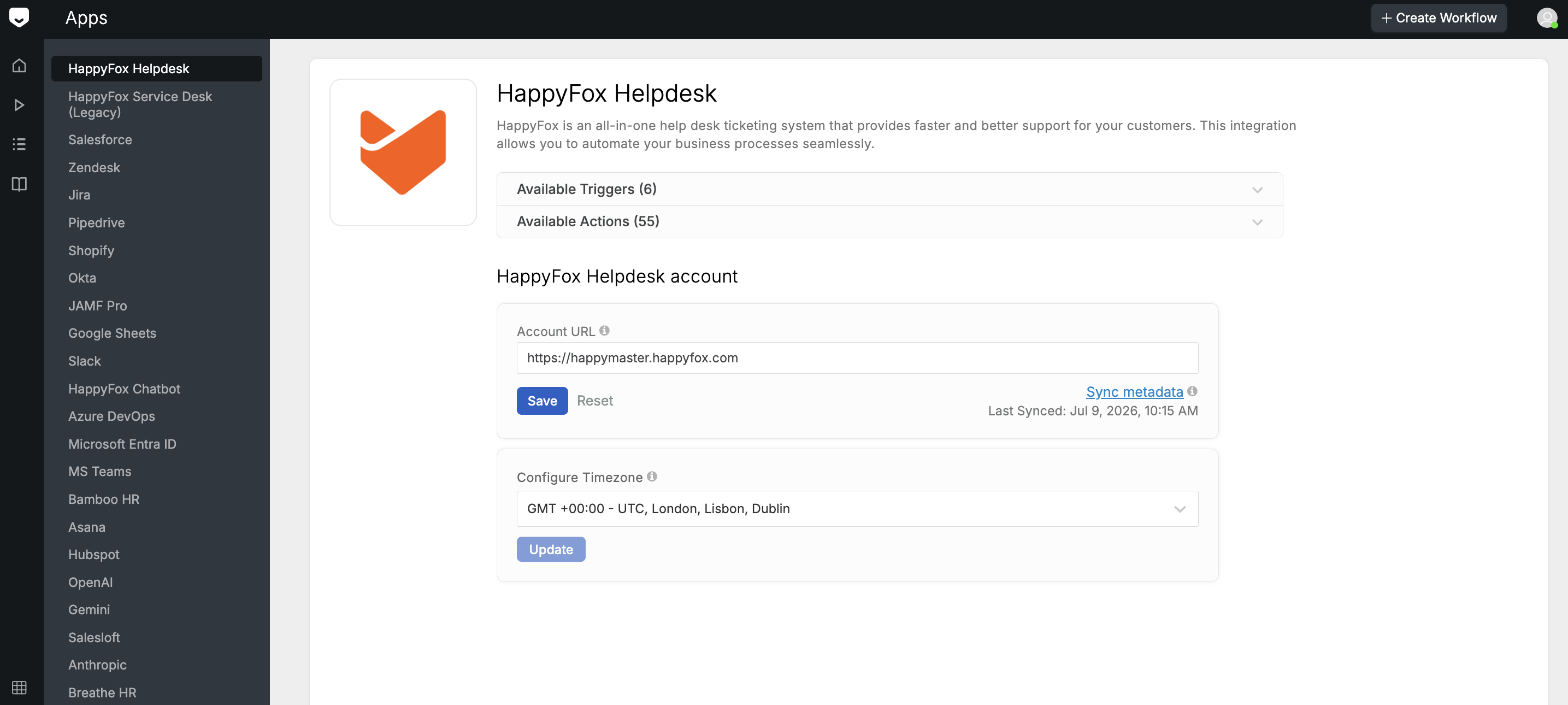
- Enter your HappyFox Help Desk URL.
Note: You must be the primary admin of the HappyFox Help Desk account to complete this step.
- Click Approve.
- Click Confirm.
Frequently Asked Questions
I don't see the option to enter my HappyFox Help Desk URL. Why? This step only appears if you're logged in as the primary admin of the HappyFox Help Desk account. Ask your account's primary admin to complete this integration, or have your admin role updated.
Your HappyFox Help Desk integration is now active, and its triggers and actions are available in your workflows. Next, learn how to build your first workflow using a HappyFox Help Desk trigger.