


 473
473
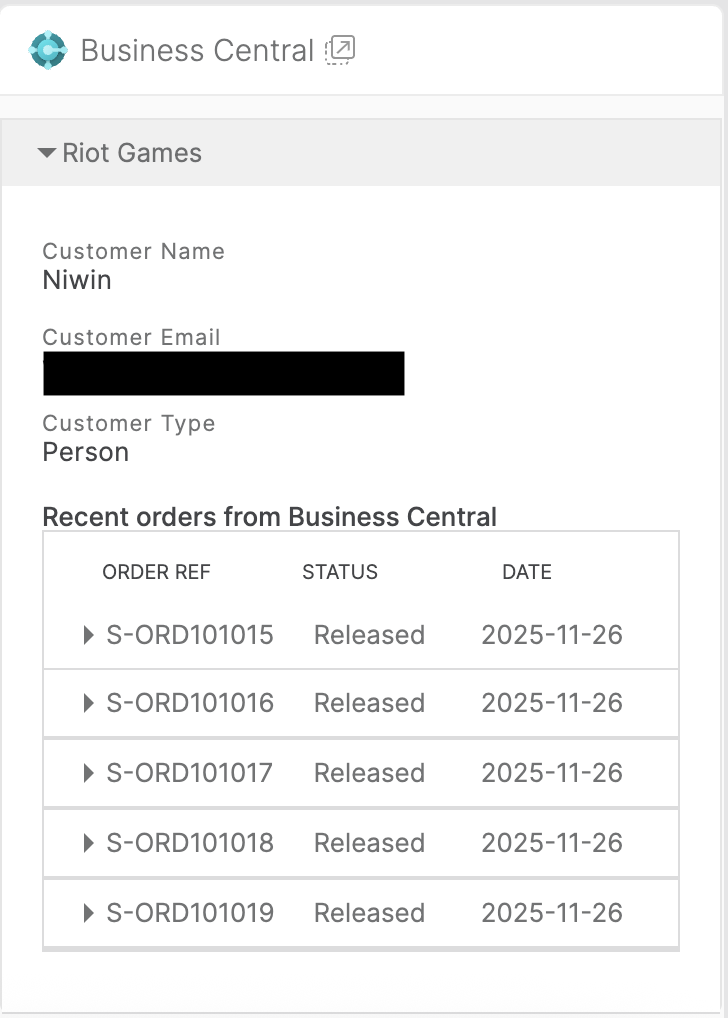
Microsoft Dynamics 365 Business Central helps organizations manage customers, sales, and sales documents. With the HappyFox – Business Central integration, agents can view customer details and recent released Sales Orders inside a HappyFox ticket without switching between applications.
Available Plans: Enterprise Pro and from Scale onwards in Unlimited Agents Plans
Required Permission
To configure or update this integration, you must have the Manage Apps permission
Setting Up the Business Central Integration
There are two steps involved in enabling this integration:
-
Connect your Business Central account using OAuth
-
Associate your Business Central companies with HappyFox categories
Step 1: Connect Your Business Central Account
-
Log in to your HappyFox Help Desk account.
-
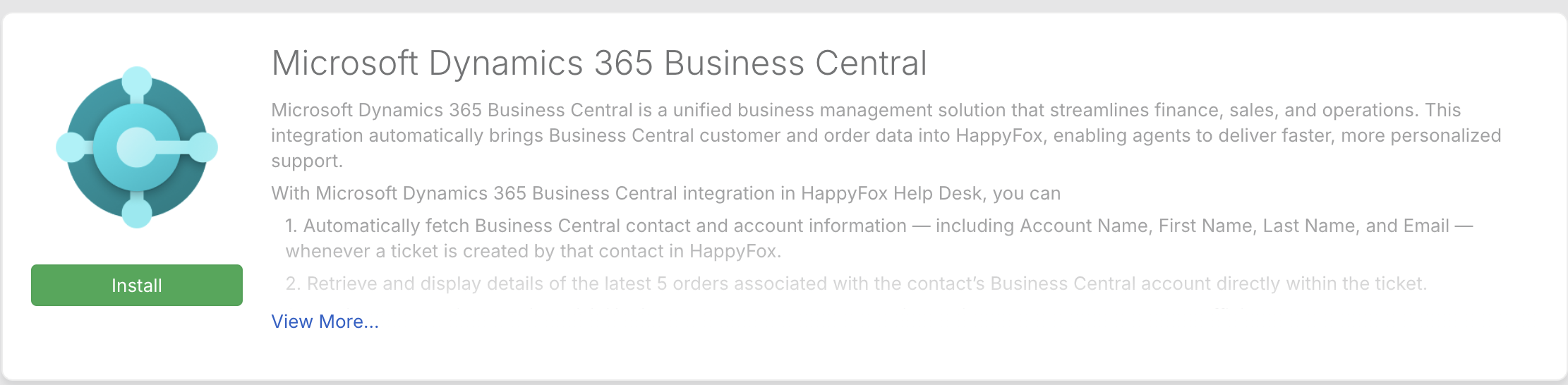
Navigate to Apps → ERP → Microsoft Business Central.
-
Click Install, click Link Business Central Account.
-
Sign in through Microsoft’s secure OAuth page and approve access.
Once authorized, your Business Central account is successfully linked to HappyFox.
Step 2: Associate Business Central Companies with Categories
After the connection is established, HappyFox will automatically retrieve the Business Central companies available in your account.
To complete the setup:
-
Select a Business Central Company.
-
Choose the HappyFox categories in which this company’s customer information should appear.
-
Click Save.
You can link a maximum of three Business Central companies per HappyFox account.
Each company can be associated with 5 categories at most.
You can return to the integration at any time to add more companies, remove existing ones, or modify category associations.
Viewing Business Central Information Inside HappyFox
Business Central information appears in the Ticket Details Page
For each associated company, a dedicated expandable section is displayed for all Sales Orders
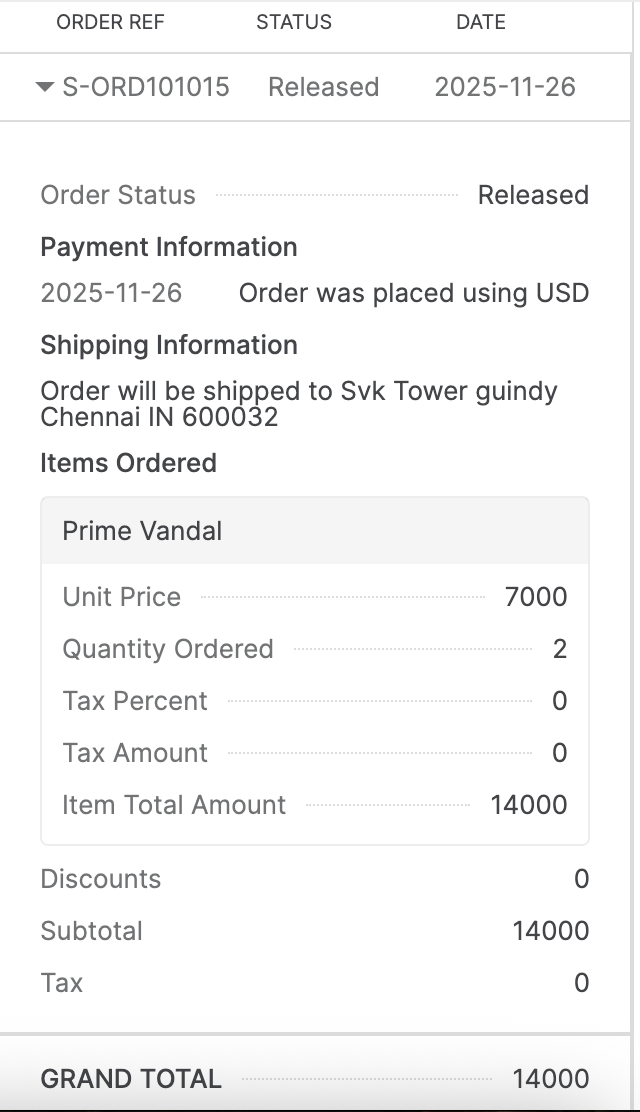
Expanded view of a sales order:
Editing or Managing Your Business Central Integration Setup
You may update the integration at any time:
-
Add or remove companies
-
Change which categories a company is associated with
-
Re-authenticate your Business Central connection if needed
All changes take effect immediately across ticket views.
Disabling the Integration
You may disable the integration at any time:
-
Go to Apps → ERP → Microsoft Business Central
-
Click Unlink Business Central Account.

Disabling the integration removes Business Central information from ticket views, but does not affect any data in your Business Central account.
You may re-enable the integration later from the same page.

