The BambooHR integration with HappyFox Workflows lets you trigger workflows from employee and time-off events in BambooHR, and lets your workflows fetch, create, or update BambooHR employee records and time-off requests.
Applicable Plans: All plans
Triggers
- New Employee Started
- New Time Off Request Created
- Time Off Request Status Update
Note: Triggers require webhooks to be enabled during setup. See Step 12 below. If webhooks are not enabled, these triggers will not fire even if the integration is otherwise connected.
Actions
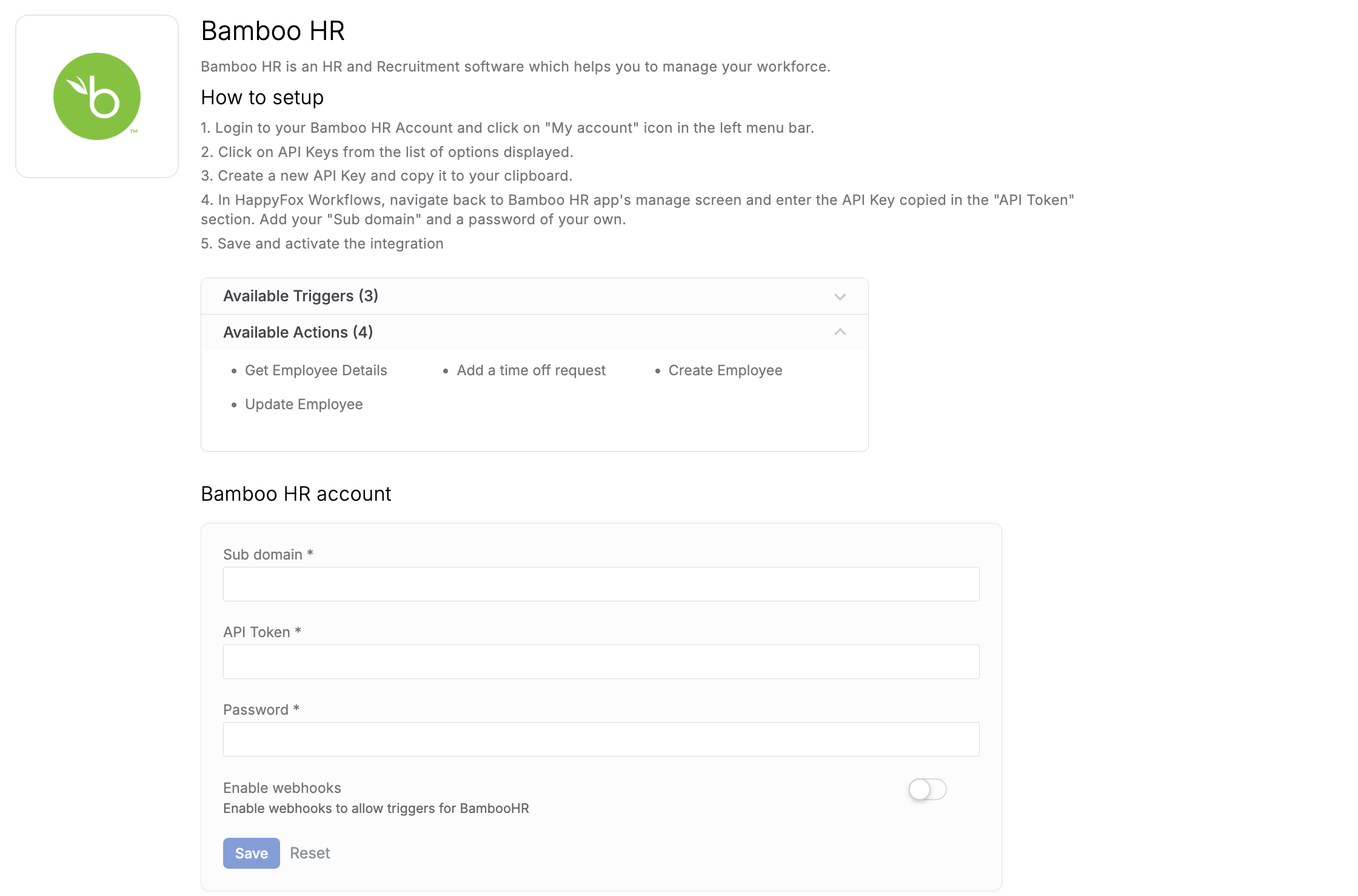
Each action below lists the fields you configure, along with whether each field is required.
Validation note legend
| Term | Meaning |
|---|---|
| Required | The workflow cannot run this action if the field is blank. |
| Required (one of) | At least one field in the group must be filled in. The action fails if all are blank. |
| Required (at least one) | At least one field from a set of profile fields must be provided. |
| Optional | You may leave this field empty; the action still runs. |
| Text | A plain-text value (single line or variable reference). |
| Date (Text) | A date value entered as text; the action automatically normalizes it to YYYY-MM-DD format. |
Employee Actions
Get Employee Details
Fetches a BambooHR employee's full profile and returns it for use in later workflow steps. Identify the employee by either their BambooHR Employee ID or their work email address. If only an email is given, the action first checks the cached employee list, then falls back to a live API call for employees added today if no match is found.
| Field | Description | Validation |
|---|---|---|
| Employee ID | The BambooHR numeric ID of the employee. | Required (one of Employee ID / Employee Email) · Text |
| Employee Email | The work email address of the employee. Used to look up their BambooHR ID when no Employee ID is provided. | Required (one of Employee ID / Employee Email) · Text |
Create Employee
Creates a new employee record in BambooHR. After a successful creation, the action automatically fetches and returns the full employee profile. Date of Birth and Hire Date are automatically normalized to YYYY-MM-DD format regardless of how they are supplied.
| Field | Description | Validation |
|---|---|---|
| First Name | The employee's first name. | Required · Text |
| Last Name | The employee's last name. | Required · Text |
| Date of Birth | The employee's date of birth. | Optional · Date (Text) |
| Address Line 1 | Street address line 1. | Optional · Text |
| Address Line 2 | Street address line 2 (apartment, suite, etc.). | Optional · Text |
| City | City of residence. | Optional · Text |
| State | State or province. | Optional · Text |
| Zip Code | Postal / ZIP code. | Optional · Text |
| Country | Country of residence. | Optional · Text |
| Hire Date | The employee's start / hire date. | Optional · Date (Text) |
| Work Email | The employee's work email address. | Optional · Text |
| Department | The department the employee belongs to. | Optional · Text |
Update Employee
Updates an existing BambooHR employee's profile. After a successful update, the action fetches and returns the refreshed employee profile. Date values are automatically normalized to YYYY-MM-DD.
Note: This action needs (a) at least one of Employee ID or Employee Email to identify the employee, and (b) at least one of the profile fields below to have something to update.
| Field | Description | Validation |
|---|---|---|
| Employee ID | The BambooHR numeric ID of the employee to update. | Required (one of Employee ID / Employee Email) · Text |
| Employee Email | Work email address used to look up the employee when no ID is provided. | Required (one of Employee ID / Employee Email) · Text |
| First Name | Updated first name. | Required (at least one profile field) · Text |
| Last Name | Updated last name. | Required (at least one profile field) · Text |
| Date of Birth | Updated date of birth. | Required (at least one profile field) · Date (Text) |
| Address Line 1 | Updated street address line 1. | Required (at least one profile field) · Text |
| Address Line 2 | Updated street address line 2. | Required (at least one profile field) · Text |
| City | Updated city. | Required (at least one profile field) · Text |
| State | Updated state or province. | Required (at least one profile field) · Text |
| Zip Code | Updated postal / ZIP code. | Required (at least one profile field) · Text |
| Country | Updated country. | Required (at least one profile field) · Text |
| Hire Date | Updated hire date. | Required (at least one profile field) · Date (Text) |
| Work Email | Updated work email. | Required (at least one profile field) · Text |
| Department | Updated department name. | Required (at least one profile field) · Text |
Time-Off Actions
Add a Time Off Request
Submits a time-off request for an employee in BambooHR. The time-off type is matched by name against the types configured in BambooHR. If you don't provide an amount, the action automatically calculates the number of hours (or days, depending on the time-off type's unit) based on the employee's work schedule, excluding company holidays. After a successful submission, the full request details are returned.
| Field | Description | Validation |
|---|---|---|
| Start Date | The first day of the time-off period. | Required · Date (Text) |
| End Date | The last day of the time-off period. | Required · Date (Text) |
| Time Off Type Name | The name of the time-off type as configured in BambooHR (for example, Vacation, Sick). The action looks up the matching type by this name and fails if no match is found. | Required · Text |
| Employee ID | The BambooHR numeric ID of the employee the request is for. | Required (one of Employee ID / Employee Email) · Text |
| Employee Email | Work email used to look up the employee ID when no Employee ID is provided. | Required (one of Employee ID / Employee Email) · Text |
| Amount | The total number of hours (or days) to request. If left blank, the action calculates this automatically based on the work schedule and company holidays between Start Date and End Date. | Optional · Text (numeric value) |
| Status | The initial status for the request. Defaults to requested if not provided. Common values: requested, approved. |
Optional · Text |
| Note | A note from the employee to attach to the time-off request. | Optional · Text |
Prerequisites
Plan
- [VERIFY: confirm which HappyFox and BambooHR plans support this integration]
Permissions
- You must have permission to generate API keys in your BambooHR account. This typically requires BambooHR administrator access.
- You must have admin access to your HappyFox Workflows account to configure the integration.
Use Cases
- Automated onboarding kickoff: Create a HappyFox ticket and assign it to IT when the New Employee Started trigger fires, so equipment provisioning starts automatically on the employee's start date.
- Time-off request notifications: Notify a manager in Slack or by email when the New Time Off Request Created trigger fires, so approvals aren't delayed.
- Status-based routing: Use the Time Off Request Status Update trigger to update a related HappyFox ticket when a request is approved or declined.
- Pre-filling onboarding tickets: Use Get Employee Details to pull an employee's department and work email into a new ticket, so onboarding tasks are assigned correctly without manual lookup.
- Keeping BambooHR in sync: Use Update Employee to reflect a department or address change submitted through a HappyFox form directly in BambooHR, without manual data entry.
Setting Up the Integration
- Log in to your BambooHR account.
- Click your profile icon in the top-right corner of the screen.
- Select API Keys from the dropdown menu.
- Click the option to create a new API key.
- Enter a name for the API key and click Generate.
- Copy the generated API key to your clipboard.
- Log in to your HappyFox Workflows account.
- Navigate to Apps > BambooHR.
- Paste the copied API key into the API Token field.
- Enter your BambooHR subdomain in the Sub Domain field.
- Enter a password of your choice in the Password field.
- Toggle Enable Webhooks on to allow triggers for BambooHR.
- Click Save.
Note: Your subdomain is the first part of your BambooHR URL. For example, if your BambooHR URL is
https://helpcontent.bamboohr.com, your subdomain ishelpcontent.
Frequently Asked Questions
My BambooHR triggers aren't firing even though the integration shows as connected. Check that Enable Webhooks is toggled on in the BambooHR app's manage screen in HappyFox Workflows. Triggers require this setting; actions do not.
I'm getting an authentication error after entering my API key. Confirm your Sub Domain field matches only the first part of your BambooHR URL — for example, helpcontent, not the full https://helpcontent.bamboohr.com address.
Your BambooHR integration is now active. Next, see how to add an action to a workflow to use one of these actions as a step in your workflow builder.