


 43
43
HappyFox now allows users to control asset visibility and access by Category.
This enhancement helps large organizations ensure that agents see and manage only the assets relevant to the categories they belong to such as IT, Facilities, or HR-while keeping existing behavior unchanged unless restrictions are explicitly configured.
Why Use Category-Based Asset Access?
In many organizations, assets are owned and managed by different teams.
Without restrictions:
- Agents may see assets unrelated to their role
- There’s a higher risk of accidental edits
- Asset searches and linking become noisy
- Ownership of assets is unclear
With category-based access, you can now segment assets by category, improving security, clarity, and efficiency.
How It Works
Enable Access Control Per Asset Type
Category-based access control is enabled individually for each Asset Type.
- Go to Manage Asset Types
- Open an Asset Type
- Enable the toggle: “Access Control”
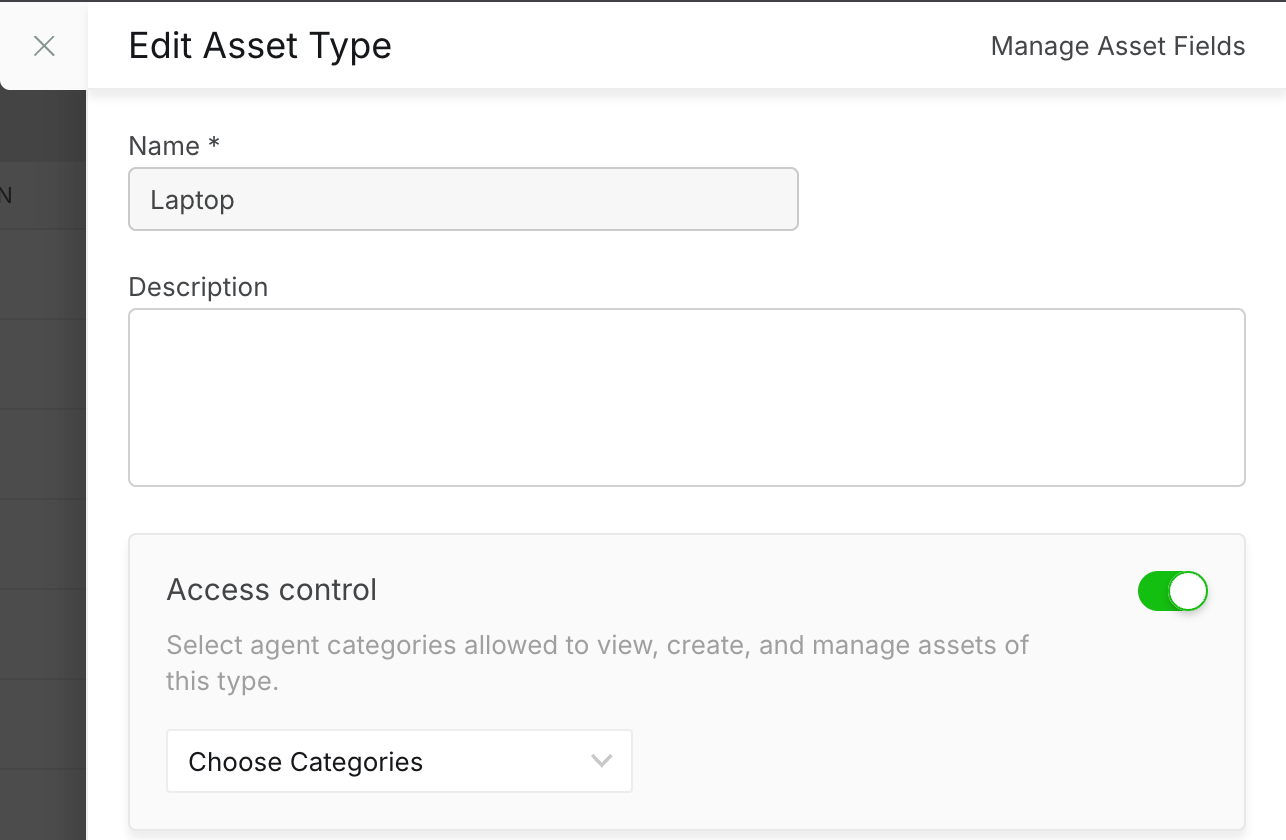
- Select one or more Categories that should have access
Note: Only agents with Manage Asset Types permission can enable this toggle and assign categories.
Once enabled:
- Assets inherit the selected category access from their Asset Type
- Only agents in the selected categories can view, create, or edit these assets (as per their existing permissions)
If the toggle is not enabled for an Asset Type:
- Assets remain visible to all agents, just like before
Permissions & Access Behavior
What Stays the Same
- Asset Type creation and management remain universal
- Agents with Manage Asset Types can view and manage all asset types
What Changes after enabling Access Control
Asset-level actions are now category-based:
|
|
|
|
|
|
|
|
|
|
|
|
|
|
|
Even if an agent has Manage Assets permission, they can only work with assets from categories they have access to.
Agent Experience
Asset List & Asset Details
- Agents see only assets relevant to their categories
- Assets from other categories are hidden
- Creating or editing assets is limited to permitted asset types
Import, Export, and Migration
- Asset types available for import/export are automatically filtered
- Agents can import or export assets only for allowed categories
Working with Assets on Tickets
Linking Assets to Tickets
- Asset search is filtered by the agent’s category access
- Agents cannot link assets outside their categories
When a Ticket’s Category Changes
Sometimes, a ticket may be reassigned to a different category after assets are already linked.
In such cases:
- The linked asset remains attached to the ticket
- If the agent does not have access to the asset’s category:
- Full asset details are hidden
- A limited, read-only view (asset name and ID) is shown
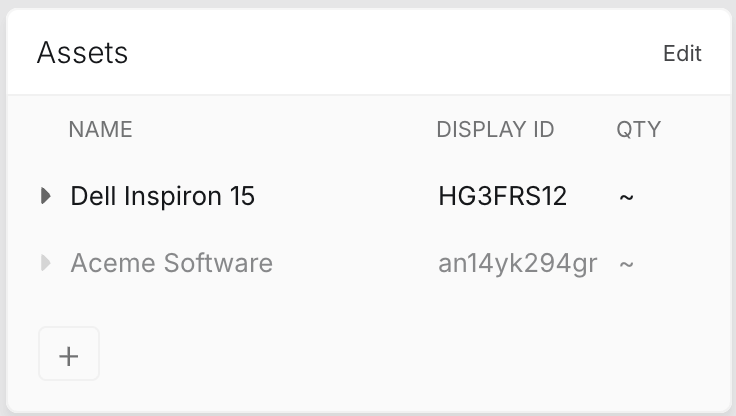
- Full asset details are hidden
- If the agent has access:
- Full asset details and actions are available
- Full asset details and actions are available
This ensures ticket history remains intact while preventing unintended access.
Contact Details Page
- Assets shown on a contact’s profile follow the same category rules
- Asset lookup and linking are restricted to permitted categories
Contact Experience
This feature has no effect on contacts, i.e., contact portal behavior of viewable assets remains unchanged.
Note:
Category-based access control is optional.
- If an asset type is not associated with any category, its assets remain visible to all agents (current behavior)
- Restrictions apply only after you configure access control for an asset type
Best Practices
- Start by mapping asset types to high-level teams (IT, Facilities, HR)
- Leave shared asset types (e.g., “Company Devices”) unrestricted initially
- Review category assignments before enabling restrictions at scale

