


 339
339
SMTP authentication failures prevent your HappyFox helpdesk from sending email notifications to your recipients. For Microsoft (MS) SMTP configurations, these failures commonly occur due to SASL authentication issues, typically caused by invalid, expired, or unapproved authentication parameters.
Symptoms
You may experience one or more of the following symptoms:
- A warning icon (⚠️) appears next to your email channel under Outgoing Delivery Status inside your channel configurations
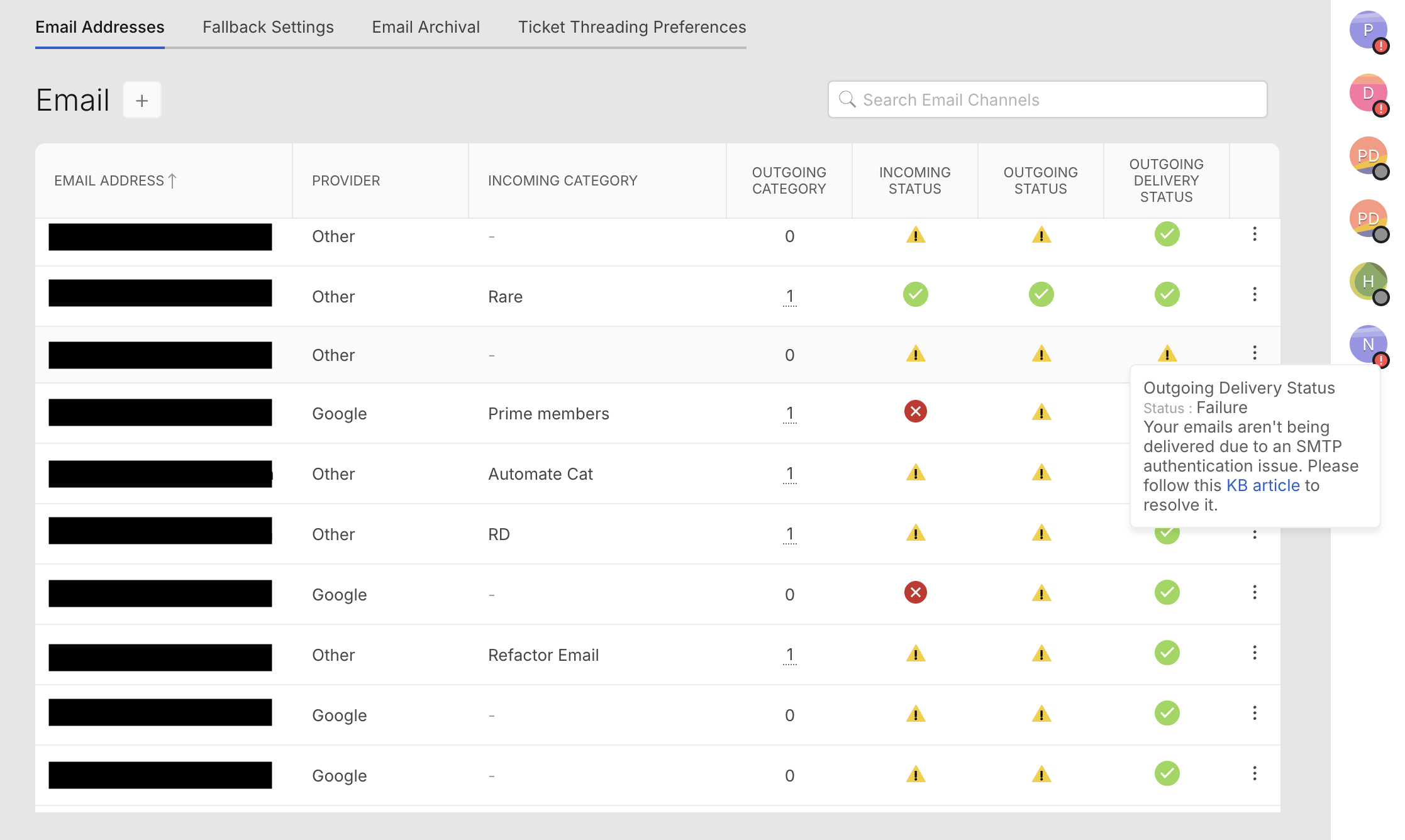
- You receive an alert within your reply editor stating:
"Outgoing emails for this channel are failing due to an SMTP authentication issue."
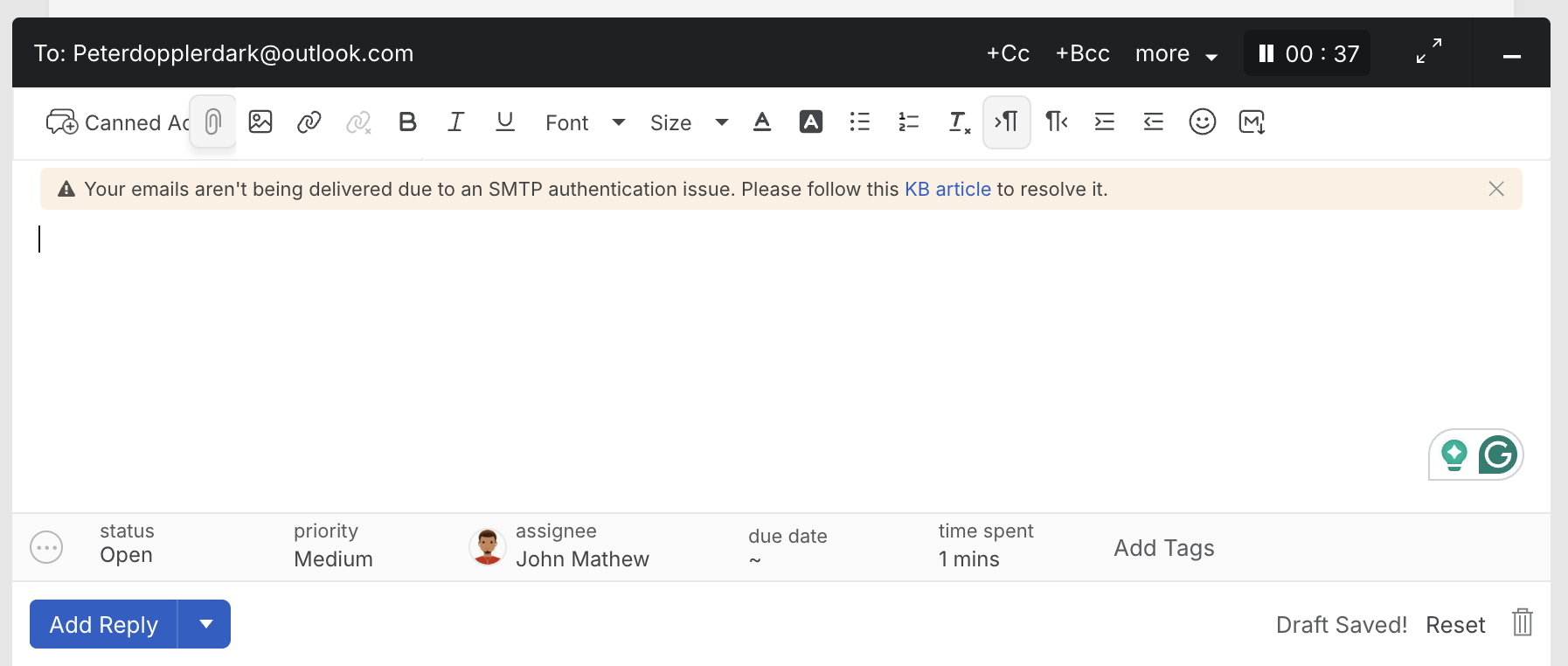
- Ticket replies from agents are not being delivered to recipients.
Possible Reasons
SASL Authentication Failure (Microsoft SMTP Only):
SASL authentication is used exclusively by Microsoft SMTP in the HappyFox platform. These failures may occur due to:
- Expired SMTP Password:
The password configured in the HappyFox email channel’s SMTP setup no longer matches the password for your email provider’s account.
Invalid Credentials:
The credentials configured in the HappyFox SMTP settings are incorrect, causing authentication to fail.
Steps for Resolution
Follow these steps to resolve SMTP authentication issues:
Verify Credentials with Your IT Team:
Confirm whether the SMTP account password, app password, or OAuth authorization has changed or expired. If updates were made, ensure the new values are configured in the HappyFox SMTP settings.
Ensure Correct Setup for Office 365 SMTP (SASL Requirements):
SMTP is configured at the email channel level in HappyFox. Ensure that Microsoft 365 SMTP is configured according to SASL authentication requirements.
For detailed setup instructions, refer to the following article: MS Office 365 SMTP Setup for Email Channels
Reauthorize SMTP Configuration:
SASL authentication with Microsoft frequently requires reauthorization. Check with your IT team to determine whether Microsoft OAuth re-consent or policy updates have disrupted the existing authentication.
Additional Notes
- After making changes, send a test email from the HappyFox channel settings to confirm successful delivery.
- Ensure that SMTP ports, encryption methods (SSL/TLS), and Microsoft 365 security configurations are aligned with SASL authentication requirements.
- Even after resolving the SASL issue, the warning banner and alert may continue to display temporarily.
- If the issue persists after reauthorization and SASL compliance checks, contact HappyFox Support with the relevant error logs for further assistance.

