


Understanding Contact Center Business Hours

Feb 07, 2026
 596
596
Business Hours determine when your contact center is considered open to receive incoming calls.
Calls that arrive outside of business hours are either redirected to voicemail or ended with a custom message, based on your configuration.
What Are Business Hours?
Business Hours are configured using a Work Schedule — a predefined set of working days and hours aligned to a specific time zone.
Each work schedule includes:
- A selected Time Zone
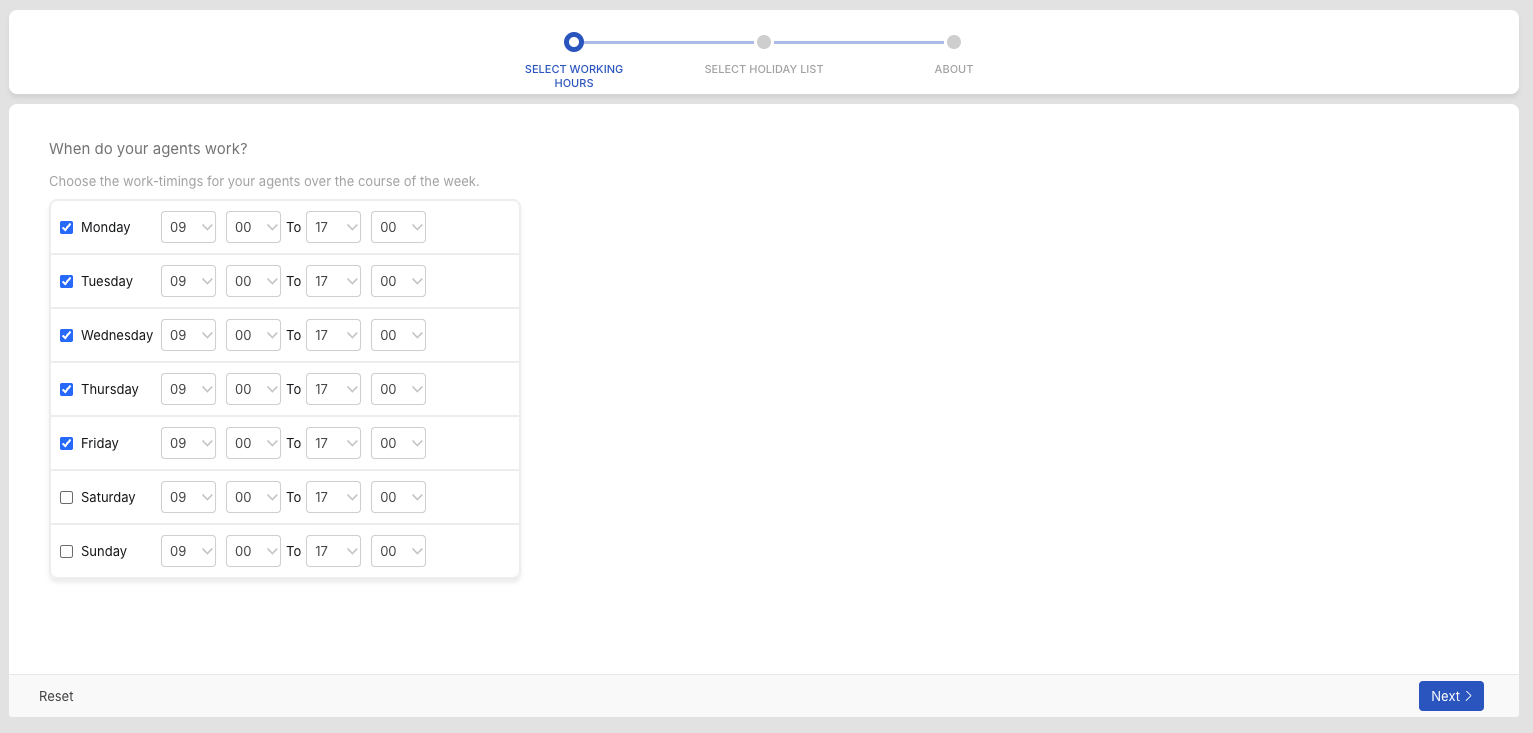
- Working hours for each day of the week (e.g., Monday to Friday, 9 AM – 6 PM)
- Optional off days (e.g., weekends or public holidays, if configured)
How It Works
When a call is received:
- During Business Hours:
The call is routed through the normal flow — queued, notified to agents, etc.
- Outside Business Hours:
- If voicemail is enabled, the caller is directed to leave a voicemail.
- If voicemail is disabled, a greeting(as configured) is played and the call is ended.
This ensures that callers have a clear experience even when your team is unavailable.
Configuring Business Hours
- Create a Work Schedule
- Go to the Work Schedules section in your automate settings.
- Select the relevant time zone.
- Define the working hours for each day of the week.
- Assign Business Hours to a Phone Number
- Navigate to Phone Settings.
- Select the desired phone number.
- Under the Business Hours section, choose the applicable Work Schedule.
Each phone number can have its own business hours configuration based on your operational needs.
Best Practices
- Ensure your voicemail settings and custom messages are configured correctly to handle after-hours calls gracefully.
- Review your time zone selection to make sure it's accurate for your support region.
- Use different work schedules for different regions if you're handling calls across multiple time zones.

