WhatsApp is a cross-platform centralized messaging and voice-over-IP service. Convert messages sent to your company's WhatsApp channel as actionable tickets in your HappyFox help desk.
Integration Summary:
- Receive text messages inside HappyFox from your company's WhatsApp number.
- Respond to Incoming WhatsApp text messages directly within HappyFox.
WhatsApp Integration Installation Guide
HappyFox's WhatsApp integration is exclusively powered by Twilio, so you will need to use a WhatsApp-enabled number from Twilio. Twilio manages the approval process to enable WhatsApp Business. You will need to secure approval before setting up a WhatsApp integration in HappyFox. The approval process follows WhatsApp's Commerce Policy, so be sure to abide by these guidelines to avoid any unnecessary delay. You can expect this to take between 7-15 days.
Important pre-requisite: To connect and use HappyFox's WhatsApp Business integration, it’s necessary to have your own registered company with valid registration data and documents - including a Facebook Business Profile. Otherwise, WhatsApp will not approve your request and will not allow you to integrate WhatsApp Business with any external platform. If you don’t have a registered company, unfortunately, it is not possible to connect your WhatsApp with HappyFox. Also, please check this article before proceeding: Which Twilio Phone Numbers are Compatible with WhatsApp?. Besides that, please note that this integration has extra costs (On TwilIo Side) and Twilio provides its own support assistance.
Step 1: Create a Twilio Account
To create your Twilio account, please enter Twilio’s website and fill in your data. Please skip this step if you already have an account.
Step 2: Buy or Port a phone number in Twilio
Log into your Twilio account. In your Twilio dashboard, click on the # sign to open the Phone Numbers section, then select Buy a Number. If you have already purchased a number, you can skip this step. You can also port a number from another provider to Twilio, click here to know more. If you're stuck on this step, please proceed to step #3. Twilio's WhatsApp approval team will clarify any geographic or functional questions.
Step 3: Obtain approval from Whatsapp
Visit the programmable messaging >> senders >> WhatsApp senders section in "Twilio". Click "Sign up to request access".
Fill the request access form for WhatsApp to go through the WhatsApp approval.

Here are some of our tips while filling out this form:
- Phone Number*: insert your company phone number. It does not necessarily have to be a purchased number from Twilio. We recommend inserting a number that is somehow related to your company, which could be your main support phone.
- Email Address*: insert an existing email address which will also be used by Twilio for contacting you. We recommend inserting an email related to your company.
- Twilio Account SID*: insert your Twilio Account SID. To find your SID, log in to your Twilio account and go to Settings > General.
- Facebook Business Manager ID*: insert your Facebook Business Manager ID which can be found in your Business Manager account at https://business.facebook.com/settings/info?business_id.
- Are you working with an ISV, SI, or third party? Please select "No" here.
- What is your use case? Select customer support. Please also have a look at other options if that suits your process.
After receiving the email from Twilio informing you that your pre-approval is processed, please follow this tutorial here to approve Twilio’s request to send WhatsApp messages on your behalf. Note that it may take several business days for Twilio to complete your approval.

Important note: When you submit a business profile, your "Display Name" must be the business name used in the Facebook Business Manager account. If you would to use another name, it must follow WhatsApp’s Display Name rules.
Once your number is approved, proceed to step 4: setting up WhatsApp integration in HappyFox.
Step 4: Setting up WhatsApp integration inside HappyFox
- Log in to HappyFox as an agent. (Make sure your agent role has "Manage apps" permission)
- Go to Apps >> Messaging>> WhatsApp.
- Click "Install".
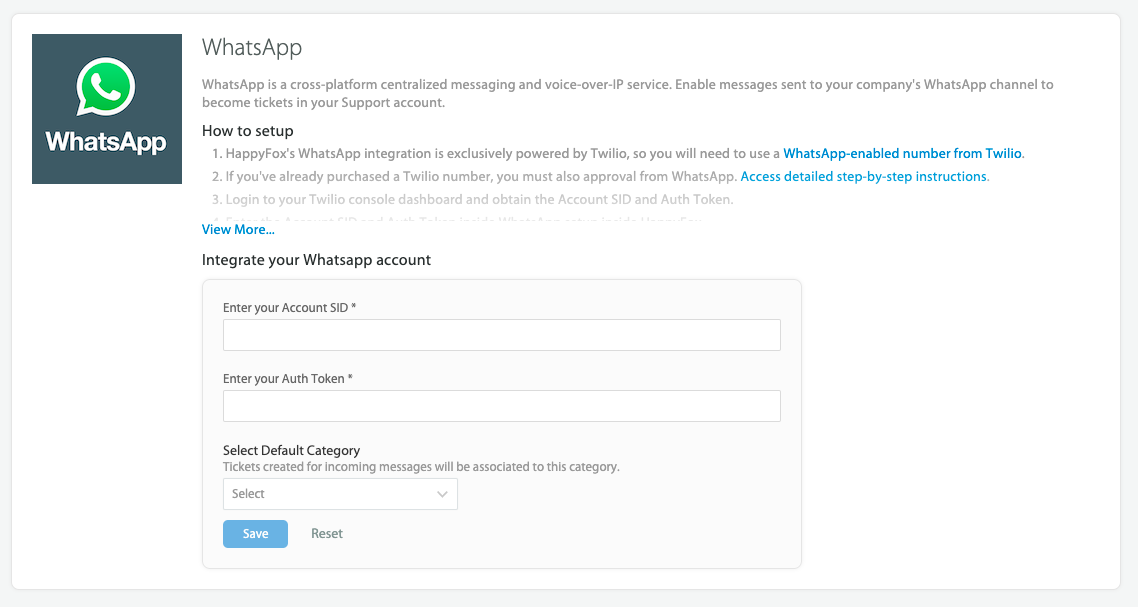
- Enter your Twilio Account SID and Auth token. The Account SID and Auth token are found in your Twilio Console Dashboard, by clicking on the house icon in the upper left corner of your Twilio sidebar. These information are also found in Settings > General in Twilio.

- Select a default category for incoming WhatsApp messages to get converted as tickets.
- Click "Save".
Step 5: Configuring phone numbers and mapping them to HappyFox categories.
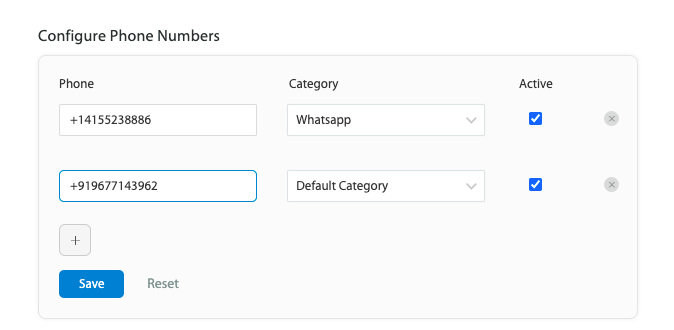
Upon successful completion of step 4, Under the Configure Phone Numbers section, please enter the WhatsApp-enabled phone numbers from Twilio. Please ensure these phone numbers are in E164 format. After entering the phone numbers, map the phone number to your desired category.
Step 6: Add your HappyFox Webhook URL on Twilio
Upon successful completion of step 5, copy the "Message webhook" and "Delivery status notification webhook" from HappyFox.

Configuration in Twilio:
-
In your Twilio dashboard, go to Programmable messaging >> Senders >> WhatsApp senders >> phone number.
-
Under the "Endpoint configuration section, select "Use-webhooks".
-
Under the webhook URL for incoming messages, copy-paste the "Manage Webhook" URL from HappyFox with the method as "HTTP post".
-
Under the Status Callback URL, copy-paste the "Delivery status notification webhook" URL from HappyFox with the method as "HTTP post".

Voila! You're all set with the WhatsApp integration!
Sample WhatsApp conversation in HappyFox:
For every incoming WhatsApp message, a new ticket will be created in the category configured during installation. All subsequent WhatsApp conversations with this contact will be threaded to this ticket. Unlike regular tickets, messaging channel tickets cannot be cloned, merged or be edited in bulk.

Responding to SMS within HappyFox:

Important note regarding 24-hour reply timing windows:
The WhatsApp HappyFox integration offers 2 types of messages: Template Messages and Session Messages. Session Messages are messages sent by your team in response to a contact within a 24-hour window after the latest message sent by the client to your WhatsApp Business number. That is, after your contact sends a message, your team has 24 hours to answer it sending any kind of message in the conversation.
Tip: It is recommended to create an SLA in HappyFox that ensures agents send a response within the 24-hour window. To know more about SLAs in HappyFox, click here.
After the 24-hour window, only Templated Messages can be sent.
Template Messages are standard models of messages that can be sent via WhatsApp outside the 24-hour window. They can include appointment reminders, shipping information, troubleshooting, and payment updates. To learn more about Template Messages and how to create them on your Twilio account, please read this article on Twilio’s website.
While sending a templated message, ensure the content of the message exactly matches the template on Twilio. Otherwise, the message delivery will fail.
Frequently Asked Questions (F.A.Qs)
Q: Is it possible to test the integration with WhatsApp before using it?
A: Yes, it is possible to test the integration even before purchasing a number. You are able to receive and send WhatsApp messages through HappyFox using the test number offered by Twilio on their test environment (Sandbox). To know more about Twilio's WhatsApp sandbox, click here.
Q: I don’t own a company. May I use the WhatsApp integration?
A: Unfortunately, no. This feature is available only for registered companies. This is a demand by WhatsApp and its parent company - Facebook.
Q: Are there extra costs to use the WhatsApp integration in HappyFox?
A: No, there are no extra costs for using this integration, regardless of the number of paid agents in your HappyFox account. The only additional cost comes with purchasing a number with Twilio.
Q: Can I initiate messages to customers?
A: No. At this point, it is only possible to respond to incoming WhatsApp messages
Q: Is there a time limit for responding?
A: Yes, WhatsApp gives you 24 hours to respond to an inbound message. If you try to reply to an inbound customer message that is more than 24 hours old, the delivery will fail. The workaround is to use a WhatsApp templated message. This happens due to WhatsApp policy. This policy forbids answering messages received over 24 hours ago through external applications
Q: What does my customer see?
A: Just as when you respond natively through WhatsApp, responding in HappyFox will display your company’s WhatsApp profile and details to your customer. It will not show a specific agent name or profile explicitly.
Q: I have a WhatsApp business number already. Can I port it to Twilio??
A: Please check with the Twilio support team. Twilio can port numbers on a case-to-case basis and it's geo-restricted.